Website Development for Beginners: Step-by-Step Guide & Checklist
-

- March 07th, 2026
- 144 views

Get a free topical map and start building content authority today.
Website development for beginners can feel overwhelming, but the core skills and steps are predictable: plan the site, choose build tools, develop pages, secure hosting, and test for performance and accessibility. This guide breaks the process into practical actions and includes a checklist, a real-world scenario, and common mistakes to avoid.
What this guide covers: planning, front-end vs back-end basics, CMS options, hosting and domains, responsive design, testing, and launch checklist. Includes the BUILD checklist and a short example.
Primary keyword: website development for beginners
Secondary keywords: how to build a website step by step; web development tools for beginners
Detected intent: Informational
Website development for beginners: core concepts and vocabulary
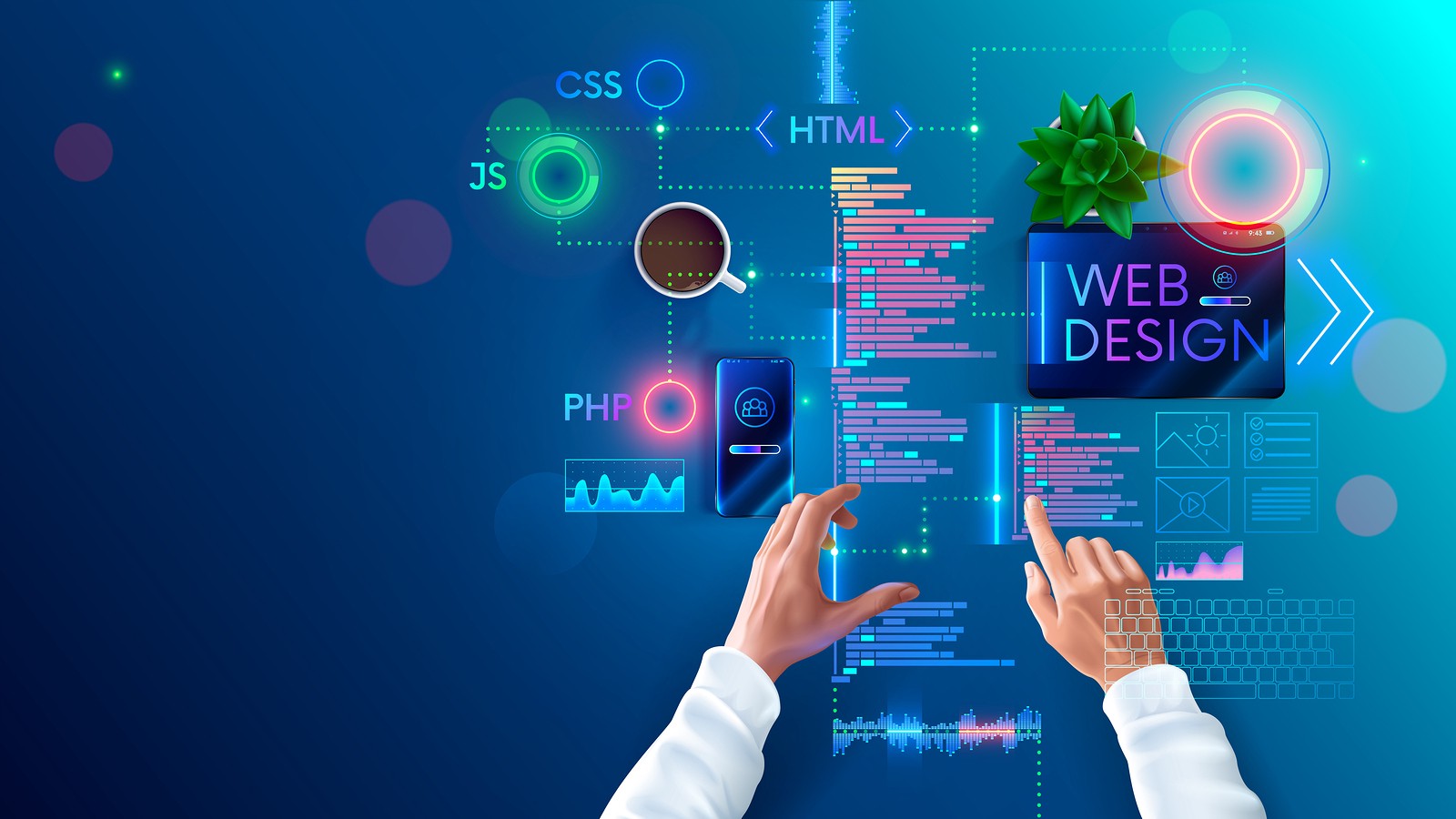
Start by understanding these core terms: HTML (structure), CSS (visuals), JavaScript (behavior), hosting (storage on a server), domain (site address), CMS (content management system), responsive design (mobile-friendly), and SEO (search visibility). These concepts form the map for the rest of the process.
Plan: goals, content strategy, and technical decisions
Define goals and audience
Decide the primary purpose: informational, portfolio, online store, or lead generation. Define 3–5 core pages (home, about, contact, product/services) and the conversion action (form submit, purchase, sign-up).
Choose the technical approach
Three common approaches: use a website builder or hosted CMS for speed, a self-hosted CMS (like open-source examples) for flexibility, or build static/dynamic sites with code for full control. The choice affects cost, maintenance, and scaling.
BUILD checklist: a named framework for launching a first site
The BUILD checklist provides a repeatable process:
- Blueprint — sitemap, wireframes, content plan
- UI/UX — navigation, accessibility basics, mobile-first layout
- Infrastructure — domain, hosting, SSL certificate
- Launch — deploy site, set DNS, enable backups
- Deploy & Maintain — monitor performance and update content
Front-end and back-end basics
Front-end essentials
Focus on HTML for structure, CSS for styling, and JavaScript for interactivity. Use semantic HTML elements for accessibility and SEO. For beginners, simple, well-structured HTML and a responsive CSS framework or grid system are enough to build a usable site.
Back-end essentials
Back-end work includes databases, server logic, and APIs. For many beginner projects, a hosted CMS or serverless functions removes the need to manage servers directly. When learning, practice by connecting a front-end form to a simple back-end that stores or emails submissions.
How to build a website step by step (practical workflow)
- Plan pages and user flow; write key content.
- Choose a platform: static HTML, CMS, or site builder.
- Design responsive layout and build templates.
- Connect domain and hosting; enable HTTPS.
- Test across devices, check accessibility and performance.
- Launch and monitor; set up backups and analytics.
Hosting, domains, and security
Choose hosting based on expected traffic and technical control: shared hosting for low cost, VPS for more control, or managed platforms for simplified operations. Always set up an SSL certificate and basic backups. Configure DNS records correctly at the registrar and test propagation after launch.
Standards, accessibility, and testing
Follow web standards and accessibility guidelines. For HTML, CSS, and JavaScript guidance, see the official documentation and tutorials on MDN Web Docs: MDN Web Docs. Run automated accessibility checks and manual keyboard testing before launch.
Example scenario: a local bakery site
Scenario: a small bakery needs a five-page site with menu, hours, contact form, and simple ordering info. Choice: use a hosted CMS to let staff update content, a responsive template for mobile customers, and a simple contact form that emails orders. Follow the BUILD checklist: blueprint content and images, set up UI templates, pick managed hosting, launch, and schedule weekly content updates.
Practical tips
- Start with wireframes and real content; lorem ipsum hides layout issues.
- Optimize images before upload (use WebP or compressed JPEG) to improve load times.
- Enable HTTPS and basic security headers to protect users and SEO rankings.
- Keep a staging copy of the site for testing changes before publishing.
- Document deployment steps so updates are repeatable and safe.
Trade-offs and common mistakes
Common mistakes
- Skipping planning and launching with incomplete content—leads to frequent redesigns.
- Prioritizing flashy features over usability—keep navigation clear.
- Neglecting mobile and accessibility testing—loses users and can create legal risk.
Typical trade-offs
Speed vs control: site builders are fast but limit customization; coding gives control but requires maintenance. Cost vs scalability: cheap hosting may suffice initially but can force migration as traffic grows. Choose based on priorities: time-to-launch, budget, and technical skills.
Core cluster questions
- How long does it take to learn website development?
- What are the essential tools for building a simple website?
- Should a beginner use a CMS or build from scratch?
- How to make a website mobile-friendly and responsive?
- What basic security steps are needed before launching?
FAQ
What is website development for beginners and where should a beginner start?
Begin with the basics: learn HTML, CSS, and the concept of hosting and domains. Start a small project like a personal portfolio or local business site, follow the BUILD checklist, and iterate. Use templates or a simple CMS to focus on content first.
How long will it take to build a simple website?
A basic five-page site can be planned and launched in a few days using a website builder or templates; building from scratch may take several weeks depending on experience and complexity.
Which web development tools for beginners are essential?
Essential tools include a code editor, a browser with developer tools, version control (Git), an image optimizer, and a testing checklist for accessibility and performance.
How to make a website accessible?
Use semantic HTML, provide alt text for images, ensure sufficient color contrast, enable keyboard navigation, and test with automated tools and real users where possible.
When should a site use a CMS instead of a static site?
Use a CMS when frequent content updates are needed by non-technical users, or when built-in features like user management and editors speed up workflows. Static sites are faster and simpler for small, rarely changed projects.
Use the BUILD checklist on every project to ensure a consistent, repeatable launch process. For learning, combine short projects with reference materials from reputable sources and iterative improvements after each launch.