Free Online Tools Dashboard: Consolidate 30+ Tools on One Page
-

- March 02nd, 2026
- 268 views
A free online tools dashboard reduces friction by placing essential utilities in one place. This guide explains how to create and maintain a free online tools dashboard that combines multiple web utilities (calculators, converters, image tools, SEO snippets, code playgrounds) on a single page or hub so teams and individuals can work faster without switching tabs.
What this guide covers: quick setup steps, a named DASH checklist for choosing and securing widgets, a short real-world example of a marketing team consolidating 30+ utilities, 3–5 practical tips, common mistakes and trade-offs, five core cluster questions for related content, and a short FAQ.
Detected intent: Informational
Free Online Tools Dashboard: why consolidate and what to include
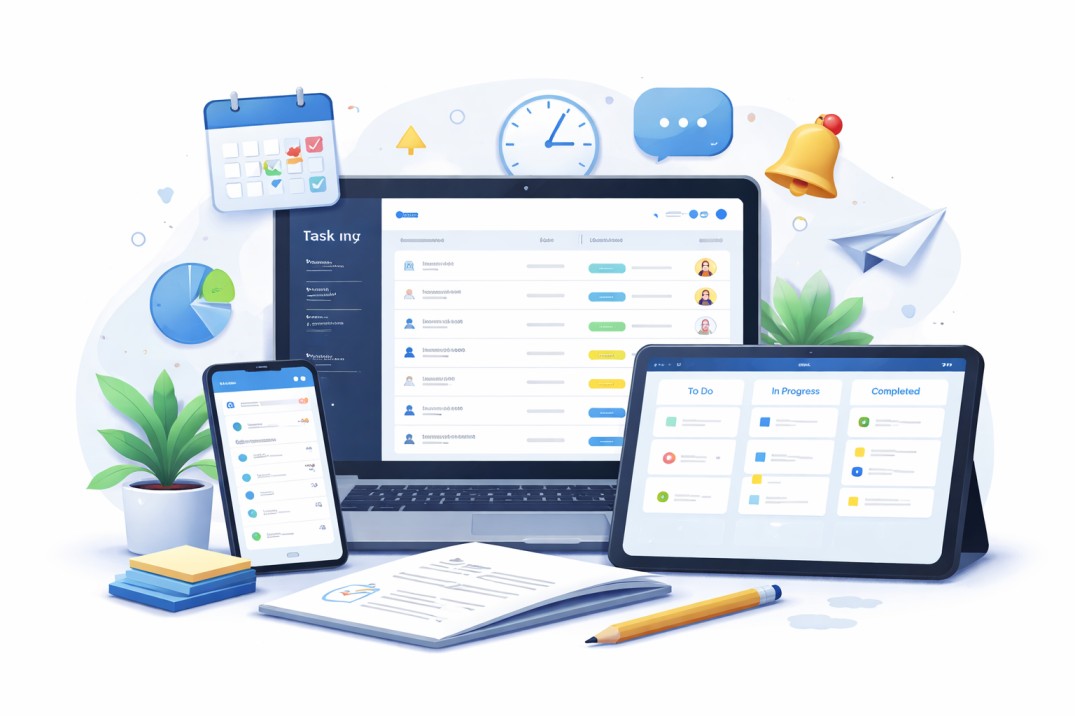
Consolidation improves discoverability and reduces context switching. A functional dashboard groups categories such as text utilities (word counters, case converters), image tools (compressor, cropper), dev snippets (regex tester, JSON formatter), SEO utilities (meta preview, keyword density), and team utilities (shared timers, simple kanban). Building an all-in-one tool dashboard helps teams increase throughput while keeping the interface lightweight and accessible.
Framework: the DASH checklist for dashboard selection and design
Use the DASH Checklist to evaluate tools and integrations before adding them to the hub. The DASH model makes decisions repeatable:
- Discover: inventory current tools, frequency of use, and equivalent free alternatives.
- Assemble: pick lightweight web widgets or embed methods (iframes, JavaScript widgets, static links) with minimal dependencies.
- Secure: apply origin policies, content security, and privacy checks (cookie behavior, data retention). Consider OAuth or SSO for shared dashboards when authentication is needed.
- Harden & Host: choose hosting that supports HTTPS, accessible design, and basic monitoring for uptime and abuse mitigation.
Step-by-step setup for an all-in-one tool dashboard
1. Inventory and categorize tools
Start by listing every free online tool currently used. Tag each item by category (image, text, code, SEO, productivity) and note frequency and user pain points. Prioritize tools used daily or those that interrupt workflow most.
2. Choose embedding approach
Options include simple link lists, card-based embeds (title + description + link), third-party widgets, or iframes for interactive tools. Each approach has trade-offs between speed, interactivity, and security.
3. Build minimal layout and organization
Design a responsive grid with clear categories and search. Make frequently used tools prominent. Use progressive enhancement: the page should remain usable if JavaScript fails.
4. Apply security and accessibility checks
Review embedded code for third-party scripts and adopt Content Security Policy (CSP) headers. Check basic accessibility (keyboard navigation, color contrast) and follow standards such as W3C WCAG for best practices: W3C WCAG.
5. Test, iterate, and document
Run a short pilot with the intended users, collect feedback, and add a changelog or help section explaining new widgets and updates.
Real-world example: Marketing team centralizes 30+ utilities
A mid-size marketing team created a ToolHub with 35 embeds and links: keyword research snippets, title tag preview, image compressor, PNG-to-WebP converter, color contrast checker, simple campaign calendar, common regex snippets, and a compact kanban. After consolidation, average task switching dropped by anecdotally reported 20% and onboarding new hires became faster because most utility links lived in one hub page rather than scattered bookmarks.
Practical tips for long-term maintenance
- Keep the dashboard lightweight: avoid heavy analytics or dozens of third-party trackers that slow load times.
- Document each tool: include purpose, expected inputs/outputs, and a short troubleshooting note beneath each widget.
- Automate health checks: simple uptime pings or a scheduled script can identify broken embeds and stale links.
- Use version control for the dashboard code or configuration so changes can be rolled back quickly.
Trade-offs and common mistakes
Trade-offs when consolidating tools
Embedding lots of interactive widgets increases convenience but raises complexity: more maintenance, larger attack surface, and potential privacy issues if tools collect user data. A link-based hub is easier and safer, but less seamless for interactive tasks.
Common mistakes
- Adding every requested tool without usage data — leads to clutter.
- Neglecting security reviews for embedded scripts — can introduce vulnerabilities.
- Skipping accessibility checks — reduces usefulness for team members with disabilities.
Core cluster questions
- How to choose which free web tools to include in a team dashboard?
- What are safe embed methods for external web utilities?
- How to monitor and replace broken tools in a centralized hub?
- What privacy checks should be applied before embedding a third-party tool?
- How to design a mobile-friendly productivity tool dashboard?
Implementation checklist (quick)
- Inventory existing tools and tag by frequency.
- Apply DASH Checklist for selection and security.
- Choose embed pattern (link, iframe, widget).
- Test accessibility and performance.
- Document and schedule periodic reviews.
Practical tips
- Limit initial launch to 10–15 high-value tools; expand using metrics and feedback.
- Use light client-side caching for static tools to reduce load times and server strain.
- Require no personal data for embedded tools; where data is needed, add clear warnings and a privacy link.
FAQ
What is a free online tools dashboard?
A free online tools dashboard is a single web page or hub that aggregates multiple free utilities—such as converters, formatters, analyzers, and small productivity widgets—so users can access them without opening multiple sites or bookmarks.
How can an all-in-one tool dashboard improve team productivity?
By reducing context switching, standardizing workflows, and making reusable utilities discoverable in one place, teams save time and reduce errors. Centralized documentation and consistent versions also help with onboarding.
Are iframes safe for embedding third-party tools?
Iframes are convenient but require careful CSP rules, sandbox attributes, and origin checks to limit risk. Evaluate third-party behavior and prefer sandboxed or link-based options if the embed requires elevated permissions.
How often should the dashboard be reviewed and updated?
Schedule reviews at least quarterly to remove broken tools, update replacements, and refresh documentation. More frequent checks are recommended for hubs used in production workflows.
Can the dashboard be made mobile-friendly for quick access?
Yes. A responsive grid, larger touch targets, prioritized tools, and progressive loading improve mobile usability. Consider a simple search bar and category filters to make the hub faster to navigate on phones.