Step-by-Step Guide to Convert Multiple vCard Files to CSV Manually
-

- Published Updated
- 1,643 views
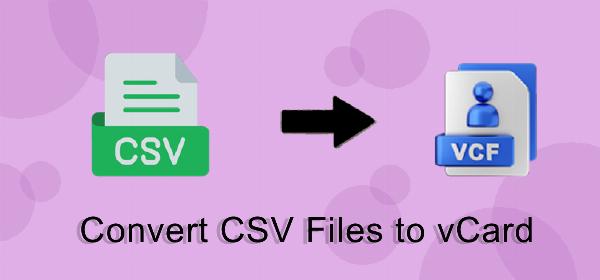
This article explains how to convert multiple vCard files to CSV manually using common tools and simple text processing. The instructions cover combining individual .vcf files, extracting common contact fields, handling encoding and delimiters, and importing the resulting CSV into a spreadsheet program for review and cleanup.
- Combine .vcf files into one file (concatenate).
- Normalize vCard versions and character encoding.
- Extract fields (name, email, phone) into CSV rows via simple commands or text editing.
- Open and validate the CSV in a spreadsheet, remove duplicates, and save.
How to convert multiple vCard files to CSV manually
Overview of the vCard and CSV formats
vCard (.vcf) is a plain-text format used to exchange contact information. Different vCard versions (2.1, 3.0, 4.0) use slightly different properties and encodings. CSV is a delimited text format intended for spreadsheet import, with a simple header row and one contact per line. Manual conversion requires mapping vCard properties such as N, FN, TEL, EMAIL, and ADR to CSV columns.
Preparation and backup
Before converting, create a backup of the original .vcf files. Inspect a few files in a text editor to check vCard version lines (e.g., VERSION:3.0) and character encoding markers (CHARSET=). Note which fields are present and whether multiple TEL or EMAIL lines exist per contact.
Step 1 — Combine multiple vCard files into one
macOS / Linux (Terminal)
Place all .vcf files in one directory and run a simple concatenation:
cat *.vcf > combined.vcfThis creates a single combined.vcf containing all BEGIN:VCARD/END:VCARD blocks in sequence.
Windows (PowerShell)
In PowerShell, from the folder with the .vcf files:
Get-ChildItem -Filter *.vcf | Get-Content | Set-Content combined.vcfNotes on ordering and BOM
Some tools add a UTF-8 BOM. If the combined file includes a BOM or mixed encodings, normalize to UTF-8 without BOM using a text editor or iconv (Linux/macOS):
iconv -f ISO-8859-1 -t UTF-8 combined.vcf -o combined-utf8.vcfStep 2 — Extract vCard fields into CSV rows
Decide which columns to include
Typical CSV columns: Display Name (FN), Family Name, Given Name (from N), Email, Phone, Organization, Title, Address. If contacts can have multiple emails or phones, decide whether to keep the first, concatenate them into one field, or create separate columns (Phone1, Phone2).
Quick extraction with command-line tools (Linux / macOS)
The following example extracts FN, N, EMAIL, and TEL into a simple CSV. It assumes each property appears at most once per vCard. Run from the folder where combined.vcf exists:
awk 'BEGIN{FS=":"; OFS=","; print "FN","N","EMAIL","TEL"} /
BEGIN:VCARD/{fn=""; n=""; email=""; tel=""} /
FN:/{fn=$0; sub(/^[^:]*:/,"",fn)} /
N:/{n=$0; sub(/^[^:]*:/,"",n)} /
EMAIL:/{email=$0; sub(/^[^:]*:/,"",email)} /
TEL:/{tel=$0; sub(/^[^:]*:/,"",tel)} /
END:VCARD/{print fn,n,email,tel}' combined.vcf > contacts.csv
This produces a basic contacts.csv that can be opened in a spreadsheet program for cleanup.
Windows PowerShell extraction
PowerShell can parse blocks and extract labeled lines:
$cards = Get-Content combined.vcf -Raw -Delimiter "`n" -ErrorAction Stop
$blocks = $cards -split 'END:VCARD'
$rows = @('FN,N,EMAIL,TEL')
foreach ($b in $blocks) {
  if ($b -match 'BEGIN:VCARD') {
    $fn = ($b -match 'FN:(.*)') ? $matches[1] : ''
    $n = ($b -match 'N:(.*)') ? $matches[1] : ''
    $email = ($b -match 'EMAIL.*:(.*)') ? $matches[1] : ''
    $tel = ($b -match 'TEL.*:(.*)') ? $matches[1] : ''
    $rows += "`"$fn`",`"$n`",`"$email`",`"$tel`""
  }
}
$rows | Set-Content -Encoding UTF8 contacts.csv
When manual regex is insufficient
If vCards contain multiline properties, encoded names (QUOTED-PRINTABLE, BASE64), or multiple identical keys, use a scripting language (Python, Ruby) or a dedicated library to parse vCard reliably. For basic lists, the text-based approaches above are often adequate.
Step 3 — Open, validate, and clean the CSV
Spreadsheet import tips
Open contacts.csv in a spreadsheet program and choose UTF-8 encoding and the correct delimiter (comma or semicolon). Verify that fields containing commas are quoted. Standardize column headers, split the N field into family/given names if needed, and move secondary phone/email values into separate columns.
Remove duplicates and normalize phone formats
Use built-in spreadsheet functions or a deduplication tool to find identical emails or phone numbers. Normalize phone numbers by removing spaces, parentheses, and adding country codes where possible.
Common problems and troubleshooting
Missing or encoded characters
If names or addresses appear as =?UTF-8?Q? or BASE64 blocks, the vCard uses encoded words; a decoder is required to render readable text. Many programming languages provide decoders for these encodings.
Multiple entries per contact
When contacts have several EMAIL or TEL lines, choose whether to concatenate values (e.g., phone1;phone2) or create multiple columns. Create consistent rules before batch-processing.
vCard versions
Some properties differ between vCard versions (e.g., ADR formatting). If many vCards use an older version, consider normalizing VERSION lines or using a parser that supports multiple vCard specs. The vCard specification provides authoritative technical details.
Further reading: the vCard specification describes standard properties and encoding considerations: RFC 6350 (vCard Format Spec).
Best practices and final checks
- Always work on copies of original files.
- Keep consistent encoding (UTF-8) to avoid garbled characters.
- Document field mappings (which vCard keys map to which CSV columns).
- Validate a small sample before processing the entire set.
FAQ
How can I convert multiple vCard files to CSV if they use different versions?
Inspect a sample of vCards to identify differences, then normalize character encoding to UTF-8 and use a parser or simple text rules that extract common properties (FN, N, EMAIL, TEL). For complex or inconsistent data, use a scripting library that supports multiple vCard versions to ensure accurate parsing before exporting to CSV.
Can a spreadsheet program import .vcf files directly?
Most spreadsheet programs cannot import .vcf files directly. The usual approach is to convert .vcf to CSV first, either with a converter, a script, or manual extraction, then import the resulting CSV into the spreadsheet program with the correct encoding and delimiter settings.
Is it safe to concatenate many .vcf files into one combined.vcf?
Yes. Concatenation preserves each BEGIN:VCARD/END:VCARD block in sequence. Ensure that the combined file uses a consistent encoding and that no extra characters are inserted between blocks. Always work on copies to avoid data loss.
How should duplicates be handled after conversion?
After importing the CSV into a spreadsheet, use deduplication features based on email or phone number. Create a standardized phone and email format first to improve duplicate detection; keep a record of removed or merged entries for auditing.