Customize Mi Glance: How to Keep, Tweak, or Disable the Lock Screen Feed
-

- Published Updated
- 1,614 views
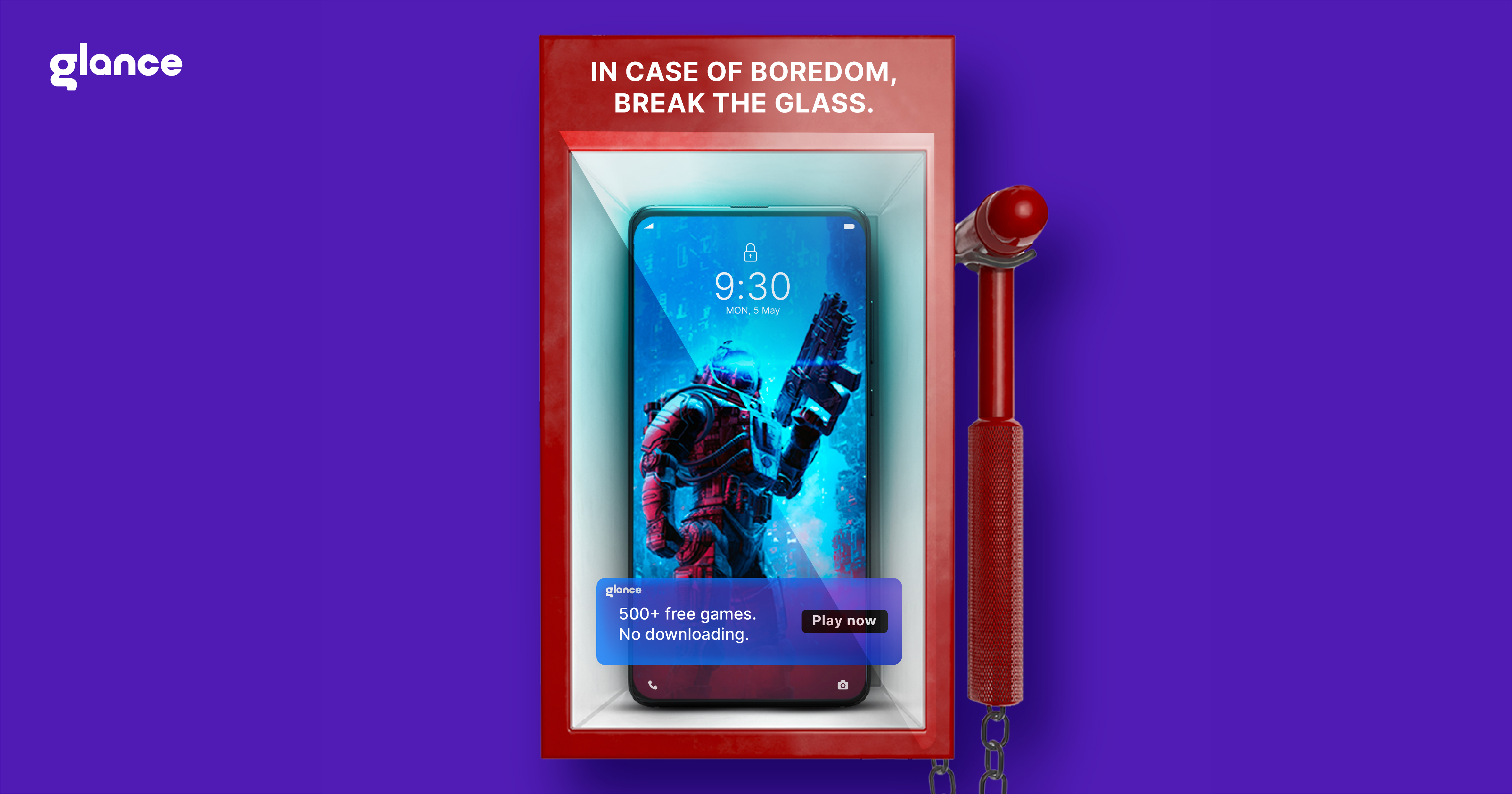
Mi Glance is a lock-screen content feature found on many MIUI devices that shows news, wallpapers, and app shortcuts; deciding whether to disable Mi Glance or customize it requires weighing personalization, privacy, and battery concerns.
- Mi Glance delivers dynamic content on the lock screen, including wallpapers, recommendations, and shortcuts.
- Keep it if personalized visuals and quick information matter; consider disabling or limiting it for privacy, data use, or battery savings.
- Customization typically lives in Settings under Lock screen, Glance, or Home screen & Recents; permissions and data settings affect behavior.
- Official guidance is available from the device maker; adjustments can reduce unwanted ads and improve performance.
Why keep or disable Mi Glance?
What Mi Glance does
Mi Glance populates the lock screen with rotating wallpapers, content recommendations, and contextual shortcuts. It often integrates with system services and some third-party content providers to surface images, headlines, and app suggestions without unlocking the device. For users who like fresh visuals or glanceable updates, the feature can be convenient.
Reasons users consider disabling it
Common motivations to disable Mi Glance include concerns about privacy, unwanted promotional content, network data use, and potential impacts on battery life. Some users prefer a static lock screen for simplicity, fewer interruptions, or to avoid content that may appear in public. Others turn it off to prevent recommendation services from collecting usage signals.
How Mi Glance affects privacy, data, and battery
Privacy and data handling
Glance-like services may use device identifiers and content preferences to personalize what appears on the lock screen. Personalization often relies on permissioned access to network, location, or app usage data. To understand privacy practices, review the device maker's privacy policy and the permission prompts shown when enabling the feature. Android's general permission model and app-level controls also affect what data is shared with lock-screen content providers.
Battery and performance
Automatic image downloads, background refreshes, and animations can contribute to additional network and CPU activity. On newer devices the effect may be small, but on older hardware or with frequent updates it can be noticeable. Disabling background refresh, limiting media downloads to Wi‑Fi, or reducing refresh frequency can mitigate battery impact without fully removing the feature.
How to customize or disable Mi Glance
General approach
Exact menu names vary by MIUI version and region. The typical path is to open Settings and look for Lock screen, Glance, or Home screen & Recents. Within Glance settings, options commonly include toggles to enable or disable the feature, content categories to show or hide, and controls for downloading content over cellular versus Wi‑Fi. Review app permissions and notification access for any service that powers the Glance feed.
Steps to adjust settings safely
- Open the device Settings and search for "Glance" or check Lock screen settings.
- Use the toggle to turn the feature on or off, or open content options to filter categories and providers.
- Check App permissions for the Glance service; restrict network or location access if unwanted.
- Limit background data for the app or service in Network settings to prevent cellular downloads.
- Clear cache or data for the Glance app if content appears stuck or outdated.
Tips for a tailored experience
Instead of fully disabling Mi Glance, consider narrowing content categories, opting out of personalized recommendations, or restricting downloads to Wi‑Fi. Turning off ads or promotional content may be possible in regional or account privacy settings. For enterprise or managed devices, administrators can often enforce policies that hide lock-screen feeds.
When disabling is the right choice
Signs to disable
Disabling may be appropriate when the lock screen shows unwanted ads, when data use spikes, if battery life degrades noticeably, or if the displayed content raises privacy concerns. Users who prefer faster unlock times or simpler lock screens may also choose to turn the feature off.
Alternatives to disabling
Adjusting content filters, disabling specific providers, or turning off automatic downloads can preserve the visual benefits while addressing core concerns. Many users find a balance by limiting recommendations and tightening permissions rather than removing the feature completely.
Resources and official guidance
For device-specific instructions and up-to-date privacy disclosures, consult the official support material from the device manufacturer. The manufacturer's support site provides guidance on lock-screen features and account settings: Xiaomi Support. Android's developer documentation and Google Help pages also describe operating-system-level controls for lock screen and notification privacy.
Additional considerations
Regional availability and feature names may differ by firmware, carrier, or MIUI update. Corporate or carrier-branded devices can have customized lock-screen feeds managed by the provider. When troubleshooting unexpected behavior, check for system updates and review permission dialogs that appeared after updates or app installations.
FAQ
How do I disable Mi Glance on my phone?
Open Settings and search for "Glance" or go to Lock screen settings. Use the Glance toggle to turn the feature off, or open content options to disable specific categories. If the exact path differs, search Settings for "lock screen" or "home screen" and check permissions for the Glance service.
Will disabling Mi Glance improve battery life?
Disabling background refresh and automatic image downloads can reduce network and CPU activity and may improve battery life on some devices. The impact varies by device model, system version, and how often the feed refreshes.
Does Mi Glance collect personal data?
Glance-like services may collect usage signals to personalize content. Review the device maker's privacy policy and the permission prompts for specifics. Adjust app permissions and account privacy settings to limit data collection.
Can the lock screen show only wallpapers without recommendations?
Many versions allow wallpaper-only modes or permit disabling recommendations while keeping rotating wallpapers. Check Glance or lock-screen customization options to limit content types.