Disable Glance on Xiaomi (Mi) Phones: Simple Steps to Turn It Off and Improve Privacy
-

- Published Updated
- 1,785 views
Many Xiaomi (Mi) phone users look for ways to disable Glance in Mi to reduce distractions, save battery, or limit content shown on the lock screen. This guide explains how Glance works on MIUI, step-by-step methods to turn it off, what to expect after disabling, and troubleshooting tips.
- Glance (lock-screen content/recommendations) can be turned off in MIUI settings.
- Steps vary slightly by MIUI version and regional firmware; settings are typically under Lock screen or Home screen settings.
- Disabling Glance can reduce background data, ads on the lock screen, and some battery use.
- If Glance cannot be disabled, check for system updates or regional restrictions and consult official support.
How to disable Glance in Mi: step-by-step
Different MIUI versions use slightly different menus. The following generic steps apply to most recent MIUI releases; when in doubt, look for terms such as "Glance", "Recommendations", "Lock screen", or "Home screen & Recents" in settings.
Method A — Disable Glance via Lock screen settings
1. Open Settings on the Xiaomi device.
2. Tap "Lock screen" or "Lock screen & Password".
3. Look for "Glance" or "Recommendations" and tap it.
4. Use the toggle to turn off Glance or remove recommended content.
5. Restart the phone if the lock-screen still shows content.
Method B — Disable Glance via Home screen settings
1. Long-press on an empty area of the Home screen.
2. Select "Settings" or the gear icon for home screen options.
3. Find the setting labeled "Glance" or "Lock screen content" and turn it off.
Method C — Disable Glance using App & notification controls
1. Open Settings > Apps (or Apps management).
2. Locate the Glance-related app (sometimes listed as "Glance", "Glance services", or part of system apps).
3. Tap the app and choose "Disable" or restrict background data and notifications.
4. If the app cannot be disabled, revoke its permissions or clear data to stop content delivery.
Why turn off Glance?
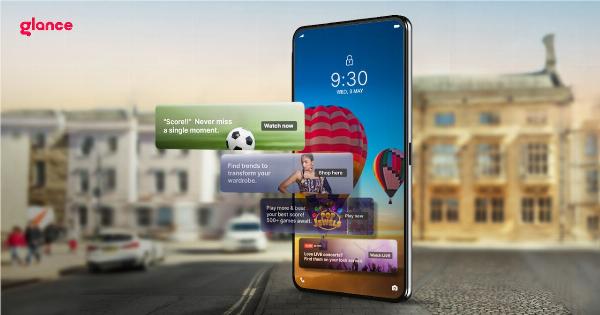
Glance provides curated images, news, and promotional content on the lock screen. Common reasons to disable it include reducing unwanted ads or suggestions, improving perceived privacy, lowering data usage, and reclaiming a cleaner lock screen appearance.
Privacy and battery impact
Privacy considerations
Some Glance implementations request access to network and system resources to fetch content. Turning it off reduces the amount of content downloaded to the lock screen and limits what appears without unlocking the device. For detailed privacy settings, check system permissions and app-level controls.
Battery and data use
Fetching images and recommendations uses background data and compute resources. Disabling Glance may yield small battery savings, especially on devices set to update lock-screen content frequently or on metered connections.
Troubleshooting: Glance won’t turn off or returns after reboot
Check MIUI version and regional firmware
Some features and toggles differ by MIUI release and regional builds. If the option does not appear, verify the system update status in Settings > About phone > System update.
Clear Glance app data or force stop
Go to Settings > Apps > Manage apps, find the Glance or related system app, then Force stop and Clear data. Restart the device and re-check lock-screen behavior.
Safe mode and third-party launchers
Booting into safe mode can reveal whether a third-party app is re-enabling content. If the issue disappears in safe mode, review recently installed apps that modify the lock screen or home experience.
How to restore or re-enable Glance
To re-enable, reverse the disabling steps: visit the Lock screen or Home screen settings and toggle Glance back on. If the setting was removed by clearing app data, re-enable the system app in Apps management.
Official support and further reading
When in doubt about device-specific behavior, consult the manufacturer's official support pages or the device user guide. The official Xiaomi support site provides device-specific resources and contact options for unresolved issues: Xiaomi Support.
How do I disable Glance in Mi?
Open Settings > Lock screen (or Home screen) > locate "Glance" or "Recommendations" and turn off the toggle. If the option is missing, check Apps management to disable the Glance service or update MIUI.
Will disabling Glance remove all lock-screen content?
Disabling Glance stops the curated content and recommendations but does not remove standard notifications, clock, or security prompts. Notifications and system widgets remain according to other lock-screen settings.
Can disabling Glance improve battery life?
Disabling periodic content downloads can modestly reduce background data use and related battery drain. The effect varies by device model, frequency of updates, and other system settings.
What if the toggle keeps turning back on?
Check for system updates, uninstall or disable apps that manage the home screen, clear the Glance app data, and consider contacting official support if the issue continues. A factory reset will remove customizations but should be a last resort after backups.