Got Contacts Stuck in an Excel Sheet? Move Them to Your Phone With WholeClear Excel to VCF Converter
-

- Published Updated
- 2,012 views
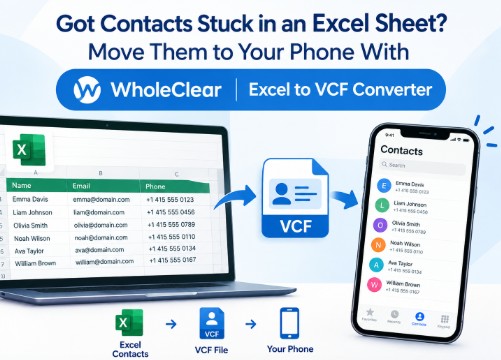
Most of us have that one spreadsheet. Maybe it is a customer list from work, a reunion sheet, or years of family numbers typed into neat rows. It looks great in Excel. On your phone, it is useless, because phones want contacts, not spreadsheets.
Typing hundreds of contacts by hand is not a real plan. Converting the sheet into a VCF file is. This guide explains what VCF means, how to prepare your sheet, and how WholeClear Excel to VCF Converter turns spreadsheet rows into contacts your phone can import.
Why Can't Your Phone Just Open an Excel Contact List?
Excel structures the data in rows and columns. The contacts app on a phone expects something different: a series of individual contact cards, each containing a name, number and email in labeled fields.
The phone does not know column C is phone numbers and column D is emails. It needs a translator, That translator is the VCF format.
What Is a VCF File, in Plain Words?
VCF (Virtual Contact File), you'll hear it called a vCard a lot. It's a digital business card that any device can scan.
A VCF file might contain one contact or thousands. It’s the format you go to because Android phones, iPhones, iCloud and Outlook all know how to move contacts around.
Get Your Spreadsheet Ready First
You don’t need to be an Excel wizard but a couple minutes of cleanup makes everything easier:
• Give each column a descriptive title such as Name, Mobile or Email
• One person per row.
• Where possible, separate first and last names into separate columns
• Phone numbers for stray spaces or typos
• Remove blank rows from the middle of your list
• For emergencies always make a backup copy before you begin.
Another thing to note is that the file has to be healthy. You cannot convert a damaged Excel file so if your Excel is not opening normally, first repair it.
Convert Excel to VCF in Four Steps
This Tool works on the four-step process.
1. Download and install WholeClear Excel to VCF Converter on your system.

2. Click Browse to upload your Excel file. XLS and XLSX files are both OK. When the file loads, you can preview each row and column before converting anything.
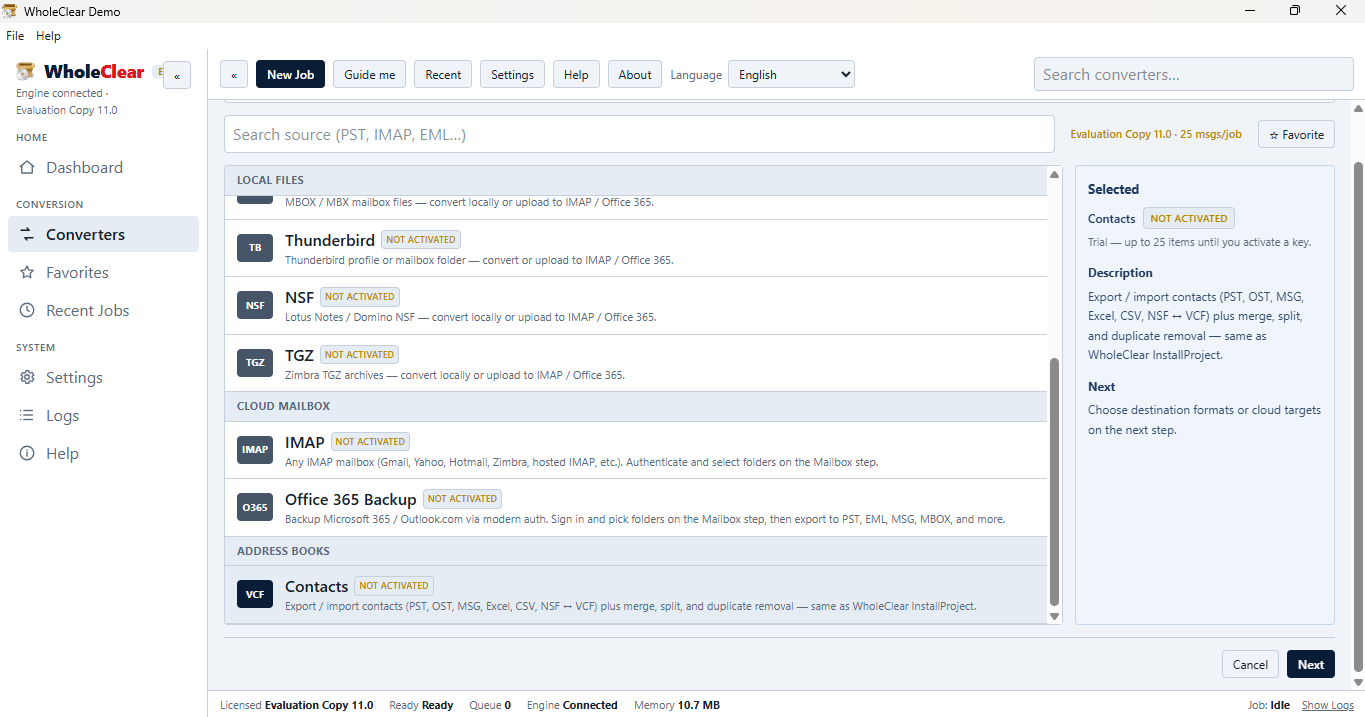
3. Select a destination path to save the VCF file. You can pick any location and create a new folder to keep things organized.

4. Start by clicking on Convert Now. All your contacts are stored together in one VCF file to the folder you choose.
Match Your Columns to vCard Fields
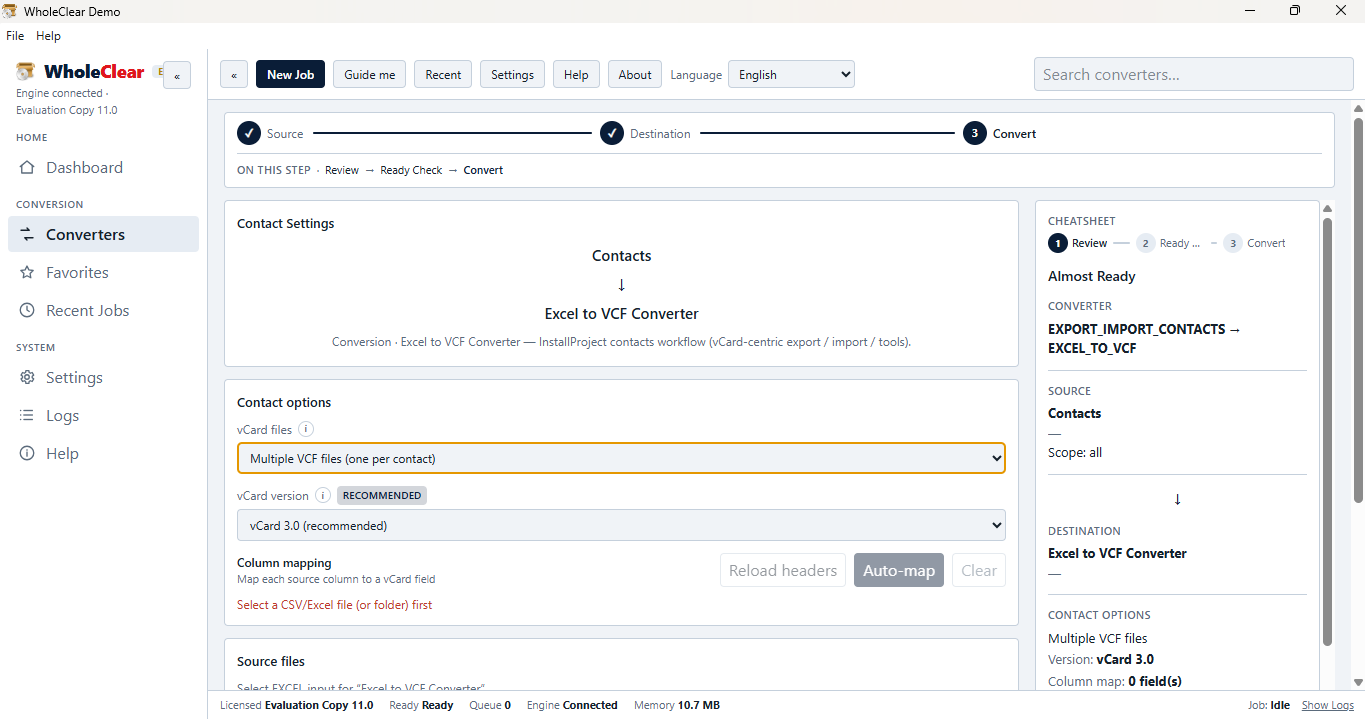
This is the step that makes sure your contacts are right and it’s easier than it sounds. Once you've loaded your Excel file, the software will list all your columns in a drop down menu. Select a column from the Excel field list and the corresponding item from the vCard components list. For example, a column named Mobile would be connected with the phone field, and a column named Work Email would be linked to the email field.
It prevents a phone number from being accidentally entered in the notes section. The software also scans the entire Excel file prior to conversion, so you have a clear view of what you’re about to export.
Send the VCF File to An Android Phone
It can be opened by Samsung, Motorola, OnePlus, Nokia and other Android phones. For Android the version of vCard is not important so you don't need to worry about settings here.
Copy the VCF file to your phone via cable, e-mail or cloud storage. Open the Contacts app and look in its settings for an Import option. Choose your file and confirm. Menu names differ between phone brands, so look for the closest match.
Import VCF File to iPhone or iCloud
The software outputs VCF files in version 3.0 and version 4.0. Both are supported by iCloud and iPhone, so there’s nothing to change.
The simplest way is via a browser. Sign in to iCloud, tap Contacts, go to Settings, then select import vCard. Then your contacts sync to your iPhone. Menu names change from time to time so use whatever wording your screen shows.
Frequently Asked Questions About Excel to VCF Conversion
- Can it handle big contact lists?
Yes. File size is unlimited, so you can upload a spreadsheet with thousands of contacts. The software can read Excel files from office 2019, 2016, 2013, 2010, 2007 and older versions. If the list is very large, try it on a small copy first. When the results look good, convert the whole file.
- Do I need Outlook or any other program?
Nope. No Outlook needed. The tool runs as a stand-alone program without any external installs. It runs on Windows 10 and Windows 11, macOS 12 and later, and Linux x64.
- Are both XLS and XLSX files accepted?
Yes. It converts between the two formats and saves all your contacts together in a single VCF file.
- Does it repair corrupted Excel file?
It Support only healthy Excel files. If your file is not opening normally, repair it in Excel first and then do the conversion.
- What phones can open the VCF file?
It works on Samsung, Motorola, OnePlus, Nokia and other Android phones. The software exports VCF files in both version 3.0 and version 4.0. Both versions are supported by iCloud and iPhone.
- Any free version?
Yes. The free version exports 25 contacts from your Excel file so you can try it before you buy it. Load a copy of your spreadsheet and import the VCF file to your phone and verify that names, numbers and emails made it into the right fields.
Conclusion
A contact list trapped in a spreadsheet is a small problem that eats a surprising amount of time. Tidy your sheet, map each column to the right vCard field, test with a few contacts, and then convert the whole list.
Once the VCF file is on your phone, your contacts show up like any others. If you would rather not retype names and numbers by hand, WholeClear Excel toVCF Converter (https://www.wholeclear.com/converter/excel-to-vcf/)gives you a straightforward way to do it, and the free version lets you check the results on your own phone first.