IPTV on Firestick: How to Install, Set Up & Fix Common Problems
-

- Published Updated
- 1,646 views

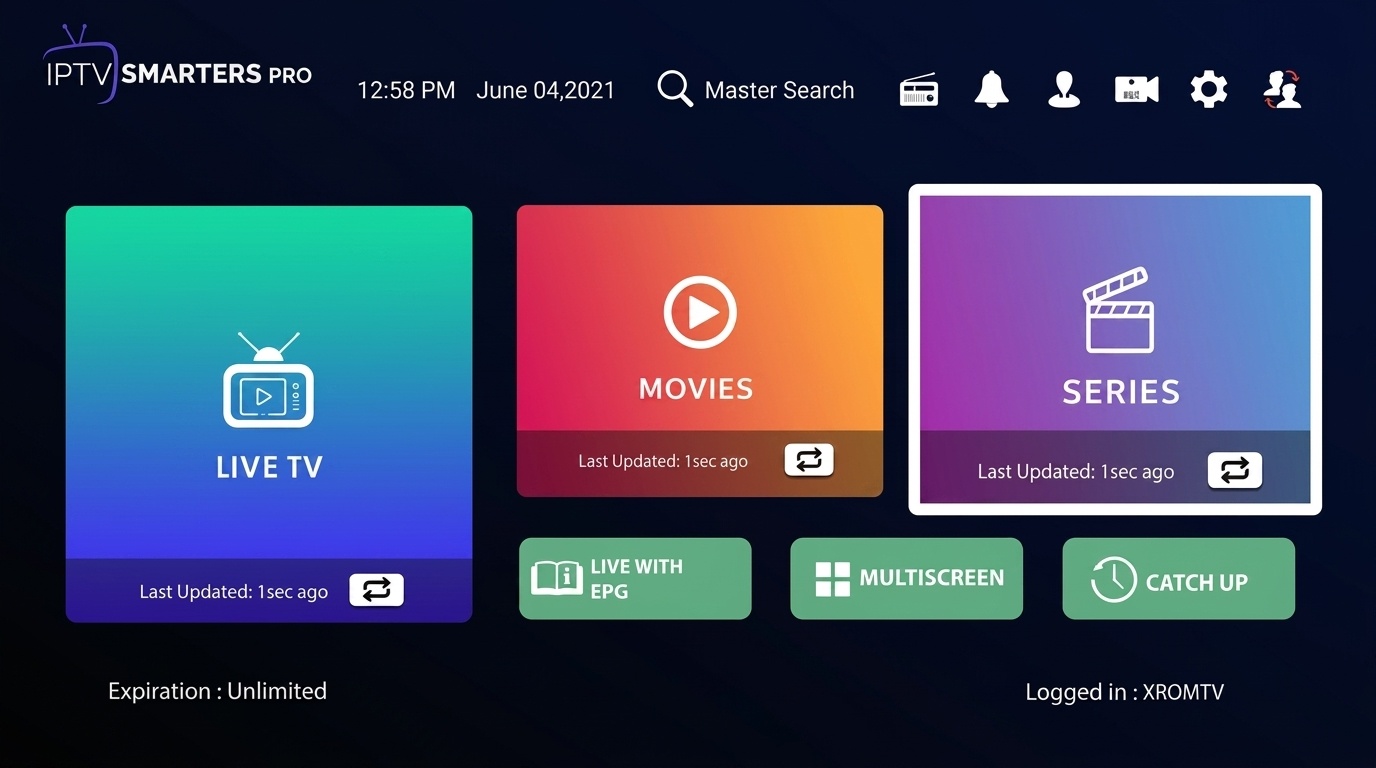
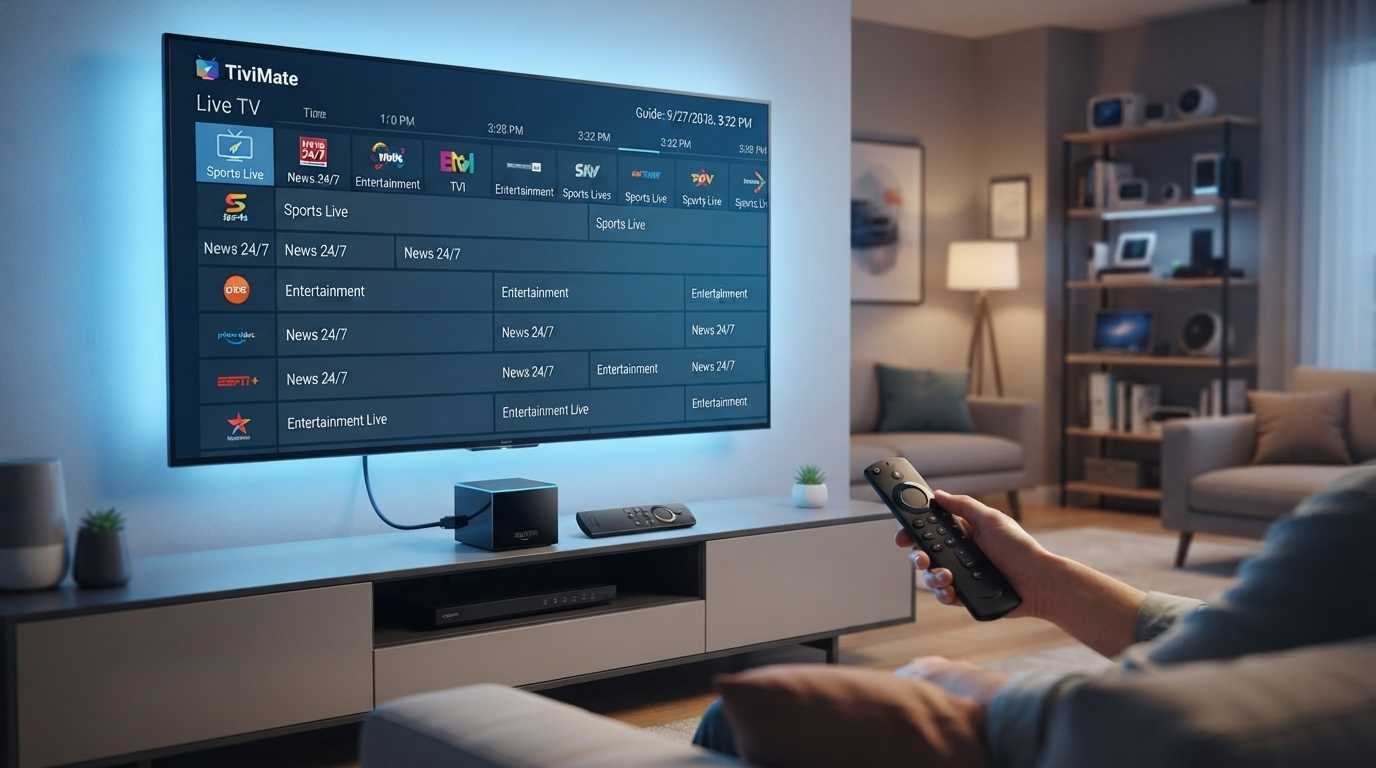
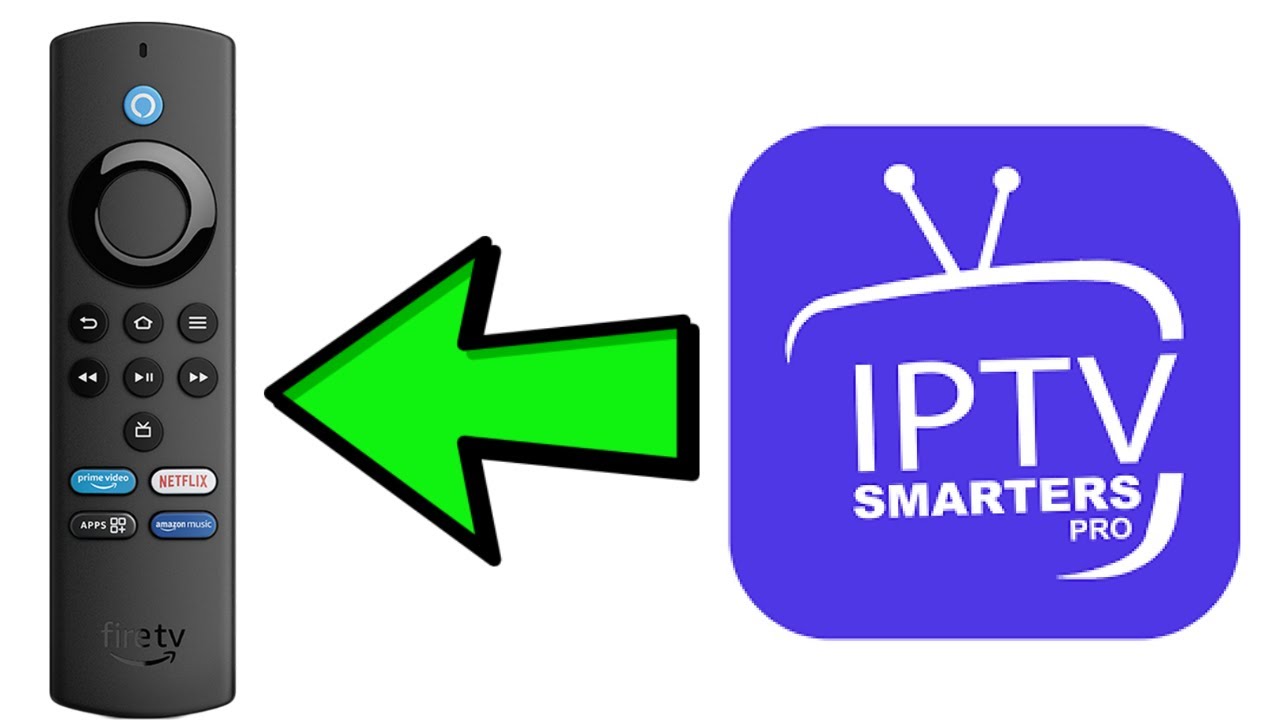
Watching IPTV on a Firestick is a convenient way to access available live TV and streaming content on your television. With a compatible IPTV player, stable internet connection, and valid service details, you can complete the setup in a few simple steps.
This guide covers how to install IPTV on Firestick, M3U and Xtream Codes, IPTV player selection, buffering, and common setup problems.
Always use streaming services and content that you are authorized to access.
What Do You Need for IPTV on Firestick?
Before starting your Firestick IPTV setup, you generally need:
Amazon Firestick or compatible Fire TV device
Stable internet connection
Compatible IPTV player
Active service
M3U playlist or Xtream Codes details
For setup instructions on other devices, see our IPTV installation guides.
How to Install IPTV on Firestick
1. Connect Your Firestick
Connect the Firestick to your TV and complete the internet setup. Make sure the device has a stable connection before installing an IPTV player.
2. Install an IPTV Player
Open the Amazon Appstore and choose a compatible IPTV player. Check that it supports the login method provided by your service.
3. Add Your IPTV Details
Depending on the player, you may need an M3U playlist URL or Xtream Codes information, such as:
Server URL
Username
Password
Enter the details carefully because even a small error can prevent the playlist from loading.
4. Load Your Channels
After your information is accepted, the available content can be loaded into the player. You can also check our IPTV channel list for channel information.
M3U or Xtream Codes – Which Should You Use?
M3U normally uses a playlist URL that you enter into a compatible IPTV player.
Xtream Codes generally requires a server URL, username, and password.
The best option depends on the information provided by your service and the features supported by your IPTV player. For more information, explore our M3U and Xtream Codes guide.
How to Choose an IPTV Player for Firestick
When searching for the best IPTV player for Firestick, look at more than the app's appearance.
Check whether it offers:
Firestick compatibility
M3U and/or Xtream Codes support
EPG functionality
Easy remote navigation
Regular updates
Choose an application from a trusted source and keep it updated.
IPTV Buffering on Firestick – How to Fix It
Buffering is one of the most common Firestick streaming problems.
Try these steps:
Check your internet: Make sure the Firestick has a stable connection.
Restart your devices: Restart both the Firestick and router.
Improve Wi-Fi: A weak wireless signal can affect playback.
Test another channel: If only one stream buffers, the issue may be limited to that stream.
Update the player: An outdated application can sometimes cause playback problems.
For additional solutions, check our IPTV troubleshooting guide.
IPTV Not Working on Firestick
If IPTV is not working, check your internet connection and verify that your subscription is active. Then check your M3U URL or Xtream Codes login information.
You can also restart the IPTV player and Firestick, update the application, and try another compatible player if necessary.
IPTV on Firestick 4K
A 4K-capable Firestick can support high-resolution streaming when the TV, application, network, and available stream support 4K.
However, a 4K device does not automatically make every stream 4K. Actual quality depends on the source and your complete setup.
Can You Watch Sports on Firestick?
You can watch live sports when your connected service provides the relevant channels or streams. Availability varies between services and can change according to broadcasting arrangements and regional rights.
Check the IPTV channel list to review available content.
Frequently Asked Questions
How do I install IPTV on Firestick?
Connect your Firestick to the internet, install a compatible IPTV player, and enter the M3U or Xtream Codes details provided by your service.
Can I use M3U on Firestick?
Yes. A compatible IPTV player can load an M3U playlist URL.
Can I use Xtream Codes on Firestick?
Yes, if your IPTV player supports Xtream Codes. You normally need a server URL, username, and password.
Why is IPTV buffering on Firestick?
Buffering can result from weak Wi-Fi, network instability, application issues, device problems, or a specific stream.
What should I do if IPTV is not working?
Check your internet, subscription, login details, playlist URL, and application. Restarting the Firestick can also resolve temporary problems.
Final Thoughts
Setting up IPTV on Firestick is generally straightforward when you have a compatible player, correct credentials, and a stable internet connection.
For more information, explore our Firestick IPTV installation guide, view our IPTV packages, or check the IPTV channel list.
Always use services and content that you are authorized to access.
M3U normally uses a playlist URL that you enter into a compatible IPTV player.
Xtream Codes generally requires a server URL, username, and password.
The best option depends on the information provided by your service and the features supported by your IPTV player. For more information, explore our M3U and Xtream Codes guide.