Can You Convert a Kindle Book to Word? Complete Guide
-

- September 14th, 2026
- 1,801 views
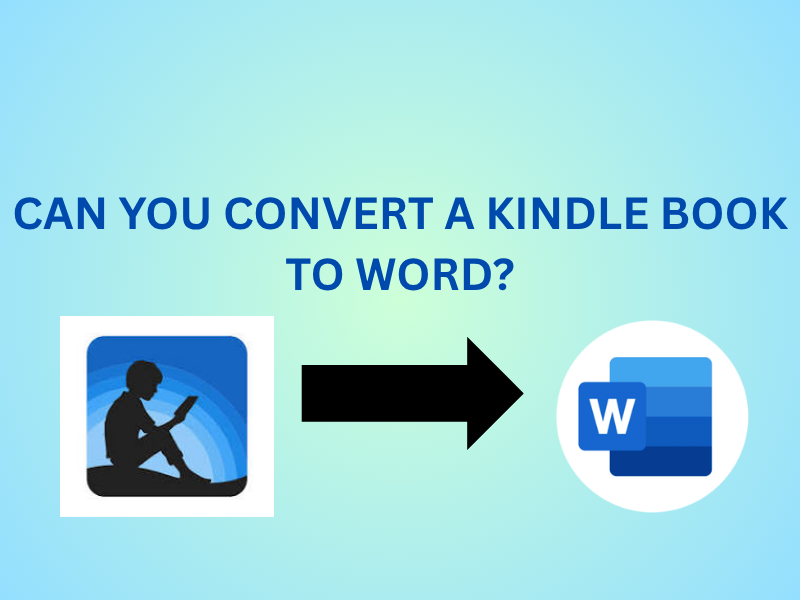
If you have an eBook saved in a Kindle-supported format and need to edit, annotate, quote, or reuse its content in Microsoft Word, you may wonder: Can you convert a Kindle book to Word without losing its formatting?
The short answer is yes, but the process depends on the Kindle file format, whether the book is protected by DRM, and what type of output you need. Kindle books may use formats such as AZW, AZW3, MOBI, or other Kindle-compatible formats. Some can be converted relatively easily, while DRM-protected books may not be convertible through ordinary software.
In this guide, we will explain several ways to convert a Kindle book to Word, including manual approaches and a dedicated desktop conversion method.
Can You Convert a Kindle Book to Word Directly?
There is no universal "Save as Word" option in the Kindle app or Kindle device. Kindle is primarily designed for reading rather than editing eBooks as Word documents.
However, if you have a non-DRM-protected Kindle-compatible file, you can often convert it using an appropriate document conversion utility.
The important distinction is DRM protection. Digital Rights Management can restrict copying, editing, printing, and conversion. You should only convert files you own or have permission to modify, and you should not attempt to bypass DRM restrictions.
If the file is DRM-free and available locally on your computer, you have several options.
Method 1: Copy and Paste Text From Kindle Into Word
Best for: Short books, selected passages, notes, or small amounts of text
One of the simplest approaches is manually copying readable content from the Kindle application or another authorized reading environment and pasting it into Microsoft Word.
Steps to Copy Kindle Content to Word
- Open the Kindle book in an authorized Kindle application or reader.
- Navigate to the chapter or section you need.
- Select the text, if the application permits text selection.
- Copy the selected content.
- Open Microsoft Word.
- Create a new document.
- Paste the copied content.
- Review the document and correct spacing, headings, fonts, and page breaks.
You can repeat these steps for each section you need.
Limitations of This Method
Manual copying becomes extremely time-consuming for an entire book. Depending on the Kindle application and the book's permissions, copying may also be restricted.
Formatting is another concern. Images, tables, footnotes, hyperlinks, chapter structures, and special characters may not transfer correctly. You may also need to spend considerable time cleaning up the resulting Word document.
Therefore, this approach works better when you only need a few pages rather than an entire eBook.
Method 2: Convert a DRM-Free Kindle File Using Calibre
Best for: Users who already have a DRM-free AZW, AZW3, or MOBI file and are comfortable using desktop software
Calibre is a popular eBook management application that can convert supported eBook formats. However, its available output formats and conversion results depend on the source file and installed components.
Steps to Convert a Kindle File With Calibre
- Install Calibre on your computer.
- Launch the application.
- Click Add Books.
- Browse to the Kindle-compatible file stored on your computer.
- Select the book and choose Convert Books.
- Select an appropriate output format supported by your workflow.
- Adjust conversion settings if required.
- Start the conversion.
- Open the resulting file and check the formatting.
- If necessary, open the converted content in Word and save it as DOCX.
Limitations of This Method
Calibre is primarily an eBook management and conversion application, so the workflow may require an additional conversion step if your final requirement is a Word document.
The output can also require manual formatting. Complex layouts, images, tables, embedded fonts, page breaks, and other elements may not reproduce exactly as they appeared in the original Kindle book.
Most importantly, Calibre does not provide a legitimate solution for bypassing DRM protection. If your Kindle book is protected, conversion may not be possible through a normal workflow.
Method 3: Use an Online File Converter
Best for: Small, non-sensitive, DRM-free files when convenience is more important than advanced control
Another possible approach is to use an online conversion service. Some websites accept common eBook formats and offer conversion to Word-compatible formats.
General Steps
- Open a reputable online file conversion service.
- Select the Kindle-compatible file from your computer.
- Choose DOC or DOCX as the output format, if available.
- Upload the file.
- Start the conversion.
- Download the resulting Word document.
- Open it in Microsoft Word.
- Check the document for formatting problems.
Limitations of Online Conversion
Online services are convenient, but they may not be ideal for sensitive or copyrighted material. Uploading a book to a third-party server introduces privacy and data-handling considerations.
File-size restrictions can also make online conversion impractical for large eBooks. Some services limit the number of conversions or supported formats unless you purchase a subscription.
Conversion quality is another variable. If the source contains complex formatting, images, tables, or unusual layouts, the resulting Word document may need significant cleanup.
For these reasons, online conversion is best reserved for files where you are comfortable using a third-party service and where the conversion requirements are relatively simple.
Method 4: Use Dedicated Desktop Conversion Software
Best for: Users who need a more direct workflow, multiple files, formatting preservation, and fewer manual steps
If you frequently work with different document and eBook formats, a dedicated desktop converter can simplify the process considerably. This is particularly useful when manual copy-and-paste or multi-stage conversion becomes inefficient.
Steps to Convert a Kindle File to Word
Before starting, make sure the Kindle file is DRM-free and that you have the legal right to convert it.
- Install and launch the conversion application on your computer.
- Use the Add File(s) option to select the Kindle-compatible file.
- You can also add a folder when working with multiple supported documents.
- Preview the imported file where the application provides preview support.
- Select DOC or DOCX as the desired output format.
- Choose the destination folder.
- Apply any available output or formatting settings.
- Start the conversion process.
- Open the resulting Word document.
- Review the converted content, including headings, images, hyperlinks, spacing, and page layout.
A dedicated desktop workflow can be particularly useful when you have several files to process. For example, the SysTools Document Converter Software supports multiple document and eBook-related input formats, including AZW3, MOBI, and EPUB, and can export supported files to DOC and DOCX. Its current product documentation also lists batch file and folder processing, preview functionality, and multiple output options.
Why This Method Is More Practical
Instead of manually copying content or moving through multiple conversion stages, a dedicated converter can centralize the workflow.
The software supports more than 50 input document formats and offers DOC and DOCX among its output formats. It also provides batch conversion, which can be useful when working with multiple files rather than processing them individually.
The product page also states that the application is available for Windows and Mac and does not require Microsoft Office to perform document conversion.
However, the same DRM limitation still applies: conversion software should not be treated as a way to circumvent digital rights restrictions. If a Kindle book is protected, you should obtain an authorized, DRM-free copy or use an officially supported export option.
Can You Convert a Kindle Book to Word Without Losing Formatting?
It depends on the original file.
A straightforward text-based eBook may convert relatively cleanly, while books containing complex layouts can require additional editing after conversion.
Common elements that may need checking include:
- Chapter headings
- Paragraph spacing
- Images and captions
- Tables
- Hyperlinks
- Footnotes
- Page breaks
- Fonts
- Lists and indentation
- Special characters
Before using the converted document for publishing, academic work, business documentation, or another important purpose, read through the entire file and compare it with the original.
Which Method Should You Choose?
The best method depends on the amount and type of content you need to convert.
Choose copy and paste if you only need a few passages.
Choose Calibre if you have a DRM-free eBook and are comfortable working through an eBook conversion workflow.
Choose an online converter if the file is suitable for third-party uploading and you only need occasional conversion.
Choose dedicated desktop software if you regularly convert supported files, need batch processing, want a more streamlined workflow, or need DOC/DOCX output without relying on several separate applications.
Can You Convert a Kindle Book to Word on Windows or Mac?
Yes, provided that the Kindle file is in a supported format and is not restricted by DRM.
The exact process varies according to the file type. A local desktop converter can be particularly convenient because the file can be processed directly on the computer rather than uploaded to an online service.
Before starting, identify the extension of your Kindle file. AZW3 and MOBI are examples of Kindle-related formats, but not every Kindle file will be equally accessible or convertible.
Frequently Asked Questions
Can you convert a Kindle book to Word for free?
Yes, in some cases. Manual copying and certain free conversion applications may work with DRM-free files. However, free methods can involve limitations such as formatting problems, additional conversion steps, file-size restrictions, or limited batch processing.
Can I convert AZW3 to DOCX?
A DRM-free AZW3 file may be converted when the conversion software supports AZW3 as an input format and DOCX as an output format. Always verify the source file's permissions before proceeding.
Why won't my Kindle book convert?
The most common reasons include DRM protection, an unsupported file format, file corruption, or restrictions imposed by the application or service being used.
Will images be preserved when converting Kindle books?
Not necessarily. Image preservation depends on the source format and conversion method. After conversion, check images, captions, tables, and page layout carefully.
Can you convert a Kindle book to Word without Kindle software?
Yes, if you have an accessible, DRM-free source file in a supported format. You do not necessarily need the Kindle application once you have a legitimate local copy that can be processed by compatible conversion software.
Final Thoughts
So, can you convert a Kindle book to Word? Yes, but the most suitable method depends on the file format, DRM status, amount of content, and formatting requirements.
For a few paragraphs, manual copying may be sufficient. For DRM-free eBooks, an eBook management application can provide another option. Online converters can be convenient for occasional, non-sensitive files, but they introduce privacy and file-size considerations.
For users who need a more structured way to convert a Kindle book to Word, particularly when handling multiple supported files or requiring DOC/DOCX output, a dedicated desktop conversion workflow is generally the most practical approach. Regardless of the method you choose, always respect the copyright and DRM restrictions associated with the original Kindle book.