How to Change a Video Background Without a Green Screen Using AI
-

- May 16th, 2026
- 7,686 views
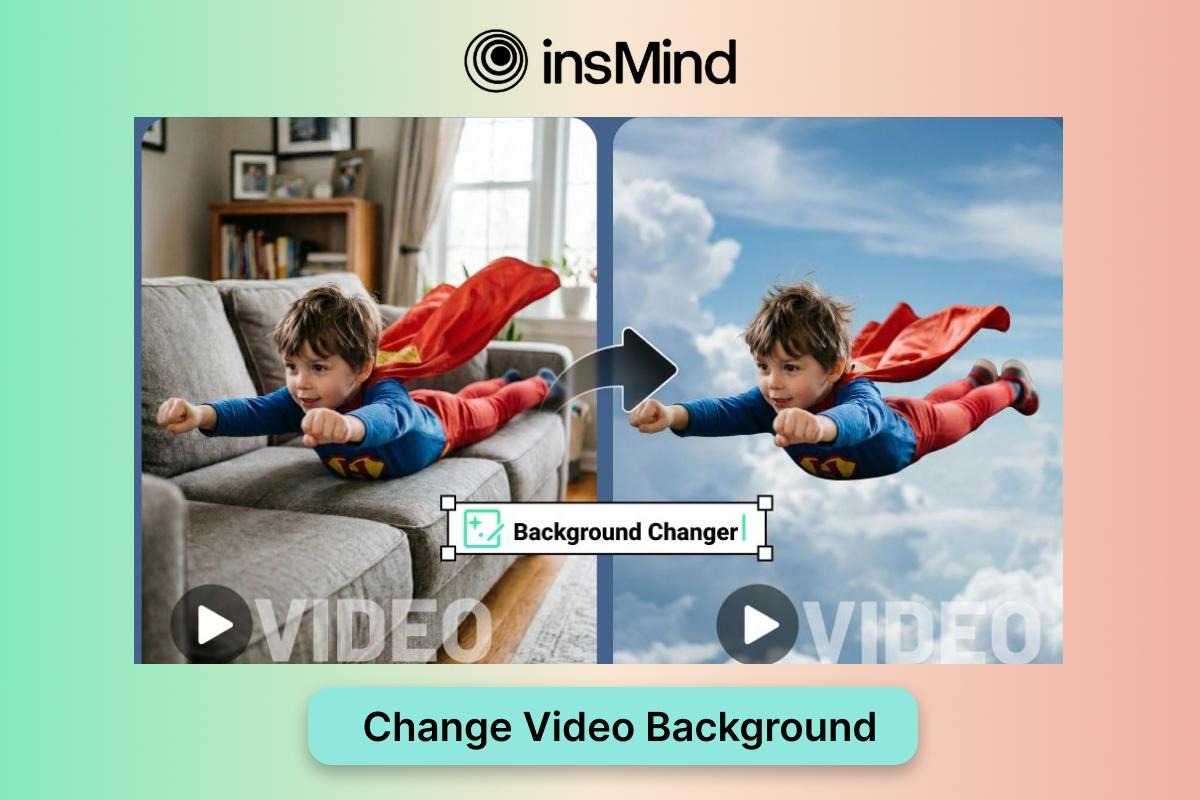
Want to make a video look like it was filmed in a clean studio, a beach scene, or a branded set without setting up a green screen? That is exactly where AI background replacement becomes useful. Instead of planning a complicated shoot, you can upload regular footage and let AI separate the subject from the scene.
In this guide, we will walk through how to change video background without green screen equipment, what makes the result look natural, and how a video background changer can simplify the whole workflow for creators, marketers, educators, and small businesses.
What Is a Video Background Changer?
A video background changer is an editing tool that detects the main subject in a clip and replaces the original background with a new scene. Traditional editing often required a physical green screen, careful lighting, and manual masking. AI tools make the process much more accessible by handling subject separation automatically.
For example, a product creator can record a quick demo at home and later place it in a polished studio environment. A course creator can remove visual clutter from a lesson. A marketing team can test different campaign scenes without booking several locations.
No physical green screen setup
Faster editing for social videos, tutorials, and ads
More flexibility for branded backgrounds and creative scenes
Why Change a Video Background Without a Green Screen?
The biggest reason is speed. Most creators do not have time to rebuild a set every time a campaign angle changes. AI background replacement lets you adapt one useful clip for several channels and audiences.
It also improves creative control. You can match a video to a product launch, seasonal promotion, travel theme, or professional presentation. If you already use an AI video editor, background replacement becomes one more way to make raw footage feel more intentional.
How to Change Video Background Without Green Screen with insMind
The workflow in insMind is designed to stay simple: upload your clip, describe the background you want, preview the result, and download the finished video. Keep the steps in order so each image below matches the process.
Step 1: Upload the video you want to edit to the insMind video background changer
Start by uploading the video you want to edit. Clear footage with a visible subject gives AI more information to work with, especially around hair, hands, clothing, and product edges.
Step 2: Describe the new background you want in the prompt box, such as a sky, beach, city, studio, or travel scene
Next, enter a concise prompt for the new scene. You can describe a studio, city street, beach, sky, office, travel setting, or any other background that fits your message.
Step 3: Generate the edited video and preview how the subject looks with the new background
Generate the edited version and preview it carefully. Check whether the lighting, perspective, and edges feel believable before you move on.
Step 4: Download the finished video once the background replacement looks natural
When the result looks clean, download the finished video. You can use it for product demos, tutorials, ads, presentations, or short-form content.
Tips for Better Video Background Replacement
AI can do a lot, but the source footage still matters. A well-lit subject, stable framing, and a background that is not too visually noisy will usually produce a cleaner result.
Use high-resolution footage when possible
Keep the subject separated from the background
Choose a new background with matching camera perspective
Preview the full clip before exporting
Create several versions when you need more campaign variation
If you want to build a full video concept from scratch rather than only replacing the background, an AI video generator can help you create more campaign-ready variations.
Common Mistakes to Avoid
Avoid using very dark, blurry, or heavily compressed footage. These issues make it harder for AI to identify the subject accurately. Also avoid choosing a background that clashes with the subject's lighting or scale.
For social campaigns, you can also pair this workflow with text-to-video AI when you want to turn written prompts into new creative directions.
Frequently Asked Questions
Can I change video backgrounds without a green screen?
Yes. AI tools can detect the subject in regular footage and replace the background without a physical green screen.
What kinds of backgrounds can I use?
You can use studio scenes, beaches, skies, city views, travel settings, office spaces, or branded visual backgrounds.
How can I make the result look more natural?
Use clear footage, match the background perspective, and preview the subject edges before downloading.
Final Thoughts
Changing a video background without a green screen is now practical for everyday creators. With the right footage and a clear prompt, insMind helps you turn ordinary clips into cleaner, more flexible videos for marketing, education, and social content.