Block Breaker Controls Not Working? Common Problems and Fixes
-

- Published Updated
- 71 views
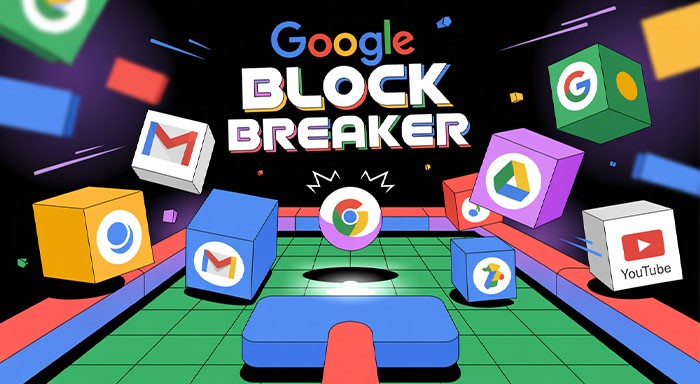
Playing a browser-based arcade game should be simple: launch the ball, move the paddle, break the blocks, and beat your previous score. However, when the controls stop responding, even a quick gaming session can become frustrating. Whether you are playing on a desktop, laptop, tablet, or smartphone, control problems can result from browser glitches, keyboard focus issues, touchscreen sensitivity, or an incompatible game version.
If your paddle refuses to move, the ball will not launch, or your inputs feel delayed, you do not necessarily need to restart your entire game. Most control problems can be resolved with a few straightforward checks. This guide explains the most common causes, practical fixes, and useful strategies to help you get back to playing without unnecessary interruptions.
Google Block Breaker Controls Not Working? Common Problems and Fixes
The Google Block Breaker game follows the classic brick-breaking concept: you control a paddle, bounce a ball toward blocks, and try to keep the ball from falling off the screen. However, the exact controls can differ between browser games that use the Google Block Breaker name.
Before troubleshooting, identify which version you are playing and check its on-screen instructions. Some versions support mouse movement, while others primarily use keyboard arrows or touch gestures. Trying the wrong control method can make a working game appear broken.
Here are the most common problems and how to fix them.
1. Keyboard Controls Are Not Responding
One of the most frequent issues occurs when the paddle does not move after pressing the left or right arrow keys. This can happen because the game has not received keyboard focus, another application is capturing input, or the particular version uses different controls.
How to fix it:
- Click once inside the game area to give it keyboard focus.
- Press the left and right arrow keys to test paddle movement.
- If nothing happens, try the A and D keys if the game supports them.
- Press the Escape key if you suspect a menu or overlay is active, then return to the game.
- Close other applications or browser tabs that may be interfering with keyboard input.
Avoid repeatedly pressing random keys because some versions use keyboard shortcuts for launching, pausing, or other actions.
If the game responds to mouse movement but not the keyboard, the issue may be related to its supported control scheme rather than a hardware failure.
2. Mouse Movement Does Not Control the Paddle
Some Block Breaker versions allow you to move the paddle by moving your mouse horizontally. Others use keyboard controls exclusively.
If your paddle remains stationary while you move the cursor, first confirm that mouse input is supported.
Try these solutions:
- Move the pointer directly over the game area.
- Click inside the game window to activate it.
- Move the mouse slowly from left to right.
- Exit fullscreen mode and test the controls again.
- Refresh the game if the pointer remains unresponsive.
If mouse controls still do not work, test the arrow keys or the on-screen controls, if available. A browser-based game may support different inputs depending on its implementation.
3. The Ball Will Not Launch
Another common issue occurs when the paddle moves correctly but the ball remains stationary.
In many brick-breaking games, the ball stays attached to the paddle until you provide a launch input. This behavior is intentional, not necessarily a malfunction.
How to fix it:
- Look for a Play, Start, or Launch button.
- Click or tap the game area if the instructions indicate that this launches the ball.
- Try the Spacebar or Up Arrow key if supported.
- Check whether the game is paused.
- Restart the round if the launch input still fails.
The correct launch method depends on the version you are playing. Always prioritize the controls displayed by the game rather than assuming every browser version uses the same keyboard shortcuts.
4. Touchscreen Controls Are Not Working on Mobile
Mobile players may experience problems when dragging a finger across the screen does not move the paddle. Touchscreen issues can result from an unresponsive page, browser gestures, screen overlays, or the game not supporting the expected touch input.
How to fix mobile controls:
- Tap the game area once before moving the paddle.
- Drag your finger horizontally instead of making repeated short taps.
- Avoid dragging from browser interface elements near the top or bottom of the screen.
- Rotate your device if the game works better in landscape orientation.
- Close unnecessary background applications if performance is poor.
- Reload the page if touch input stops responding completely.
Also, make sure your finger remains inside the playable area when the game requires direct touch interaction.
If you are playing through a mobile browser, try another supported browser to determine whether the issue is specific to your current setup.
5. Block Breaker Is Lagging or Responding Slowly
Sometimes the controls work, but the paddle moves too slowly or the game reacts several moments after you press a key. This is usually a performance issue rather than a completely broken control system.
Possible causes include excessive browser tabs, limited system resources, heavy background processes, or a weak internet connection while the game is loading.
Recommended fixes:
- Close unnecessary browser tabs.
- Pause video streams and other resource-intensive applications.
- Reload the game after saving any progress you want to preserve.
- Update your browser to a supported version.
- Test the game in another browser to compare performance.
- Restart your device if it is experiencing broader performance problems.
For a smoother experience, avoid running multiple demanding applications simultaneously.
If the game consistently lags only in fullscreen mode, switch to windowed mode and see whether performance improves.
6. The Game Freezes or Stops Responding
A frozen game may stop registering keyboard input, mouse movements, and touchscreen gestures at the same time. This often points to a script error, a browser problem, or a temporary performance issue.
Follow these steps to recover:
- Wait briefly to see whether the game resumes.
- Check whether the rest of the browser is responding.
- Reload the page if the game remains frozen.
- Clear cached files if the same problem repeatedly occurs.
- Temporarily disable extensions that may interfere with page scripts.
- Open the game in a private browsing window to test whether extensions or saved site data are involved.
Be aware that reloading can reset your current round or score. If you are close to a personal best, try less disruptive solutions first.
If the problem persists across browsers and devices, the game itself may be experiencing a temporary issue.
7. Browser Extensions or Settings Are Interfering
Privacy extensions, script blockers, content filters, and certain browser settings can prevent interactive game elements from loading correctly.
If the game opens but its controls do not work, test whether a browser extension is responsible.
Try this troubleshooting process:
Open a private or incognito window.
Load the game again.
Test the paddle and launch controls.
If the game works, review your installed extensions.
Re-enable extensions individually to identify the likely cause.
Private browsing does not automatically disable every extension, so check your browser's extension settings if the problem continues.
If you use a website-blocking application or browser filter, check whether it is blocking required scripts or resources. Change filtering settings only when you trust the game website and understand what the setting permits.
8. The Game Does Not Load Properly
Sometimes the controls are not the actual problem. The game may not have loaded completely, leaving buttons, animations, or input handlers unavailable.
This can happen when the connection is unstable, the browser blocks necessary resources, or the game is temporarily unavailable.
How to fix loading problems:
Confirm that your internet connection is working.
Refresh the page after checking the connection.
Search for the game again if its original page is unavailable.
Try a supported, updated browser.
Check whether the game loads on another device.
Avoid unofficial downloads or suspicious browser extensions claiming to repair the game.
If you are trying to access a game through Google Search, remember that interactive search features can vary over time and by availability. A third-party browser game with a similar name may have different controls and troubleshooting requirements.
Google Block Breaker Game Controls and Rules
Understanding the controls is the easiest way to prevent common input problems. The following table summarizes typical controls found in many browser-based brick-breaking games. Your particular version may differ.
| Action | Common control | Purpose |
|---|---|---|
| Move paddle left | Left Arrow or A | Position the paddle to the left |
| Move paddle right | Right Arrow or D | Position the paddle to the right |
| Launch ball | Spacebar, Up Arrow, or click | Start the ball moving |
| Move paddle on mobile | Horizontal drag | Follow the ball across the screen |
| Pause or restart | On-screen menu or supported shortcut | Manage the current session |
These are common examples, not a universal control map for every Google Block Breaker game.
How to Play Google Block Breaker
If you are new to the game, learning the basics can help you avoid mistakes and understand whether a control is working as expected.
Open the game in a compatible browser.
Select Play or Start if the game displays an introductory screen.
Use the supported keyboard, mouse, or touch controls to position the paddle.
Launch the ball using the method shown on the screen.
Move the paddle to bounce the ball toward the blocks.
Keep the ball in play and clear as many blocks as possible.
The main objective is to break the blocks while preventing the ball from passing the paddle. Depending on the game version, you may encounter multiple levels, power-ups, different block types, and a limited number of lives.
Google Block Breaker Online: Keyboard vs. Mouse vs. Touch
Choosing the right input method can make gameplay more comfortable.
Keyboard: Arrow keys are useful for players who prefer discrete directional inputs. Hold the appropriate key when necessary rather than relying on quick taps.
Mouse: When supported, mouse movement can provide direct paddle positioning. Keep the pointer inside the game area if the paddle follows the cursor.
Touchscreen: Dragging horizontally can feel natural on smartphones and tablets. Smooth, controlled movements often work better than repeated taps.
Test each supported method at the beginning of a round. If one method fails but another works, you have narrowed the issue to a particular input method rather than the entire game.
Best Tips and Tricks to Improve Your Block Breaker High Score
Once your controls work correctly, a few simple techniques can help you play more consistently.
Track the Ball Instead of Chasing It
Watch the ball's direction and estimate where it will return to the paddle. Moving early gives you more time to position the paddle accurately.
Control the Bounce Angle
In many brick-breaking games, the point where the ball hits the paddle influences its rebound angle. Use this mechanic to direct the ball toward areas containing more blocks, where supported by your version.
Avoid Unnecessary Movements
Moving the paddle constantly can make it harder to react accurately. Focus on the ball's projected landing position and move only as needed.
Learn the Game's Special Features
Some versions include power-ups, extra lives, or special blocks. Read the on-screen instructions to understand which features are available and how they affect gameplay.
Practice Consistently
Improving your timing and predicting ball movement are more useful than relying on random paddle movements. Short practice sessions can help you develop better control and work toward a higher Block Breaker high score.
Best Browser-Based Brick Breaker Games to Try
If your current game continues to experience control problems, trying another browser-based version can help you determine whether the issue is specific to the game or your device.
Look for a game that offers:
- Clear keyboard and mouse instructions.
- Responsive touchscreen controls.
- Compatibility with your browser and device.
- Simple restart and pause options.
- Transparent information about ads, permissions, and downloads.
Classic retro arcade games remain popular because their rules are easy to understand while rewarding precision and timing. Modern brick breaking games often add extra levels, power-ups, and scoring mechanics to make the experience more varied.
When searching for a Google Block Breaker game online free, check the website carefully. A game inspired by Google's design is not necessarily an official Google product. Prefer reputable websites, avoid unnecessary downloads, and never provide personal information just to play a basic browser game.
Related Resources
Explore these additional articles from our website:
-
content://cz.mobilesoft.appblock.fileprovider/cache/blank.html
- Timewarp Taskus
Frequently Asked Questions
Why are my Block Breaker controls not working?
The most common reasons include incorrect input methods, missing keyboard focus, browser glitches, touchscreen issues, and performance problems. Confirm the supported controls, click inside the game, and test another input method before restarting.
Can I play Google Block Breaker online for free?
Many browser-based Block Breaker games are available to play for free without installing software. Availability and features depend on the specific game website or search experience you use.
Why does the paddle move but the ball will not launch?
The ball may be waiting for a launch command. Check the on-screen instructions and try the displayed launch button, click or tap input, or supported keyboard shortcut.
How do I fix Block Breaker controls on my phone?
Tap the game area, drag horizontally within the playable screen, and close unnecessary background applications if the game is lagging. You can also try another supported mobile browser.
Why does Block Breaker lag in my browser?
Lag may result from limited device resources, excessive open tabs, browser extensions, or loading issues. Close unnecessary tabs, update the browser, and test the game in another browser if needed.
What should I do if none of the fixes work?
Test the game on another device or browser, check whether the website is available, and consult the game's own instructions. If other websites and applications also fail to respond, investigate your keyboard, mouse, or touchscreen separately.
Final Thoughts
When Block Breaker controls stop working, the best approach is to identify the specific symptom before making changes. Test keyboard focus, verify the correct launch command, check touchscreen gestures, and rule out browser performance or extension issues.
If the game still does not respond, try another browser or device to determine whether the issue comes from your setup or the game itself. Once the controls are working reliably, you can focus on improving your timing, keeping the ball in play, and achieving a better score in your next arcade session.