Convert VCF to CSV: Complete Guide to Export Contacts for Spreadsheets
-

- Published Updated
- 1,488 views
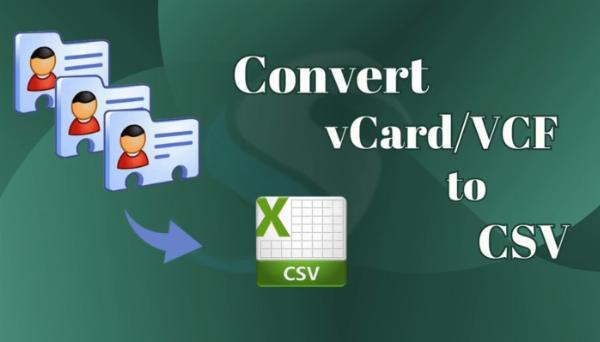
To convert VCF to CSV, first identify the source of the vCard (.vcf) file and the target application that will use the CSV (spreadsheet or contact manager). Converting contacts from VCF to CSV involves mapping vCard fields like FN and TEL to CSV column headers such as Name and Phone, and ensuring correct character encoding and delimiters.
- Back up original VCF files before converting.
- Choose a method: contact manager import/export, online converter, or script-based conversion.
- Check encoding (use UTF-8) and delimiters (comma or semicolon) to match the target system.
- Verify mapped fields and clean duplicates after conversion.
Convert VCF to CSV: Overview and when to use each method
What are VCF and CSV?
A VCF (vCard) file stores contact information using the vCard format defined by the Internet Engineering Task Force (IETF). CSV (comma-separated values) is a plaintext table format that spreadsheets and many contact import tools accept. CSV is useful for bulk editing contacts in a spreadsheet or importing into systems that do not support vCard.
When to convert VCF to CSV
Convert vCards to CSV when a contact system requires CSV import, when bulk editing in a spreadsheet is needed, or when migrating contacts between systems with different import formats. Avoid conversion if the target accepts vCard directly, since vCard supports richer fields such as multiple phone types, photos, and structured addresses.
Practical methods to convert VCF to CSV
1. Import into a contact manager that exports CSV
Most desktop and web contact managers can import vCard files and then export contacts as CSV. General steps:
- Open the contact manager and locate the import function. Select the VCF file or files to import.
- Verify that all contacts are imported correctly, paying attention to name, phone, email, and address fields.
- Use the export function and choose CSV as the output format. Confirm which CSV columns are included and adjust mapping if available.
This approach reduces manual mapping because the contact manager handles vCard parsing and field mapping. It is recommended for non-technical users.
2. Use a trusted online converter (with privacy caution)
Online converters can handle small batches quickly. Before using an online service, consider data sensitivity and privacy policies. Avoid uploading contact files with sensitive personal or regulated data unless the service states clear retention and deletion practices and uses encryption.
3. Use a spreadsheet + simple text processing
For a small number of contacts, open the VCF in a text editor and extract fields manually into a spreadsheet. Look for lines starting with FN:, TEL:, EMAIL:, ADR: etc., and paste values into spreadsheet columns. This is labor-intensive but avoids third-party tools.
4. Scripted conversion using command-line tools or a small program
Automated conversion is efficient for large files or repeated tasks. A common approach is to use a scripting language such as Python with a vCard-parsing library to read VCF entries and write CSV. Example outline:
# Pseudocode
import vobject
open vcf file
for each vcard:
  extract FN, TEL, EMAIL, ADR
  write row to CSV with UTF-8 encoding
This method gives full control over field mapping, handling of multiple phone numbers, and encoding. For guidance on the vCard format, see the official vCard specification (RFC 6350).
vCard specification (RFC 6350)
5. Handle duplicates, multiple values, and photos
CSV cannot reliably hold binary data such as photos, and it represents multiple values in a single cell awkwardly. Decide on rules before conversion: keep only the primary phone, concatenate multiple emails using a separator, or produce multiple CSV columns for repeated fields. Plan how duplicates are detected—by email address, phone number, or full name—and clean them after import using spreadsheet functions or the contact manager's deduplication tool.
Pre-conversion checklist and troubleshooting
Back up and inspect the VCF file
Always create a copy of the original VCF. Open it in a text editor to confirm character encoding and whether the file contains multiple vCards concatenated together. Large exports may contain thousands of vCard entries in one file.
Encoding and delimiter issues
Use UTF-8 encoding to preserve non-ASCII characters. When exporting to CSV, confirm the delimiter expected by the receiving system: some regional settings expect semicolon (;) instead of comma (,). If accents or special characters appear as gibberish, re-export using UTF-8 or convert encoding with a tool such as iconv.
Field mapping and column headers
Create a column header row that matches the target import's required fields (for example: Name, Given Name, Family Name, Email, Phone, Address). If multiple phone or email types exist, label columns clearly (Phone 1, Phone 2, Email 1).
Security and compliance considerations
Contacts often contain personal data protected by privacy regulations (for example, GDPR in the EU). Treat contact files as personal data: restrict access, use encrypted transfers, and choose conversion methods that align with data-handling policies. When using third-party tools or services, review their privacy and data retention statements.
FAQ
How to convert VCF to CSV without losing special characters?
Ensure the conversion process writes the CSV in UTF-8 encoding. Use tools that explicitly support UTF-8 or convert the final CSV to UTF-8 using a text editor or a command-line utility such as iconv. Also ensure the target system supports UTF-8 when importing.
Can a CSV contain contact photos and multiple addresses?
CSV is ill-suited for binary data like photos; include only links to hosted images if the target supports them. Multiple addresses or phone numbers can be represented by separate columns (Address 1, Address 2), but this requires pre-planning of column headers and mapping during import.
What is the safest method to convert large lists of contacts?
For large datasets, use a scripted conversion or a trusted contact manager that can import VCF and export CSV. Scripts provide repeatability and precise control of field mapping and encoding, reducing manual errors. Always run conversions on copies and validate a subset of rows before full import.
Which fields in a VCF map to CSV columns?
Common mappings include FN to Name, N to structured name components (Given Name, Family Name), TEL to Phone, EMAIL to Email, and ADR to Address. Custom vCard properties may require custom CSV columns or manual handling.
How to verify the conversion was successful?
Check a sample set of rows for correct names, email formats, phone numbers, and special characters. Use the target system's import preview if available, and run a deduplication check after import. Keep the original VCF backup until verification is complete.