How to Remove Duplicate Emails from Multiple MBOX Files at Once
-

- Published Updated
- 3,534 views
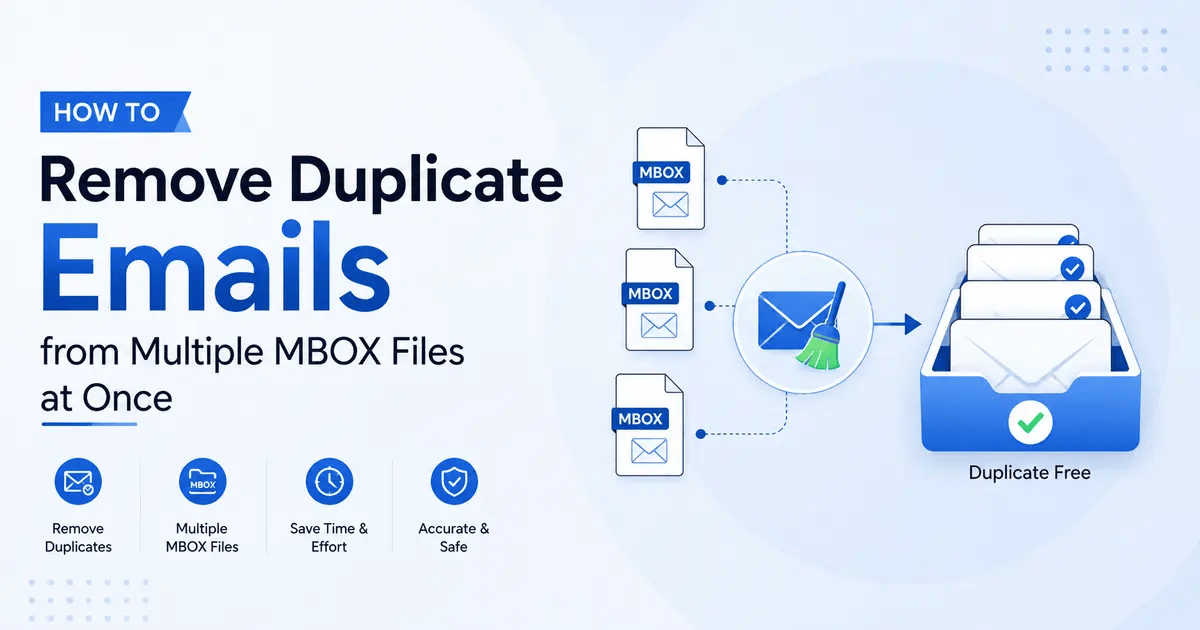
Dealing with a single MBOX file with duplicate emails is frustrating. Working with dozens of MBOX files with duplicate messages is much more difficult. Usually it happens in case of merging email backups, migrating mailboxes, restoring old archives or exporting the same account several times.
Manually opening separate MBOX files and removing duplicate emails can take hours or even days. And it is easy to miss duplicates or accidentally delete a message that is really different.
Fortunately, there’s no need to clean each individual MBOX file. If you follow the right approach, you can scan multiple MBOX files, find the repeated messages, delete confirmed duplicates, and keep the original mailbox data safe.
In this guide we’ll explain how to bulk remove duplicate emails from multiple MBOX files, what manual methods are practical and when dedicated software such as MBOX Duplicate Remover can make the job much easier.
Why Do Multiple MBOX Files Contain Duplicate Emails?
There can be more than one MBOX file with duplicate emails due to different reasons.
Usually, there is a recognizable cause for duplicate messages in several MBOX files.
1. Repeated Email Backups
You might have created several backups of the same mailbox at different times. If you import or combine backup files that have some of the same messages, it can create duplicate messages.
2. Repeated MBOX Imports
Another common cause is importing the same mailbox multiple times.
You might, for example, import an MBOX file into an email client, import it again as part of troubleshooting, and then create another copy of the same messages.
3. Overlapping Archive Files
Some organizations also sort MBOX files by year, project or employee. If two archives cover the same period, the same messages may be in both files.
4. Email Migration Problems
If you attempt to migrate the same mailbox multiple times, you may see duplicate mailbox data, especially if the destination mailbox wasn’t cleared before another import.
5. Combining Mailboxes
Personal, business or department stores can be combined and if an e-mail message is present in more than one store, duplicate messages can occur.
Why Remove Duplicates from Multiple MBOX Files?
There are some practical benefits of cleaning duplicate emails.
Reduce Storage Requirements
Duplicate messages also take up extra disk space. Reducing the number of unnecessary copies can decrease the size of your email archive.
Improve Mailbox Organization
With a clean archive it’s much easier to find important messages without seeing the same email over and over.
Prepare for Email Migration
If you want to convert MBOX to PST, EML, PDF or any other format, removing duplicates before will stop unnecessary messages from being migrated.
Simplify Backup Management
When you make further backups, a clean mailbox takes up less space in storage.
Avoid Confusion
Having to look at the same customer email, invoice or project conversations several times makes historical records hard to read.
Method 1: Clean Each MBOX File Manually
Best for: A small number of MBOX files with relatively fewer duplicates.
For two or three small MBOX files, you might be able to do a manual cleanup.
Steps
- Make copies of all the MBOX files as a backup.
- Open one of the MBOX files in a supported email client.
- Organize email by sender, subject or date.
- Detect duplicate messages.
- Suspected duplicates Open
- Compare message body and attachments.
- Remove verified duplicates.
- Do the same for each MBOX file.
- Save or export the cleaned mailbox.
Pros
- No special software required.
- Allows you to manage individual messages.
- Good for small archives.
Cons
- Very time-consuming.
- Hard to keep consistent across multiple files.
- Duplicates are easy to miss.
- When you have thousands of emails, manually comparing them is not practical.
This works but it is not really a bulk solution. If you have 20, 50 or 100 MBOX files, the workload increases quickly.
Method 2: Consolidate MBOX Files Before Cleaning
Best for: Those who need to find duplicates among several overlapping archives.
Sometimes you can merge the relevant MBOX data into a working mailbox, and then find duplicate messages, instead of cleaning each mailbox individually.
Steps
- Backup the original MBOX file
- Search for files with overlapping data
- Import the required MBOX files into an email client that supports it.
- Organize your imported messages into suitable folders.
- Find duplicate messages.
- Remove known duplicates.
- If needed, export the cleaned mailbox.
Pros
- Makes cross-file duplicates easier to find.
- Useful if the same messages are found in several archives.
- It can make for a cleaner, consolidated mailbox.
Cons:
- Even importing multiple files can create duplicates.
- Depends on the client.
- Big archives require a lot of time.
- Folder organization may need a bit more work.
This helps when the main problem is overlapping archives rather than duplicates within individual MBOX files.
Method 3: Compare MBOX Files Before Importing Them
Best for: Users who know there are multiple archives with overlapping date ranges.
You can avoid creating copies by checking your MBOX files before merging.
Steps
- Enumerate all MBOX files.
- Write down their names and the approximate dates.
- Find files for the same period
- Locate the principal copy in the Archive.
- Do not import files that are not needed and overlap.
- Process the necessary files one by one.
- Check the final mailbox.
Pros
- It prevents some duplicates from occurring.
- Good for keeping things organized.
- No special software is needed to remove duplicates.
Cons
- Not all duplicates are identified by date ranges.
- The same message may be in several folders.
- Needs careful planning.
Method 4: Use MBOX Duplicate Remover
Best for: Multiple MBOX files containing many duplicate emails.
Specialized duplicate deletion software is generally the more convenient option if you have more than one MBOX file.
Softaken MBOX Duplicate Remover is a tool for detecting and removing duplicate messages from MBOX files. Users do not need to open each archive manually and compare individual emails. The mailbox data can be processed with a dedicated cleanup workflow.
Key Benefits of Bulk MBOX Duplicate Removal
- Time-saving: No need to manually examine each message in each MBOX file.
- Reduces storage requirements: No duplicate redundant messages.
- Better mailbox organization: Archives easier to search.
- Migration support: Prepares cleaner MBOX files for migrating.
- Reduces manual mistakes: Automated comparison is more consistent than visual checking.
- Keeps The Source MBOX files as a backup: You can keep the source MBOX files as a backup.
Conclusion
Knowing how the duplicates get there in the first place makes it much easier to remove duplicate emails from multiple MBOX files at once.
Manual cleanup can work for some small MBOX files. If you have multiple archives that overlap, you can match the date ranges and sort the source files to prevent duplicates before they get to the final mailbox.
But if you have a lot of MBOX files and thousands of duplicate messages, checking each and every email manually becomes tedious pretty fast. A dedicated MBOX Duplicate Remover will make bulk duplicate detection and removal more practical.
Whatever method you use, do not treat duplicate removal as a simple delete operation. You may also want to keep your original MBOX files, see how duplicate messages are detected and check the cleaned result before deleting your backups.
That way you have a cleaner mailbox and the chances of losing legitimate emails are greatly reduced.
Frequently Asked Questions
1. Can I remove duplicates from multiple MBOX files simultaneously?
Yes. Specialized MBOX duplicate remover software can help you to handle several mailbox files in a single workflow. Manual methods usually require working with files on an individual basis.
2. Will removing duplicate emails reduce MBOX file size?
Yes, when the mailbox holds a large amount of repeated messages. The amount of space recovered depends on the number and size of the duplicate files.
3. Are emails with the same subject considered duplicates?
Not always. The same subject can be used for different emails. A good check for duplicates should also incorporate other information such as sender, recipient, message body, timestamp, Message-ID, and attachments.
4. Should I remove duplicates before converting MBOX to PST?
In many cases it does make sense to clean the MBOX first. This prevents unnecessary duplicate messages from being migrated into the PST and can improve the efficiency of the migration.
5. Is it safe to delete the original MBOX files after bulk cleanup?
Do not delete them right away. Do not delete the original files until you have opened the cleaned mailbox, reviewed important messages and attachments, and verified that the results are correct.