Unable to Open EDB File? Convert EDB to PST Easily
-

- Published Updated
- 7,118 views
Microsoft Exchange Server stores mailbox data in Exchange Database (EDB) files.
These files include emails, contacts, calendars, notes, tasks, and attachments.
However, such cases happen when an EDB file is inaccessible due to corruption,
server breakdown, accidental deletion, or problems with the Exchange Server.
If you can’t view an EDB file, then accessing business emails can be very
tough. The excellent news is that there are both manual and automated ways you may
convert EDB files to PST format, which makes the mailbox data available in
Microsoft Outlook.
In this piece, we will look at the reasons for EDB file inaccessibility, manual methods to convert them, the limits of these methods, and an easy alternative using the Softaken EDB to PST converter.
Why does an EDB file become inaccessible?
There can be many reasons why the EDB file is not opening:
- Exchange Server crash or failure
- Database corruption
- Unplanned power outages
- Exchange databases are not mounted
- Hardware Problems.
- Exchange Server migration prerequisites
- Accidental deletion of mailbox information
Then, in such a situation, convert EDB files to PST format to recover and restore
the mailbox information.
Why Convert EDB to PST
Microsoft Outlook supports PST files, and you can open them without any Exchange
Server environment. There are many advantages of EDB to PST conversion:
- Easy mailbox data access
- Email management without Exchange.
- Easy backup and archiving
- Easy Outlook Migration.
- Mobility improvements for mailbox information
Manual Method of EDB to PST Conversion
Microsoft does provide the option to export Exchange mailboxes to PST using
Exchange Admin Center and PowerShell commands.
What we require
Before you begin, be sure that:
- Exchange Server is functioning normally.
- The EDB file is mounted and is in a Healthy
- You are an administrator.
- Assigned the Mailbox Import/Export role.
Step 1: Grant the Mailbox Import Export role:
Open the Exchange Management Shell and type the following command:
New-ManagementRoleAssignment -Role "Mailbox Import/Export" -User
Administrator
Step 2: Create a Shared Folder
Create a folder on your PC and grant the Exchange Trusted Subsystem read/write
access to it.
It's like, what's going on here?
PSTExport\ServerName
Step 3: Export Mailbox in PST File
Execute the following PowerShell command:
New-MailboxExportRequest -Mailbox UserMailbox -FilePath
"\\ServerName\PSTExport\UserMailbox.pst"
Step 4: Check the export status
with the command:
Get-MailboxExportRequest
Once it is done, the PST file will be saved in the location you selected.
Cons of manual method
Microsoft has an export mechanism built in, but there are several
disadvantages:
- Requires a working Exchange Server environment.
- Can’t recover severely damaged EDB files.
- Some technical skills are needed.
- Takes a bit for some mailboxes.
- Risk of export mistakes.
- If the Exchange Server is down, this condition is not applicable.
If your organization is struggling with offline or corrupt EDB files, then the
manual method might not be a practical option.
Simple Way: Softaken EDB to PST Converter
Softaken EDB to PST Converter is an easy way to open mailbox data from EDB files when manual techniques are not possible.
The app provides users with the facility to convert EDB files to PST file formats.
Nothing to do with Exchange Server.
Main Features
- EDB Files Offline Support
- Export EDB files without mounting them on an Exchange server, including unreachable or offline
EDB files.
- Retains Full Mailbox Layout
The software asserts:
- Attachments to the Email
- Links
- Calendars & Memos
- Folder structure –
- Preview prior to Conversion
UsUsers can preview mailbox items before exporting them.
Batch Transfer Mailbox
You can convert several mailboxes in one step.
Easy-to-use interface
The tool is trained on non-technical and technical users.
Supports Large EDB Files
There are no serious performance problem concerns when migrating large Exchange
databases.
How to Export EDB to PST
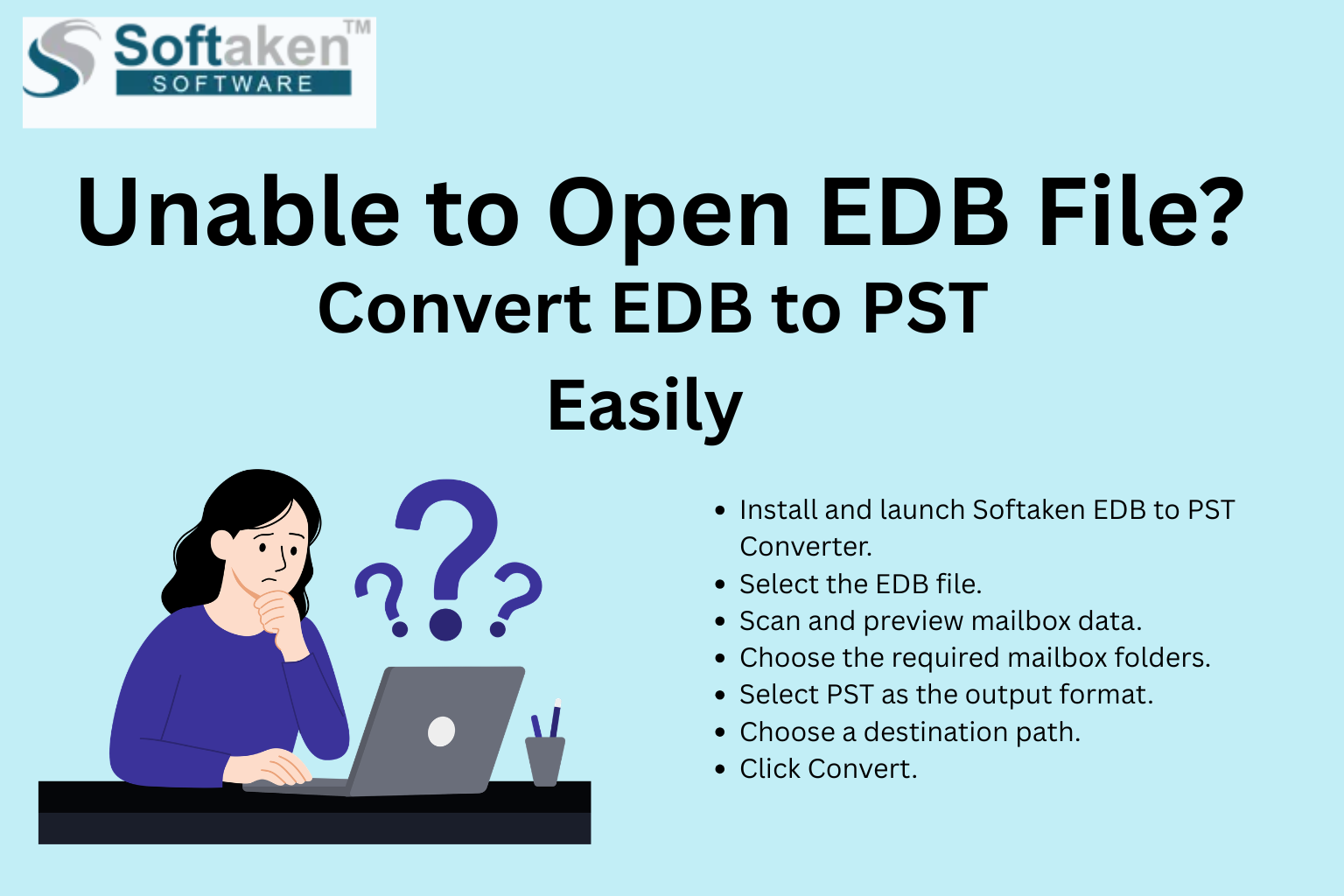
- Download and run EDB to PST Converter.
- Select the EDB file
- Preview & scan mailbox data
- Select the mailbox folders you need.
- Select PST for the output format.
- Select a route to the destination.
- Click Convert.
The program creates a PST file that can be imported directly into Microsoft Outlook.
When to choose an automated solution?
An automatic EDB to PST converter is particularly useful in the following situations:
- Exchange Server is not responding.
- An EDB file gets corrupted or damaged.
- You have many mailboxes to transfer.
- I got to heal fast.
- No need for complex PowerShell commands.”
Concluding Remarks
Can’t open EDB file? You’re not the only one. Your Exchange database can have
problems due to corruption, server crashes, or the need to move. Microsoft has
a manual process to export mailboxes to PST files, but that requires a running
exchange system and some technical know-how.
Softaken EDB to PST Converter is a valuable program for those who want an
easier and more reliable way to convert EDB files to PST format while retaining
mailbox contents and folder layout. If you want to recover unavailable
mailboxes or transfer Exchange data to Outlook, then the software is a
productive alternative to deal with the conversion chores of EDB.