A Practical Guide to Convert NSF to PST Using Manual and Professional Methods
-

- Published Updated
- 89 views
Introduction
Eventually, organizations employing IBM Lotus Notes or HCL Notes may need to move their mailbox data to Microsoft Outlook. Notes saves mailbox information in NSF files, while Outlook uses PST files; therefore, there is no direct compatibility between the two formats. So, users need an NSF to PST conversion method to migrate emails and other mailbox data to Outlook.
In this article, you will learn about NSF and PST files, why there is a need to convert them, the manual method along with its limitations, and a professional approach for a more comprehensive transfer.
What is an NSF File?
NSF stands for Notes Storage Facility. It is the database file format used by IBM Lotus Notes, HCL Notes, and Domino to store various types of mailbox information. An NSF file can include emails, attachments, contacts, calendars, tasks, journals, notes, and other items.
Typical NSF files include mail databases such as mail.nsf and address book databases such as names.nsf.
What is a PST File?
PST stands for Personal Storage Table. It is an Outlook data file used to store emails, contacts, calendars, tasks, notes, and other mailbox information locally.
Microsoft Outlook supports PST files, which are helpful when users move from Lotus Notes to Outlook or want to archive mailbox data.
Why NSF to PST Conversion?
There are numerous reasons to perform a Lotus Notes to Outlook migration:
- Open NSF emails in Microsoft Outlook.
- Transition from HCL Notes to an Outlook-based environment.
- Retain outdated email data for future reference.
- Access mailbox contents with Microsoft 365-compatible processes.
- Manage emails, contacts, calendars, and attachments with Outlook.
- Continue to access legacy Lotus Notes mailbox data after migration.
Pro Tip: Check the NSF inbox and important folders before performing the complete conversion.
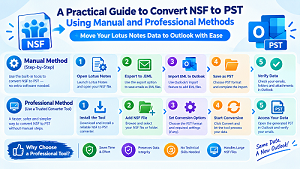
Manual Method to Convert NSF to PST Using EML and Outlook
Since Lotus Notes and Outlook do not provide a direct NSF-to-PST conversion option, users can use EML as an intermediate format. This method involves exporting emails from the NSF database to EML files, importing those emails into Outlook, and then saving the Outlook mailbox data as a PST file.
Step 1: Export NSF Emails to EML
1. Open IBM Lotus Notes or HCL Notes.
2. Open the NSF database containing the required emails.
3. Select the emails you want to migrate.
4. Use the available Save/Export option to save the selected emails as EML files.
5. Choose a destination folder and save the required emails.
6. Repeat the process for other emails or folders as needed.
Step 2: Add EML Emails to Outlook
1. Open Microsoft Outlook Classic.
2. Create a new folder where you want to keep the migrated emails.
3. Open the folder containing the exported EML files.
4. Select the required EML files.
5. Drag and drop the EML files into the appropriate Outlook folder.
6. Verify that the emails and their contents are displayed correctly.
Step 3: Export Outlook Data to PST
1. Open Microsoft Outlook.
2. Go to File > Open & Export > Import/Export.
3. Select Export to a file.
4. Choose Outlook Data File (.pst).
5. Select the Outlook folder containing the imported NSF emails.
6. Select Include subfolders if required.
7. Choose the destination where you want to save the PST file.
8. Click Finish to create the PST file.
The resulting PST contains the EML emails that were imported into Outlook. However, this method is primarily suitable for email migration and does not provide a complete NSF database conversion.
Quick Note: Keep the original NSF file as a backup until you have verified the migrated emails and the resulting PST file.
Disadvantages of the Manual Approach
- Requires both Notes and Outlook environments.
- Can be time-consuming with large mailboxes.
- Folder hierarchy may not be fully preserved.
- Attachments and rich formatting may not transfer as intended.
- Other mailbox items, such as calendar, journal, and task items, may need to be processed separately.
- Field mapping may require manual adjustment.
- Bulk migration can be difficult.
- Manual errors can leave parts of the migration incomplete.
Professional Method: Using a Dedicated Conversion Tool
A dedicated NSF to PST conversion software can migrate NSF mailbox data to an Outlook-compatible PST format for a more direct method. TrustVare NSF to PST Converter supports emails, contacts, calendars, notes, journals, tasks, attachments, and other NSF data. The software also provides options for preview and selective conversion.
Major Features in This Tool
- Direct NSF to PST conversion.
- Supports emails and attachments.
- Previews NSF mailbox content before conversion.
- Provides selective export of folders and items.
- Preserves mailbox folder structure.
- Supports bulk conversion of NSF files.
- Easily handles large NSF datasets.
How to Convert NSF to PST
- Install and launch the software on your system.
- Add the required NSF file.
- Scan and preview the mailbox contents.
- Select the folders or items you wish to move.
- Select PST as the output format.
- Choose the destination location.
- Begin the conversion.
- Open the created PST in Outlook and verify the migrated data.
Bonus Tip: After converting NSF to PST, open the PST file in Outlook and check emails, attachments, contacts, calendars, and folder hierarchy before deleting the original NSF backup.
Why Use a Professional Tool Over Manual Methods?
A professional solution minimizes intermediary stages in NSF-to-Outlook transfer. The conversion software is designed for NSF database migration instead of requiring multiple intermediate steps and manual importing. It can also provide selective export, mailbox preview, folder preservation, and support for multiple mailbox items, making it better suited for larger or more sophisticated migrations.
Conclusion
Converting NSF to PST is helpful when migrating from Lotus Notes or HCL Notes to Microsoft Outlook. The manual method can be useful for limited data, but it requires numerous stages and may not preserve every mailbox element.
A dedicated NSF to PST converter is a more sophisticated solution for users who want to move emails, attachments, contacts, calendars, tasks, journals, and other mailbox data effectively.
FAQs
Q1. How to Open an NSF File Directly in Outlook?
Ans. No. Outlook does not natively open .nsf files. The NSF data has to be transferred into an Outlook-compatible format such as PST.
Q2. Does NSF to PST Conversion Also Include Attachments?
Ans. A dedicated conversion utility can move mailbox data, including email attachments. The manual technique does not preserve attachments properly.
Q3. Should I make a backup of the NSF file before converting it?
Ans. Yes. It is best practice to keep an
original backup so that the source mailbox remains available if you need to
verify or redo the migration.
Visit here: