How to Export Email Files: A Practical Guide to EML to MSG Conversion
-

- Published Updated
- 1,228 views
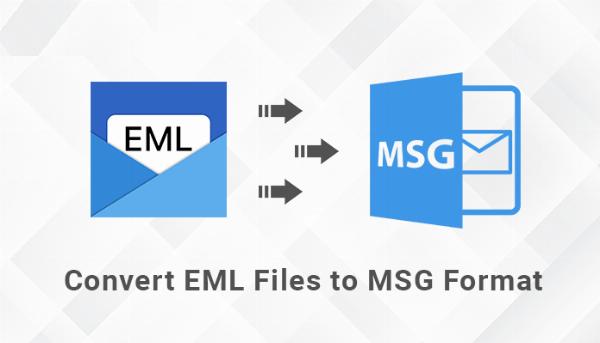
The term EML to MSG appears frequently when moving email archives between different clients or preparing data for legal review. This guide explains what EML and MSG files are, common conversion methods, practical tips for preserving headers and attachments, and considerations for batch exports across Windows and macOS environments.
- EML is a plain-text email file format based on Internet message standards; MSG is a Microsoft Outlook message container tied to MAPI.
- Conversion options include using email clients, dedicated conversion utilities, and programmatic approaches.
- Key issues: preserving MIME headers, character encoding, timestamps, and attachments.
- For bulk operations, prefer scripted or specialized batch tools and validate results with a sample set first.
Common methods for EML to MSG conversion
Several paths exist for converting EML files to MSG files depending on platform, volume, and preservation needs. Choice of method affects whether original headers, attachments, and metadata are retained.
Using email clients (manual conversion)
Some desktop email clients can open .eml files and save or drag them into an Outlook profile where they become .msg items. This approach is straightforward for small numbers of messages and preserves most visible fields and attachments. Limitations include manual effort, potential loss of low-level MIME headers, and platform dependence (Outlook is Windows/macOS-specific).
Batch conversion tools and utilities
Dedicated conversion utilities or migration tools handle large collections and can export folders of EML files into MSG or PST containers. These tools often provide options to preserve metadata, normalize character encodings, and map fields. When using third-party software, evaluate data integrity with test exports and consult vendor documentation about how headers and timestamps are handled.
Scripting and programmatic conversion
Programmatic approaches suit automation and customization. Common techniques include:
- Parsing EML messages according to Internet message format (MIME/RFC 5322) and constructing equivalent MSG items via APIs or libraries.
- Using platform-specific APIs such as Outlook's COM/MAPI interface on Windows to create .msg items from parsed message components.
- Employing open-source libraries that read EML and write MSG (or write to PST containers) for batch processing on servers.
For reference on the EML structure and header syntax, consult the Internet Message Format specification published by IETF: RFC 5322.
Key differences between EML and MSG
Understanding structural differences clarifies what can be preserved during conversion:
- EML: Plain-text file containing MIME sections, headers (From, To, Subject, Date), and encoded attachments compliant with Internet standards.
- MSG: A proprietary container format used by Microsoft Outlook that stores message data using MAPI properties and can include rich metadata not explicitly present in EML.
Because MSG uses MAPI properties, some Outlook-specific metadata (for example, certain flags, categories, or internal identifiers) may not be derivable from EML source files. Conversely, EML can contain raw MIME headers that do not map one-to-one into MSG fields unless explicitly preserved.
Practical considerations and best practices
Preserving headers and attachments
To retain original headers, export or store the raw message source as part of the conversion output (for example, saving the original EML as an attachment or a text file within a container). Verify that attachments remain intact by opening a sample of converted messages in the target client.
Character encoding and international text
EML files often include encoded headers and bodies (quoted-printable or base64). Ensure conversion processes decode and re-encode text correctly to avoid character corruption in subjects or message bodies.
Batch processing and verification
When converting large sets, follow a staged approach: run a small pilot, inspect results for metadata fidelity, and then perform a full batch run. Retain logs and checksums for auditability and troubleshooting.
Legal, compliance, and eDiscovery concerns
Conversion may affect admissibility or completeness of records in regulated contexts. Follow organizational retention policies and consult legal or compliance teams when handling email exports for litigation or regulatory requests. Many organizations maintain chain-of-custody and audit logs during conversions.
Troubleshooting common issues
Missing or altered dates
If sent/received timestamps differ after conversion, check how the tool maps Date headers to MAPI properties and whether file system timestamps were used inadvertently.
Broken attachments or inline images
Inline content may rely on Content-ID and multipart/related relationships. Ensure conversion preserves those MIME relationships or reconstructs them correctly in the MSG structure.
Corrupted text or unreadable characters
Confirm that character set declarations (e.g., UTF-8, ISO-8859-1) are respected during parsing and writing. Tools that ignore charset headers can produce garbled output.
Performance and resource limits
Large-scale conversions can be memory- and CPU-intensive. Monitor resource use, and if necessary, split tasks into smaller batches or run conversions on dedicated infrastructure.
When to seek specialist help
For enterprise migrations, forensic exports, or legally sensitive archives, involve IT teams with expertise in mail servers, MAPI, and eDiscovery workflows. Professional services can help preserve metadata and validate that conversions meet regulatory requirements.
FAQ: Common questions about EML to MSG
What is the EML to MSG conversion process?
Conversion typically involves parsing the EML (MIME) structure and recreating the message as an MSG with mapped properties, attachments, and body content. Tools may use Outlook APIs, MAPI, or libraries that can write MSG files.
Will converting change message headers or timestamps?
Some conversions may alter non-standard or low-level headers. Date and time fields can change if a tool maps them incorrectly or substitutes file system timestamps. Always validate a sample set and configure the converter to preserve original header values where possible.
Is it possible to batch convert thousands of EML files reliably?
Yes—batch conversion is common. Reliable results require testing, resource planning, and tools that support automated workflows and logging. Use staged runs and verify integrity before deleting originals.
Can conversion tools preserve legal and forensic metadata?
Some specialized tools and professional services are designed to preserve forensic metadata and provide audit trails. For legal matters, coordinate with compliance and legal teams to choose appropriate methods.
Which platforms support creating MSG files?
MSG files are typically created on systems that can access MAPI or Outlook APIs (commonly Windows environments). Cross-platform conversions often write MSG-like containers or use intermediary formats such as PST when interacting with Microsoft Exchange ecosystems.
How to verify converted files are faithful to the originals?
Open a representative sample in the target client, compare headers and attachments, and use checksums or automated comparison scripts to detect differences in body text and attachment integrity.