How to Merge Outlook Calendars? 4 Ways
-

- Published Updated
- 9,482 views
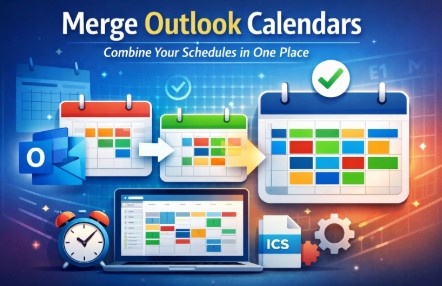
Managing multiple calendars can quickly become confusing, especially when you work with several email accounts, shared calendars, or migrated data files. Whether you are consolidating work schedules, merging personal and professional events, or switching systems, the need to combine Outlook calendars becomes essential. This comprehensive guide explains how to merge Outlook calendars using manual and automated methods, ensuring accuracy and time efficiency.
Why Do You Need to Combine Outlook Calendars?
Outlook users often manage more than one calendar due to multiple PST files, Exchange accounts, or shared calendars. Common scenarios include:
Switching jobs or email profiles
Merging personal and work calendars
Consolidating archived PST files
Migrating Outlook data to a new system
Managing shared calendars in teams
In all these cases, learning how to combine calendars in Outlook helps you maintain a single, organized view of all events without duplication or data loss.
Understanding Outlook Calendar Structure
Before learning how to merge Outlook calendars, it is important to understand how Outlook stores calendar
Calendars are stored inside PST or OST files
Each email account has its own calendar
Shared calendars remain separate by default
Outlook does not provide a direct “merge” button
Due to these limitations, users must rely on workarounds or automated solutions to combine calendars in Outlook effectively.
Method 1: Merge Outlook Calendars Using Copy-Paste
This is the simplest method but works best only for small calendars. This method helps beginners understand how combine calendars in Outlook, but it has several drawbacks. Steps to use this method are given below:
Open Microsoft Outlook on your system
Go to the Calendar view
Enable both the source and destination calendars
Switch to List View for better selection
Select all events (Ctrl + A)
Copy the events (Ctrl + C)
Paste them into the destination calendar (Ctrl + V)
This method helps beginners understand how merge Outlook calendars, but it has several drawbacks.
Limitations:
Time-consuming for large calendars
High risk of duplicate events
No option to filter date ranges
-
Recurring events may break
No automation
Because of these issues, this approach is not ideal for professionals or organizations.
Method 2: Merge Outlook Calendars from Multiple Accounts
If you use multiple email accounts in Outlook, each account has a separate calendar.
The steps to Combine Calendars in Outlook Accounts are:
Add all accounts to one Outlook profile
Open Calendar view
Enable all calendars
Use copy-paste or export-import methods
Although this works, it becomes inefficient when handling large datasets. This is where automation becomes essential to merge Outlook calendars accurately.
Why Manual Methods Are Not Ideal for Professionals?
While the above methods explain how to combine Outlook calendars, they are not suitable for:
Business environments
IT administrators
Large PST files
Frequent calendar consolidation
Manual methods increase the risk of data loss, duplication, and formatting issues. To overcome these challenges, automated solutions provide a reliable alternative.
Method 3: How to Merge Outlook Calendars? Expert Solution
To efficiently and securely combine calendars in Outlook, using an automated tool is the smartest approach. The SysTools ICS Merger Tool is designed to merge multiple ICS calendar files into a single consolidated file without data loss. This tool is especially useful when migrating or consolidating calendars before importing them into Outlook.
Merges multiple ICS calendars into one
Preserves event details, reminders, and recurrence
No duplication of calendar entries
Supports bulk calendar merging
Simple and user-friendly interface
Working Steps of the Tool
Download and launch the above tool
Add multiple ICS calendar files
Preview calendar events
Choose merge options
Export merged calendar as a single ICS file
Import the merged ICS file into Outlook
This automated workflow significantly simplifies how merge Outlook calendars while ensuring data integrity.
Benefits of Using an Automated Tool
Compared to manual techniques, automation offers:
Faster processing
Zero data loss
No duplicate entries
Supports large calendar files
Professional-grade accuracy
For organizations and advanced users, automated solutions are the best way to combine calendars in Outlook efficiently.
Method 4: Combine Calendars in Outlook Using Overlay Feature
This method is helpful for comparison, but it does not permanently merge data
Open Outlook and go to Calendar
Select multiple calendars from the left pane
Click the View in Overlay Mode option
Calendars appear layered together.
Best Practices While Merging Outlook Calendars
Always take a backup of PST/ICS files
Check for time-zone consistency
Review recurring events after merging
Use automation for bulk calendars
Avoid repeated manual imports
Following these best practices ensures a smooth experience when you merge Outlook calendars.
Conclusion
Learning how merge Outlook calendars is essential for users managing multiple schedules, accounts, or migrated data. While Outlook offers basic manual methods such as copy-paste, overlay, and import-export, these techniques are limited and error-prone.
For a secure, fast, and professional solution, automated tools like the above-mentioned provide a reliable way to combine calendars in Outlook without duplication or data loss. Whether you are an individual user or an enterprise, choosing the right method ensures better calendar management and productivity.