Email Formatting Changes When Converted to PDF? How to Retain the Original Message Structure
-

- Published Updated
- 3,339 views
Introduction
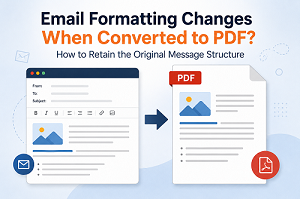
Saving important emails as PDFs is a frequent method for exchanging correspondence needed for legal or paperwork reasons or for long-term storage. But users could find that an email does not seem quite the same once it has been exported as a PDF. Fonts can be different, graphics can be moved, hyperlinks can be formatted differently, and the order of message contents can shift.
These alterations might be difficult, especially if the original email contains important company information, signatures, tables, logos, or attachments. The problem most often occurs because an email and a PDF are two separate formats for storing and displaying information. Knowledge of such distinctions can help users choose a more dependable strategy to preserve their email content.
Why Does Email Formatting Change When Exported to PDF?
To understand why formatting changes, it helps to know the difference between EML and PDF files.
EML is a file format for an email message containing a single email, including message content, headers, attachments, hyperlinks, graphics, and formatting metadata. It is often used to save or move messages between different email apps.
PDF is a fixed-layout format designed to maintain the appearance and structure of a document across different devices and applications. When an EML message is converted to PDF, the flexible structure of the original email needs to be displayed in a fixed page layout. In the process, some items cannot be exactly as they appear in the original email.
The most frequent causes of such formatting errors are
- Different Rendering Engines: HTML or rich-text material can be rendered differently by email clients and PDF converters. This can change the fonts, spacing, tables, colors, orientation, and other things in the email layout.
- Missing or Unsupported Fonts: If the original email utilizes a typeface that is not available at the time of conversion, the font can be replaced with another font. This can change line spacing, the length of the paragraph, and the overall appearance of the message.
- HTML/RTF Formatting: Emails created in HTML or RTF can contain special formatting instructions that cannot be duplicated exactly by all PDF export methods. Thus, text styles, tables, backdrops, and alignment can vary.
- Embedded Images & Signatures: Logos, screenshots, profile images, and email signatures can move, resize, or look different when an email is converted to a fixed PDF document.
- Email Headers and Meta Proper interpretation of important details like From, To, Cc, Bcc, Subject, and date information during conversion is necessary. If they are not handled properly, such messages will not be rendered properly in the resulting PDF.
- Attachments and Related Content: You might need to handle attachments, URLs, and other embedded items separately. Depending on the conversion procedure, some content cannot be in the same place or format as in the source email.
- Differences in Page Size and Layout: A PDF has defined page dimensions and margins, but an email is usually formatted to fit the size of an email application window. This means that long lines can wrap differently, tables can jump to another page, and page breaks can happen in places you don’t expect.
- Copy-Paste or Manual Printing: Copying an email into a word processor or utilizing a print-to-PDF option can create additional formatting errors. Margins, fonts, hyperlinks, photos, tables, and page breaks can need to be manually adjusted for the resulting PDF to look appropriate.
How Can You Stop Email Formatting from Changing?
Formatting inconsistencies cannot always be completely eliminated, depending on the complexity of the original email and the conversion method employed. However, these can be mitigated by users not copy-pasting unnecessarily and by using a conversion mechanism that is optimized for email data.
It is also a good idea to maintain the original EML files untouched before starting the export. This gives a dependable source copy in case the converted papers need to be reviewed at a later date. Pay special attention to e-mail messages that have HTML layout, signatures, embedded graphics, or tables, as those items are more likely to be altered during conversion.
If you have a small number of messages, just open each email and save it as a PDF. But in the case of archiving a large number of EML files, manually processing each message can be inefficient and generate inconsistent results.
How to Convert EML Files to PDF Manually
Manual Method: Print-to-PDF Method
If you only need to convert a few emails, you can use the standard print-to-PDF method.
- Select the EML email file that you want to convert on your computer.
- Open the EML file using a compatible email application that supports EML files.
- Make sure the complete email message is visible, including the sender, recipient, subject, message body, signature, images, and other relevant content.
- Click the Print option from the email application's menu or use the available print command.
- In the printer selection window, select Microsoft Print to PDF, Save as PDF, or another available PDF printer.
- Choose the folder where you want to save the converted PDF file.
- Provide a suitable name for the PDF document and confirm the save location.
- Click Print or Save to create the PDF version of the EML email.
Open the newly created PDF and compare it with the original EML message to check whether the text, formatting, images, headers, hyperlinks, and page layout have been retained.
There is no special software required to achieve this, but it might be complex if you have a lot of email messages to deal with.
Manual Conversion Method Limitations
Manual email export is mostly useful for one-time conversion. Processing a whole set of EML files can cause some problems when users have to do so. It takes a lot of time to open and convert each mail separately. You also need an email application that can open the EML files properly for the operation. The format can vary from message to message, especially if the email is coming from a different source or if it has HTML formatting.
Another problem is consistency. One email can have embedded photos, another can have a lengthy table, and another can have many attachments. Handling each message individually can make it challenging to keep the same output structure throughout the entire collection.
Manual conversion can also make it more difficult to keep the original folder organization. And if you have hundreds or thousands of EML messages, manually picking files, selecting destinations, and reviewing each and every PDF can get tedious and prone to human error.
Professional EML to PDF Conversion Software
If you want to convert several messages easily without losing the structure of the email, then you can go for email conversion software. WholeClear EML to PDF Converter is developed to convert EML communications to PDF documents without the need to process emails one by one by users.
The software converts EML messages in a batch. It also has built-in settings to help preserve crucial email content and formatting when you create a PDF.
Major Features of this Tool
- Cross-Platform Compatibility: WholeClear EML to PDF Converter supports Windows, Mac, and Linux operating systems, allowing users to convert EML files to PDF across different platforms.
- Batch Conversion: Multiple EML files can be converted to PDF at a time.
- Email formatting retention: The software is designed to maintain crucial formatting characteristics of the source email.
- Retention of meta The sender, receiver, subject, and other message information of an e-mail can be retained.
- Preview Feature: The user can examine chosen EML messages before the conversion process is completed.
- Maintaining folder structure: The folder hierarchy of emails can be kept while exporting emails.
- Attachments Handling: Save the email attachments separately to a site of your choice.
- No Dependency on Email Client: The application can convert EML files without an EML-supportive email application.
- Simple interface: The graphical interface, which does not require sophisticated technical knowledge, allows users to easily complete the conversion.
How to Convert EML Files to PDF with This Professional Software
- Install the application on your system and launch it to begin the EML to PDF conversion process.
- Use the Browse option to locate and select the EML files you want to convert. If the emails are stored together in a folder, you can select the complete folder for batch processing.
- After adding the EML data, use the preview facility to view the selected messages and check their email content before starting the export.
- Specify the destination folder where you want the converted PDF files to be stored.
- Click the Export option to begin converting the selected EML messages into PDF format. The application can process multiple EML files together, eliminating the need to convert each message individually.
- Once the process is completed, open the selected destination folder to access the generated PDF documents. The software is designed to retain email formatting, attributes, and folder structure during the conversion.
Why Use a Professional EML to PDF Converter?
For a few emails, you can get away with doing it manually, but it doesn’t scale well. This involves you interacting with the email application over and over again and could lead to inconsistent layouts, folder management, and output quality.
If users need to convert large collections, retain email attributes, organize the output efficiently, and minimize the manual effort, a dedicated EML-to-PDF software is more appropriate. Batch processing, email preview, folder hierarchy retention, metadata retention, attachment handling, etc. are the features to arrange the entire process.
If you want to keep the email content and structure intact while making PDF copies for archive, sharing, documentation, or reference in the future, then professional conversion software can provide a more convenient and organized approach.
Conclusion
Formatting can vary when you convert an email to PDF, since EML messages and PDF documents deal with material in different ways. HTML and RTF formatting, fonts, photos, signatures, headers, attachments, page dimensions, and rendering engines can influence the appearance of the final document.
The manual print-to-PDF method can be enough for a few messages. Manually processing a large collection is time-consuming and makes it difficult to maintain consistency in formatting and structure.
If you need to export bulk emails, then a professional EML-to-PDF conversion solution will be a more streamlined way. It provides batch processing, message preview, email information preservation, and folder organization maintenance to help users convert their EML emails into PDF format and relieve them from the difficulties of manually formatting and managing EML emails.
Frequently Asked Questions
Q1. Why Does EML Formatting Change During PDF Conversion?
Ans. Formatting is subject to alter owing to changes in fonts, HTML/RTF elements, graphics, and PDF page layouts.
Q2. Can I Convert EML to PDF Without an Email Client?
Ans. Yes, the professional software can convert EML files without an email client.
Q3. Can I convert many EML files to PDF in bulk?
Ans. Yes, a dedicated conversion application allows the batch conversion of several EML files.
Q4. Does the professional software retain email formatting?
Ans. Yes, it is designed to preserve email formatting, attributes, photos, hyperlinks, and other message features.
Q5. Is the folder structure preserved by the conversion utility?
Ans. Yes, the software provides the option to keep the original EML folder hierarchy intact during conversion.