Top Reasons to Use PST to VCF Converter for Contact Migration
-

- Published Updated
- 40 views
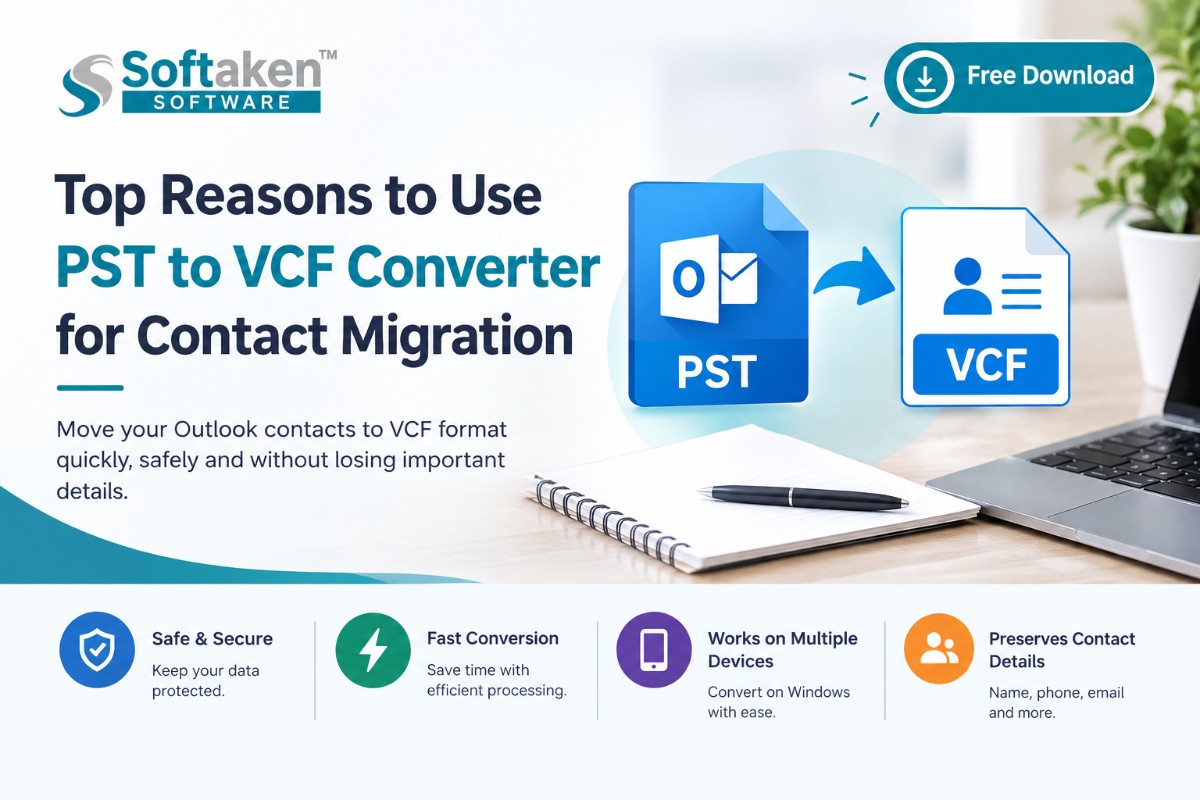
Have you managed and transferred contacts on different platforms? Then you’ve likely faced the headache of mismatched formats. While Outlook supports PST files, most mobile devices and cloud services use the VCF (vCard) format, so contact migration can get difficult. Because of this, the use of a PST to VCF Converter gives you a simple way to move your contacts from PST files to vCard files that are supported by many contact management platforms.
A converter helps save time, handles many files more efficiently, and improves productivity. We’ll break down the topic and talk about the manual methods alongside an automated converter, so you can decide which method goes with your needs.
Why Use a PST to VCF Converter for Contact Sharing?
If you’ve ever tried to move 500 contacts one by one, you know exactly how frustrating it is when a phone number ends up in the ‘notes’ field, or an email address is cut in half. Nothing is worse than moving your contacts only to realize that your data is scrambled. While Outlook is great for daily emails, its PST format is kind of a limitation for sharing data. For instance, you are trying to move Outlook PSTs to a new device or share contacts with people who don’t use Outlook, but this is not possible unless that new device or person uses a PST format, so a converter becomes a necessity. Here’s why:
Keeps Your Data Accurate
A converter makes sure that every field–names, multiple phone numbers, and job titles land exactly where it belongs.
Export Many Folders
In place of exporting folders one by one, you can move the whole folder at once, so it takes less time.
Universal Compatibility
Converting PST to VCF (vCard), you can read your contacts on iPhones, Android devices, Gmail, and Mac Contacts.
Preserves Contact Photos and Notes
It can help keep your contact photos and notes so you don’t lose the faces and context attached to your names.
Going Manual: A Step-by-Step Guide for Small Contact Lists
When you only have a few contacts to move, and you are not ready to use a dedicated tool, the CSV approach is a perfectly fine, free alternative. It's a bit of a ‘roundabout’ way to get the job done, but it works if you have the patience for a few extra steps. I’ve tried the Google Contacts trick myself, and while it’s free, mapping those custom fields is a big pain if your CSV doesn’t align perfectly. For example, if Outlook exports 'Business Phone' but Google is looking for 'Work Phone,' your numbers might just vanish during the import unless you manually map every header.
Steps to Use the Manual Method for Contact Migration:
Part 1: Exporting from Outlook to CSV
1. Start by opening Outlook
2. Go to File, then Open & Export, then Import/Export.
3. You can now select Export to a file and click Next.
4. Later on, choose Comma-Separated Values (CSV) and click Next.
5. Select your contacts folder from the list and hit Next.
6. Finally, select where you want to save the file and click Finish.
Because phones and iCloud can’t read the CSV file you just made, you have to use Google Contacts to turn it into a VCF format.
Part 2: Converting the CSV to VCF (using Google Contacts)
1. First, go to Google Contacts (contacts.google.com)
2. Then, click Import on the left sidebar and select the CSV file you just exported.
3. After the contacts are imported, you can click Export.
4. Under “Export as,” select vCard (for iOS/Android contacts).
5. Finally, hit Export. You’ll now have a clean VCF file saved in your downloads folder, ready for a new device.
Note: If you are using an iPhone with all iOS versions or higher, version 4.0 is highly recommended to make sure your high-resolution contact photos are of better quality.
And that’s it! It’s a little long process, but it works. Just keep in mind that if you’re doing this for many of your contacts, you might notice some photos or special notes didn’t show up, which brings us to the challenges of going manual.
The Scale Problem: Why "Free" is Expensive for Large Lists
Think of it this way: the traditional steps we just covered take about 5 to 10 minutes to get right for a single folder. If you only have one folder with 20 contacts, that’s still manageable. But if you’re a professional with 500+ contacts spread across different categories – Like Clients, personal, and older leads – you have to repeat the whole CSV-to-Google process for every single group. But the time-sink isn’t the only problem – even after you finish the export, you’ll likely run into a few technical ‘glitches’ that the manual way just can’t handle:
The Duplicate Issue: importing multiple files one by one can create duplicate entries, forcing you to manually merge contact information later.
Broken Special Characters: Names with accents or international characters, such as Renée or Müller, may show incorrectly after the basic method export, making the contact list look messy. I once spent three hours fixing 'Müller' to 'Muller' after a bad CSV export.
The Version Gap: Modern iPhones and Android devices only work best with vCard versions 3.0 or 4.0, but manual export most of the time defaults to the older 2.1 version.
Stripped Images and Photos: CSV files are essentially just text spreadsheets – they don’t have the “room” to carry images. If you’ve spent time adding contact photos in Outlook so you can see who is calling, the basic, aka manual route, unfortunately, cuts those away, leaving you with a blank icon on your phone.
The Smarter Way: How an Automated Converter Saves Your Data
After looking at the traditional steps, it’s easy to see why so many people get annoyed with contact migration. If you’re dealing with more than a few dozen names, you aren’t just looking for a free workaround – you’re looking for a way to keep your database professional and clean. This is where Softaken PST to VCF Converter changes the game. It doesn’t just move your data; it “translates” it perfectly from Outlook’s ecosystem to your mobile devices.
Instead of manually overseeing a CSV export and crossing your fingers that the fields map correctly, a converter handles the heavy lifting in the background. The real value is in the integrity of the results. You won’t have to spend the next week manually editing contacts because a job title was cut off or a name was scrambled. It makes sure your professional network moves with you, error-free.
Steps for PST to VCF Converter Tool:
Using a dedicated tool removes the need for a “middleman” like Google Contacts. You can convert your files locally on your computer in just a few minutes.
1. Launch the tool
Start by opening the PST to VCF converter on your system. (Click Here to Download: https://www.softaken.com/pst-to-vcf-converter)
2. Add PST
Then, select the Add PST button. If you have a massive archive, you can use the Folder Mode to load many PST files at the same time for bulk conversion.
3. Preview
Take a look at all contacts. Check the names, numbers, and even the photos to ensure everything is intact.
4. Export
Select ‘vCard (.vcf)’ and pick the vCard version, like 3.0 or 4.0, to make sure it works with your phone. Then, convert.
Core Features of the Software
This tool isn’t just about the speed. It’s the special features that are hard to handle with standard CSV.
• You can convert PST files even without installing Outlook on your computer.
• It keeps all contact details properly mapped instead of mixing them into random fields.
• The tool supports both old PST files and modern Microsoft 365 exports. Your contacts stay private, as the conversion happens locally on your system.
• It supports vCard 4.0, making contacts compatible with Android phones, iPhones, and other modern devices
• It supports both ANSI and Unicode PST files without compatibility issues. If you are working with large PST files, the conversion will complete with accuracy, helping you avoid missing details or corrupted contact information.
• Everyone can use this software, no matter if you have little or no technical knowledge, because it offers you a simple interface.
Summing Up
If you use Outlook for managing your contacts regularly, using a professional tool can actually help you save time if you are handling large or many files at the same time. It keeps your contacts organized. If you don’t want Outlook to work as a middleman to export your contacts to CSV and then to vCard format, you can simply use the tool for better productivity and more accurate results.
Frequently Asked Questions
Do I need to have Microsoft Outlook installed to use this tool?
No, this tool works on its own and can read PST files directly without needing MS Outlook to be installed on your system.
Will I be able to convert a password-protected PST file?
The software supports password-protected PST files. If you have the password, you can load the file into the tool and start the conversion just like a normal file.
Is there a limit to how many contacts I can convert at once?
The professional version has no limit. If you are moving a small family address book or a massive corporate database with 50,000+ entries, the tool handles bulk processing without freezing or skipping data.