Easy Way to Manage Large OST Files Effectively–Full Guide
-

- Published Updated
- 7,428 views
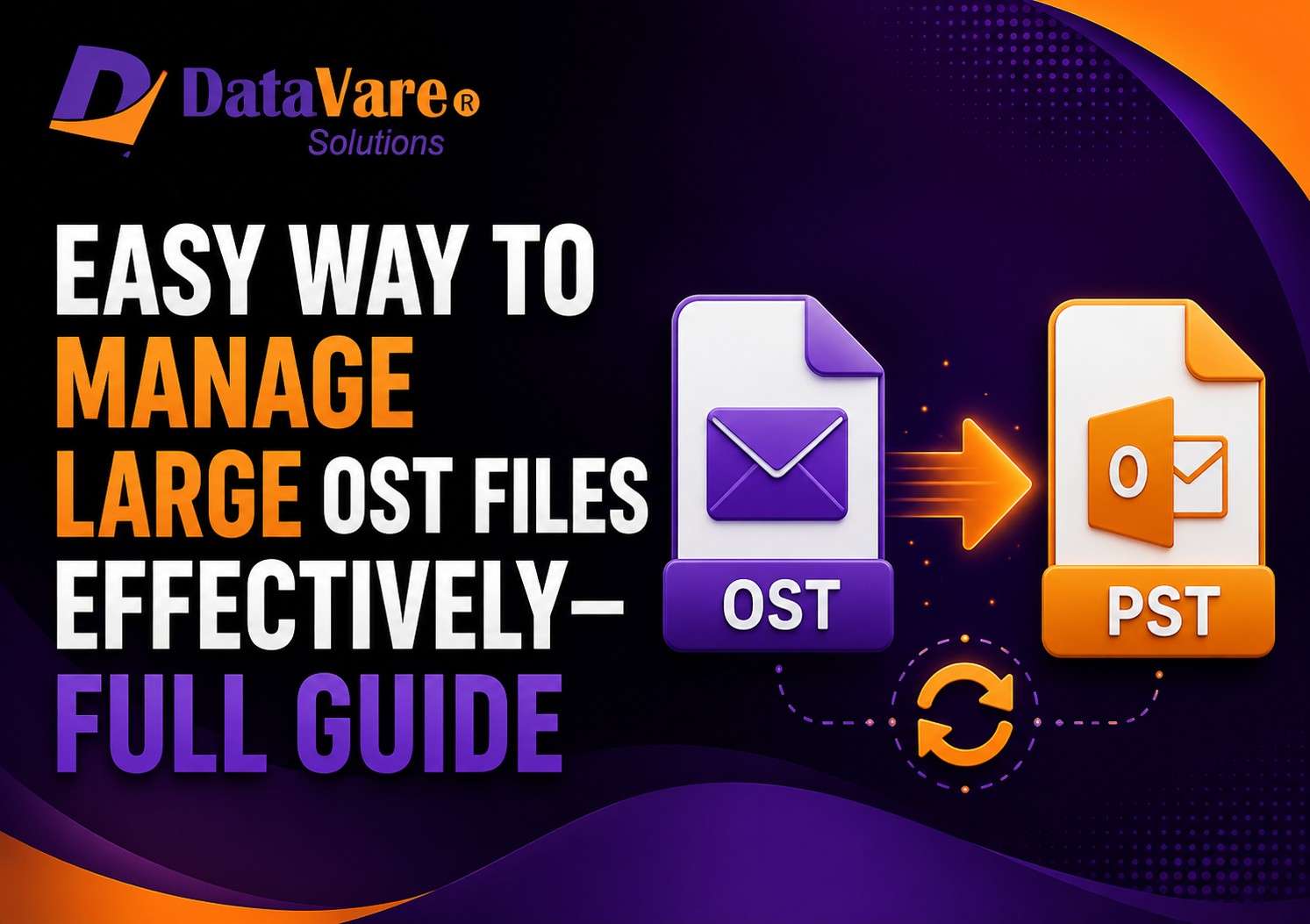
Microsoft Outlook is a very well-known name as one of the most popular email clients for professional and personal communication. When Outlook is set up with Exchange Server, Microsoft 365 or IMAP accounts, it creates an Offline Storage Table (OST) file. This file stores mailbox data locally and enables users to access email, contacts, calendars and other information even when they are not connected to the internet.
OST files are convenient but they can grow in size over time with the constant flow of emails and attachments. Large OST files are more likely to get corrupted and cause performance issues in Outlook. This guide will cover why OST files get out of control, what issues it leads to, and what users can do to manage it properly.
Causes of Oversized OST Files
The growth of OST files is contributed by several factors. By knowing these reasons, users can avoid enormous file sizes and keep Outlook running well.
1. Emails Number
Business communication on a daily basis can result in thousands of emails saved in Outlook. As the email messages pile up , the OST file also keeps on growing in size .
2. Big attachments
Large attachments like documents, presentations, images, and videos in emails make the OST file size grow significantly.
3. Multiple Mailbox Sync
If users have access to multiple mailboxes in a single Outlook profile, the OST file can grow quickly as all data is stored locally from the sync.
4. Long Term Email Storage
Many users save emails for years without deleting unnecessary messages. This results in OST files getting very large over a period of time.
5. Data from Calendar and Contacts
Outlook stores not only emails, but also calendar entries, tasks, notes and contacts. All these things add up to the total size of the OST file.
6. Exchange Mode Cached
Cached Exchange Mode downloads the mailbox data to the local computer. The OST file may become too large due to years of information in the mailbox.
Issues with an Oversized OST File
1. Large OST files can cause a lot of operational and performance issues that impact day-to-day productivity.
Slow Opening of Outlook
- Decreased Outlook speed is one of the most common symptoms. You may experience delays when opening folders, searching e-mail, or switching between items in your mailbox.
Outlook Crashes Continuously
Large OST files can cause Outlook to freeze, become unresponsive, or crash without warning.
Sync issues
Synchronization latency between Outlook and the mail server due to large OST files can result in missing or outdated mailbox data.
Higher risk of corruption
The higher the OST file size, the more chances of it getting corrupted because of sudden shutdowns, software conflicts, or system failures.
Backup Problems
Large files take up more space and increase backup time, making it more difficult to manage the mailbox
Search Performance Issues
Large OST files can negatively impact the performance of Outlook search and its reliability.
How to Fix Big OST File Problem
There are several ways to reduce OST file size and improve Outlook performance.
Method 1 - Remove Unwanted Emails
Check your mail folders regularly and delete any emails that are no longer required.
Process:
· Abra Microsoft Outlook
· Browse to large mailbox folders.
· Delete unwanted e-mails.
· Empty the Deleted Items folder .
This reduces the size of your mailbox , and improves the performance of synchronization .
Method 2: Delete Large Attachments
Attachments are the biggest space hogs in a mailbox.
Steps:
· Sort email by size
· Find messages that have large attachments.
· Save attachments on disk.
· Remove attachments from outlook mails.
· This process can reduce the size of OST file drastically.
Method 3: Old Mail Archive
Outlook has an Archive feature . This lets you shift older stuff into a separate PST file .
Steps: 1.
· Launch Outlook.
· Go to File > Tools > Clean Up Old Items .
· Select folders for archiving.
· Provide date range.
· Export archived data to PST file.
Archiving decreases the data stored on the OST file.
Method 4: Compress the OST File
Outlook offers an option to compact your data files.
Steps:
· Launch Outlook.
· File > Account Settings > Account Settings
· Click the Data Files tab.
· Select the OST file.
· Click Settings > Compact Now.
Compacting removes unused space and makes file storage more efficient.
Method 5: Adjust Mail Sync Settings
Users can also control how much mailbox data Outlook downloads locally.
Steps:
· Open Outlook
· Navigate to Account Settings.
· Choose the Exchange account.
· Adjust the “Mail to Keep Offline” slider to a shorter time period, such as 6 months or 1 year.
· Close and open Outlook again.
This reduces OST file size without deleting the mailbox content from the server.
Method 6: Reconstruct OST File
If your OST file is too large or if you are facing synchronization issues, you can recreate it.
What needs to be done:
· Close Outlook.
· Find the OST file on your computer.
· Rename or remove the OST file.
· To restart Outlook.
Outlook generates a new OST file and synchronizes mailbox data from the server.
Method 7: Use an Expert OST Management Tool
Most of the users are interested to go for professional solutions for advance mailbox management like Datavare OST to PST Converter. The software helps export mailbox data from OST files to PST format with email properties, attachments, contacts, calendars and folder hierarchy.
Benefits:
· Convert Large OST Files To Easily
· Keeps the original mailbox hierarchy intact
· Bulk Data Migration
· Works with all Outlook Versions
· User friendly interface
Professional tools can help to make mailbox management easier and less dependent on oversized OST files.
Final Thought
Managing large OST files is essential for Outlook performance and smooth email communication. Large OST files are often created by a high number of emails, attachments, synchronization of multiple mailboxes, and long-term data storage. These files can cause slow performance in Outlook, synchronization problems, crashes, and a higher risk of corruption.
Users can easily solve a large OST file problem by removing unwanted emails, deleting large attachments, archiving old emails, compacting data files, changing synchronization settings, or recreating the OST file. If you are looking for a more efficient solution then OST to PST Converter offers a reliable way to manage and migrate OST data with mailbox integrity. By following these practices, users can help keep Outlook running efficiently and their mailbox environment organized.