How to Convert OST to EML? Complete Guide 2026
-

- Published Updated
- 5,043 views
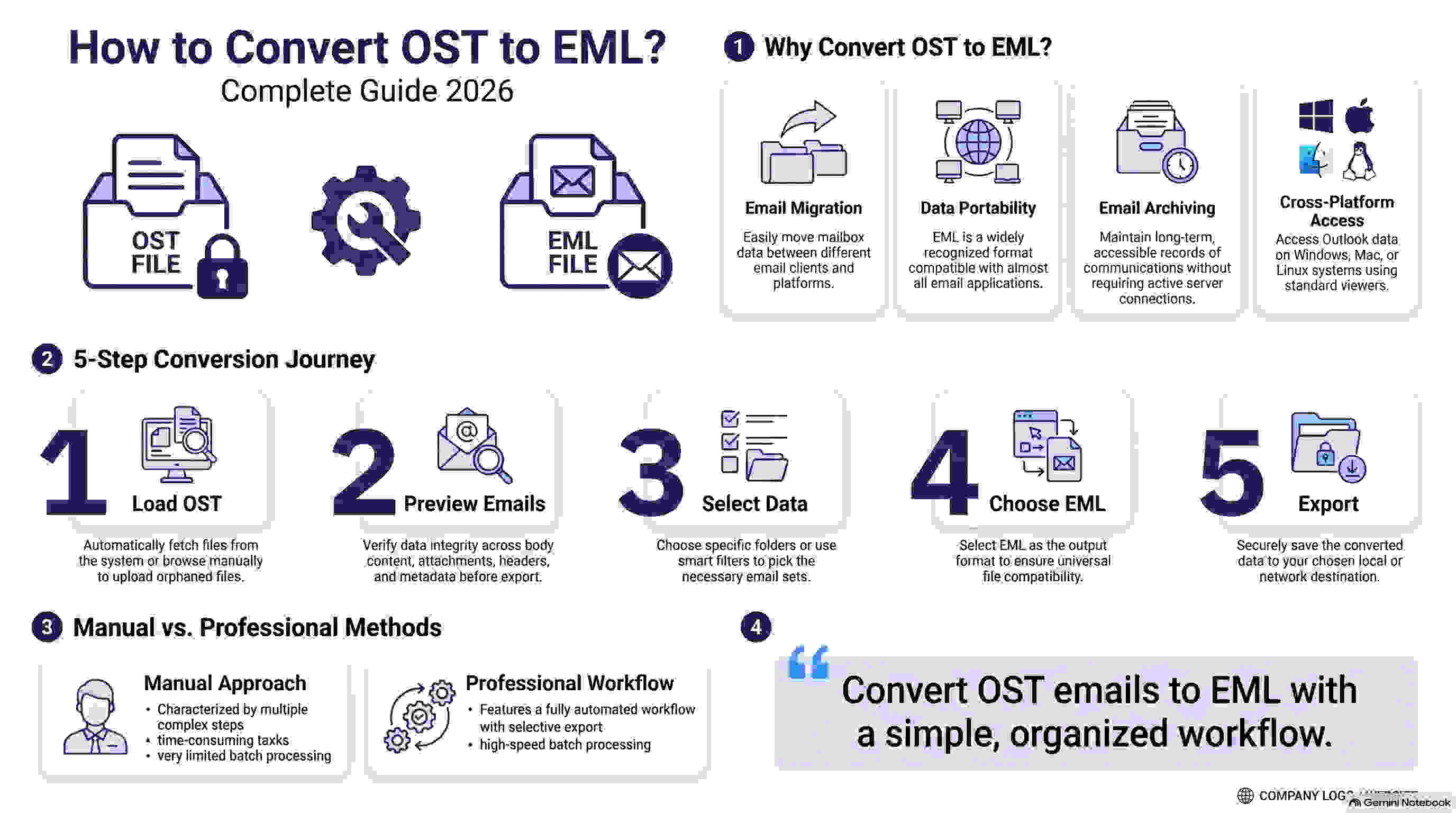
Email migration and data management are common requirements for individuals, businesses, and IT professionals. Microsoft Outlook stores mailbox information in OST files, but there are situations where users need their emails in EML format for migration, archiving, portability, or access through other email applications.
If you are looking for a reliable way to convert OST to EML, this guide explains the available methods, their limitations, and how dedicated software can simplify the process.
What Are OST and EML Files?
Before converting an OST file to EML, it is useful to understand the purpose of both file formats.
An OST (Offline Storage Table) file is created by Microsoft Outlook to store a synchronized local copy of mailbox data. It allows users to work with emails and other mailbox items offline and synchronize changes when the account is connected to the server.
An EML (Electronic Mail Format) file stores an individual email message, including its message body, sender, recipient, subject, headers, and attachments. EML is supported by various email applications, making it useful when users need to transfer or access individual emails across different platforms.
Because of this difference, users may need to convert Outlook OST emails into EML files when moving to another email application or managing individual messages separately.
Why Convert OST to EML?
There are several reasons why users may need to convert OST files to EML format:
-
Email Migration: Move Outlook emails to an email application that supports EML files.
-
Data Portability: Transfer individual emails between different systems and applications.
-
Email Archiving: Store important emails as individual files for future reference.
-
Cross-Platform Access: Access Outlook messages through applications that support EML.
-
Data Recovery: Extract emails from an orphaned or inaccessible OST file.
-
Email Management: Organize individual messages outside the Outlook environment.
- Backup: Maintain standalone copies of important email messages and attachments.
The most suitable method depends on the size of the OST file, its condition, and whether Microsoft Outlook is available.
How to Convert OST to EML Manually?
Microsoft Outlook does not offer a simple direct option to export an entire OST file directly into EML format. Users may therefore need to follow multiple steps or use an intermediate format.
Step 1: Access the OST File
First, make sure the OST file is accessible through an Outlook profile. If the OST belongs to an active account, you may be able to access the mailbox normally.
Step 2: Open the Required Emails
Launch Outlook and navigate to the mailbox folder containing the emails you want to export.
Step 3: Save the Emails
Select the required messages and use Outlook's available options to save or export them. Depending on the method used, the messages may initially be saved in another format such as MSG.
Step 4: Convert the Emails to EML
Since Outlook does not provide a straightforward OST-to-EML export option, an additional email application or conversion utility may be required to convert the messages into EML format.
Step 5: Verify the EML Files
Open the converted EML files in a compatible email application and verify the message body, attachments, sender information, and other important properties.
Limitations of the Manual Method
The manual approach can work when only a few emails need to be converted, but it becomes inconvenient when working with large mailboxes.
- Common limitations include:
- Time-consuming for large OST files
- Multiple conversion steps
- Requires access to Outlook in many situations
- Difficult to process orphaned OST files
- Limited batch processing
- Repetitive manual work
- May require additional software
Managing folder hierarchy can be difficult
For users with large mailboxes or multiple OST files, an automated OST to EML converter can provide a more efficient solution.
How to Convert OST to EML Using Professional Software?
A dedicated OST to EML converter can simplify the conversion process by allowing users to load an OST file, preview mailbox data, select the required emails, and export them directly to EML format.
Professional conversion tools are particularly useful when users need to process large amounts of email data or work with OST files that are difficult to access through Outlook.
Benefits of Using an OST to EML Converter
A professional conversion solution may offer the following benefits:
- Batch processing of emails
- Selective email and folder export
- Email preview before conversion
- Preservation of email properties
- Attachment support
- Folder structure preservation
- Filtering options
- Faster automated processing
- Support for large OST files
Ability to work independently of Outlook, where supported
These features can reduce manual effort and make the conversion process easier to manage.
How to Convert OST to EML Using SysInfo OST Viewer?
The SysInfo OST Viewer Tool allows users to open and preview OST files and provides options to export mailbox data into multiple formats, including EML.
It can be useful for users who need to examine the contents of an OST file before selecting specific emails or folders for export.
Steps to Convert OST to EML
1. Install the OST Viewer Tool
Download and install the software on your Windows computer.
2. Load the OST File
Launch the application and browse to the OST file you want to access.
3. Preview OST Data
Once the file is loaded, preview emails, folders, and other available mailbox data.
4. Select Emails or Folders
Choose the individual emails or folders that you want to export.
5. Select EML as the Output Format
Choose EML from the available export options.
6. Choose the Destination Folder
Select a location where the converted EML files will be saved.
7. Start the Conversion
Begin the export process and allow the software to process the selected mailbox data.
8. Verify the Converted Files
After the conversion is complete, open the destination folder and verify the exported EML files in a compatible email application.
Manual vs Professional OST to EML Conversion
Choosing between a manual method and professional software depends on the amount and condition of the email data.
| Feature | Manual Method | Professional Tool |
|---|---|---|
| Batch processing | Limited | Available |
| Large OST files | Difficult | More convenient |
| Selective export | Limited | Available |
| Email preview | Limited | Available |
| Conversion steps | Multiple | Simplified |
| Folder selection | Limited | Available |
| Automation | Low | High |
For a small number of emails, a manual approach may be sufficient. For large mailboxes, multiple folders, or more complex conversion requirements, dedicated software can save considerable time.
Common Problems During OST to EML Conversion
Users may encounter different challenges while converting Outlook OST files to EML.
Orphaned OST Files
An orphaned OST file may no longer be connected to its original Outlook profile. Accessing its data through Outlook can therefore be difficult.
Large OST Files
Large mailboxes may take considerable time to process manually. Automated tools can make bulk processing more manageable.
Missing Attachments
Attachments should be checked after conversion to ensure they have been exported correctly along with the corresponding email messages.
Folder Structure
When converting a large mailbox, maintaining the original folder organization can be important for keeping emails easy to manage.
Outlook Dependency
Some manual approaches require Microsoft Outlook to access the mailbox. A dedicated converter may be preferable when Outlook is unavailable, depending on the software's supported features.
How to Choose the Right OST to EML Converter?
Before selecting an OST to EML conversion tool, consider the following factors:
- Supported OST file versions
- EML export capability
- Email preview functionality
- Selective folder and email export
- Attachment handling
- Folder structure preservation
- Batch processing
- Filtering options
- Ease of use
- Data security and integrity
Choosing a tool based on these factors can help reduce conversion problems and make the overall process more efficient.
Frequently Asked Questions
Can I convert OST to EML without Outlook?
Yes, some professional OST conversion tools can process OST files without requiring Outlook. However, the exact requirements depend on the software being used.
How do I convert an OST file to EML?
You can use a manual approach involving Outlook and additional conversion steps, or use dedicated OST to EML converter software to simplify the process.
Can I convert multiple OST emails to EML at once?
Yes, some professional conversion tools support batch processing or selective export of multiple emails and folders.
Does OST to EML conversion preserve attachments?
A suitable conversion tool can preserve email attachments along with the corresponding messages. Always verify the exported files after conversion.
Can I convert an orphaned OST file to EML?
Depending on the condition of the file and the capabilities of the selected software, an orphaned OST file may be opened and exported without the original Outlook profile.
Conclusion
Converting OST to EML is useful for email migration, archiving, data portability, and accessing Outlook messages through other compatible email applications. While manual methods can work for a small number of emails, they often involve multiple steps and become difficult to manage with large mailboxes.
A dedicated OST to EML converter can simplify the process by providing mailbox preview, selective export, automated processing, and support for different email data requirements.
By selecting the right conversion method and verifying the exported EML files, users can make the OST to EML conversion process more efficient while keeping their important email data accessible and organized.