Convert Excel File to vCard in Minutes – Complete Guide
-

- Published Updated
- 8,890 views
Introduction
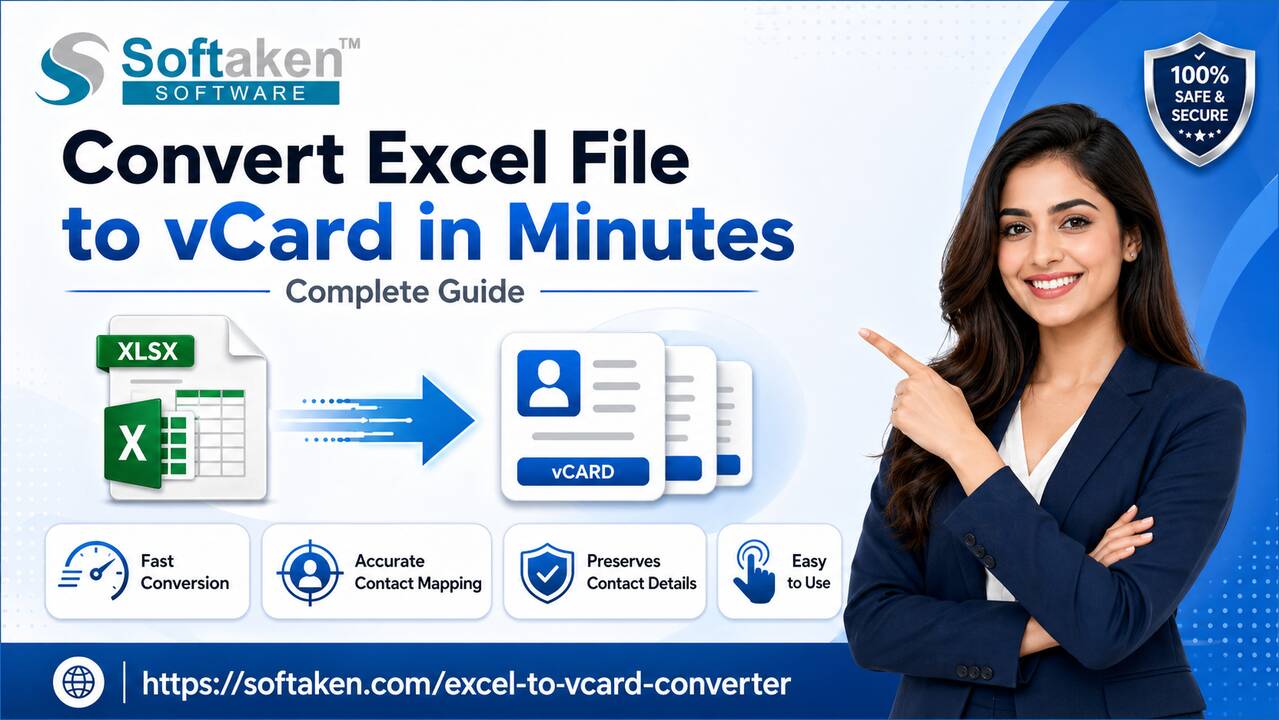
Managing contacts in Excel is easy until you need to use them on your phone or email platforms. That's when things get complicated. If you want to convert Excel File to vCard, you may face compatibility issues while transferring contacts. Excel files (XLS/XLSX) are not directly supported by most applications, so converting them into vCard (VCF) format becomes necessary. Most smartphones, email clients, and cloud services use the vCard format, which makes contact sharing easy among users.
In this guide, you will learn simple and effective methods to convert Excel files to VCF file format without losing any of your data.
Why Convert Excel Contacts to vCard Format?
There are many reasons you may have to convert (.xls/.xlsx) files to .vcf format.
- It works on Android, iPhone, Outlook, Gmail, etc.
- Helps with Easy contact sharing
- Also Supports Bulk data
- Maintains Contact details like name, phone, email, and more.
To get these types of benefits, you have to convert Excel file to vCard.
Manual Method to Convert an Excel File to vCard
If you don’t want to use a conversion tool, you can convert Excel contacts to vCard format manually using Excel and contact platforms like Google Contacts or Outlook. However, it can take a lot of your time and needs careful handling of data fields to avoid mistakes.
Manual Steps for Conversion
- First, open your Excel file and click File, then Save As
- Choose CSV (Comma-delimited) format and save the file
- Open Google Contacts or Outlook Contacts
- Then, use the Import option to upload the CSV file
- After importing, select the contacts
- Lastly, click Export and choose vCard (VCF) format
Limitations of the Manual Method
- It is Time-consuming for large files.
- Also has a risk of data mismatch.
- It can require multiple steps.
- There can be field mapping issues.
Best Way to Convert Excel to VCF Using an Automated Method
To reduce your workload, you can try using a professional tool like Softaken Excel to vCard Converter Software. This offers you a quick and reliable way to convert Excel file to vCard format without going through multiple manual steps. Using an Automated tool can simplify the process by handling data conversion, field mapping, and formatting on its own. It reduces the chance of errors and ensures that all your contact details, such as names, phone numbers, and email addresses, remain accurate. Tools like this can be very useful when users have to work with large or bulk Excel contacts. In addition, it also provides a preview feature, which allows you to check all contact file data before final conversion.
Automated Steps to Migrate XLS/XLSX Files to vCard
- You can start by downloading and installing this converter
- Then open the software and add your Excel file (xls/xlsx)
- Preview the contact details loaded in the tool
- You can match Excel Columns with the correct vCard fields if needed
- Choose the vCard (VCF) format and your preferred location
- Click convert now to start the process
Key Features
- Bulk Contact Conversion
- It Supports XLS & XLSX Files
- The preview option is also available
- The field mapping Feature is given, which means accurate results
- It can Create Single or Multiple vCard files
- Multiple vCard versions are supported
- Has Duplicate Contact Removal
- Wide compatibility
Conclusion
To convert Excel File to vCard, both manual and automated methods are available, but the traditional or manual method can be difficult to use when you are dealing with a large number of files. It involves many steps and can lead to errors, which can lower your efficiency. On the other hand, using an automated tool makes the process fast and simple, mainly when you are dealing with many files at the same time. It also ensures that all contact details are preserved without any data loss.
Overall, choosing the right methods depends on your needs. For small tasks, you can use the manual method, but if you want to work in a proper way without any limitations, an automated solution is often a better option.
FAQs
Can I convert Excel to vCard without software?
Yes, you can use manual methods, but it can be time-consuming.
Is it possible to convert multiple contacts at the same time?
Automated tools allow bulk conversion of Excel contacts to VCF format.
Will my contact details stay intact during the conversion process?
Most reliable methods keep all information accurate as it is if done correctly.
Which format is best for sharing contacts?
vCard (VCF) is a widely supported format to share contacts.
Why is field mapping important in conversion?
It ensures that contact details are placed correctly in the vCard file.