How to Fix MSG to VCF Conversion Failure in Outlook (Step-by-Step Guide)
-

- Published Updated
- 8,946 views
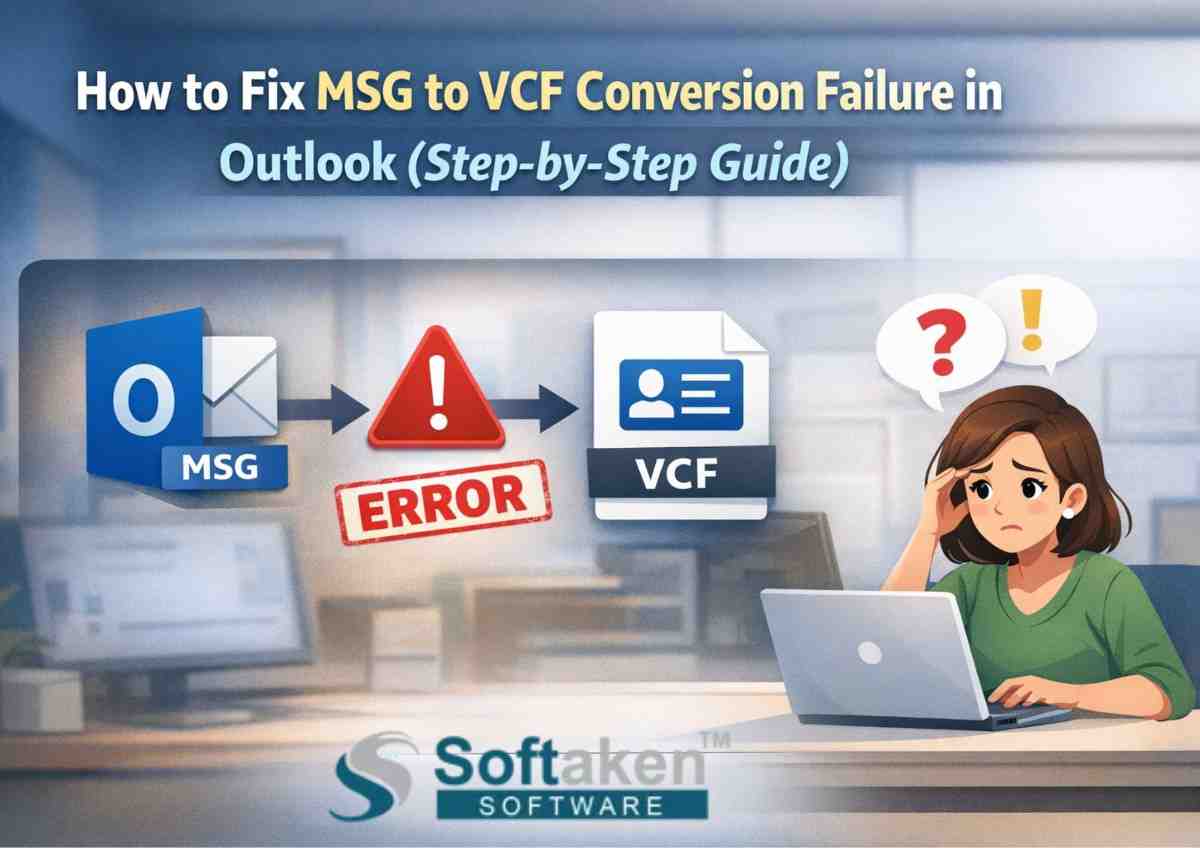
Losing contacts during conversion can create a real problem, especially when Outlook MSG files need to be moved into vCard format for phones, Gmail, or CRM systems. Many users start the MSG to VCF conversion process expecting quick results, but instead face missing contact details, conversion errors, or files that refuse to export.
Here’s the important part. MSG to vCard conversion failure in Outlook usually happens because of these clear reasons such as damaged MSG files, Outlook compatibility issues, incorrect export steps, or tools that fail to read contact fields properly. Once the cause is identified, fixing the problem becomes much easier.
This step-by-step guide explains how to resolve MSG to VCF conversion errors in Outlook, prevent data loss, and successfully export contacts into VCF format.
Why MSG to VCF Conversion Fails in Outlook
Before applying a fix, it helps to understand what causes conversion problems in Outlook environments.
1. Corrupted MSG Contact Files
MSG files may become damaged during system crashes, backup restoration, or file transfers. When the structure breaks, Outlook cannot read the contact information properly during conversion.
2. Outlook Version Compatibility Issues
Contacts created in one Outlook version sometimes behave differently when opened in another environment. This mismatch can interrupt MSG to VCF conversion.
3. Incorrect Export Method
Manual export steps often work for a small number of contacts but fail when handling bulk MSG files.
4. Large Contact Databases
When hundreds of MSG contact files are processed together, system resources and conversion tools may struggle to handle the load.
5. Field Mapping Problems
During conversion, Outlook contact fields must map correctly to the vCard structure. If mapping fails, phone numbers, addresses, or notes may disappear.
Step-by-Step Guide to Fix MSG to VCF Conversion Failure
Follow this structured approach to resolve conversion errors and protect contact data.
Step 1: Verify the MSG Contact Files
Open a few MSG files inside Outlook to confirm that they contain valid contact information.
Check for:
- Properly displayed contact details
- No file opening errors
- Complete contact fields
If any file appears damaged, restore it from backup before starting the conversion process.
Step 2: Organize MSG Files in One Location
Keeping all MSG files inside one folder helps the system process contacts more efficiently.
This improves:
- Conversion accuracy
- File scanning speed
- Contact detection
Disorganized files often lead to failed exports.
Step 3: Update Outlook Before Export
Outdated Outlook versions sometimes create compatibility issues during conversion.
Make sure:
- Outlook updates are installed
- Outlook profile works correctly
- Contact files open without warnings
This simple step resolves many hidden conversion problems.
Step 4: Avoid Manual Conversion for Bulk Contacts
Manual methods such as copying contact details or exporting one file at a time often lead to errors when many MSG files are involved.
Common problems include:
- Missing contact fields
- Incorrect vCard format
- Slow conversion process
Bulk conversion methods are more reliable.
Step 5: Use a Reliable Conversion Solution
When Outlook fails to convert MSG contacts properly, using a specialized solution designed for this task improves results. One commonly used option for handling bulk MSG contact export is Softaken MSG to VCF Converter, which reads MSG contact structures and converts them into standard vCard format accurately.
- This helps manage:
- Multiple MSG files at once
- Large contact databases
Field mapping during conversion
Step 6: Scan Files Before Conversion
Scanning allows the system to analyze MSG files before conversion begins.
This step identifies:
- Total contacts available
- Valid MSG files
- Files ready for export
Skipping this step can lead to incomplete conversion.
Step 7: Choose a Proper Destination Folder
Select a stable location where converted VCF files will be saved.
Recommended locations:
- Desktop folder
- Backup directory
- External storage drive
Avoid restricted system folders because they sometimes block file creation.
Step 8: Run the Conversion Process
Once everything is ready, start the MSG to VCF conversion.
During this stage, the system exports:
- Names and company details
- Phone numbers and email addresses
- Addresses and notes
- Contact photos and additional information
After completion, open a few VCF files to confirm successful conversion.
Real User Experiences from Outlook Users
Many users across the United States have faced MSG to VCF conversion issues before finding a working solution.
Michael Anderson – New York Outlook contacts stored in MSG files repeatedly failed to export. After organizing the files and using a proper conversion method, the contacts converted successfully.
Emily Carter – Texas Manual conversion caused missing phone numbers. After switching to a structured conversion process, all contacts appeared correctly in vCard format.
David Johnson – California A large contact database created multiple conversion errors in Outlook. Once the files were scanned and converted properly, the export completed without data loss.
Best Practices to Prevent MSG to VCF Conversion Errors
Following a few simple practices can reduce the chances of future failures.
- Keep backup copies of MSG files
- Verify contact files before conversion
- Avoid manual file format changes
- Convert contacts in batches
- Store VCF files safely after export
These steps help maintain stable MSG to VCF conversion results.
Benefits of Successful MSG to VCF Conversion
When conversion works correctly, managing contacts becomes easier across platforms.
Better compatibility VCF files work on smartphones, email services, and CRM systems.
Simplified contact transfer Contacts can be imported easily into Gmail, Android devices, and cloud address books.
Improved contact organization vCard format keeps contact details structured and easy to manage.
Reduced data loss risk A proper conversion method protects all contact fields.
Frequently Asked Questions
Why does MSG to VCF conversion fail in Outlook?
Conversion usually fails due to corrupted MSG files, incorrect export methods, compatibility issues, or large contact databases.
Can multiple MSG files be converted together?
Yes. Batch conversion allows large numbers of contacts to be exported at once.
Is Outlook required for MSG to VCF conversion?
Some methods require Outlook, but many conversion solutions can process MSG files independently.
Will contact details remain intact after conversion?
Yes, when the conversion process maps contact fields correctly into the VCF format.
What is the safest way to convert MSG contacts?
Using a structured step-by-step process and verifying files before conversion provides the most reliable results.
Final Thoughts
Contact migration can be slowed significantly by Outlook's MSG to VCF conversion failure, particularly if there are a lot of MSG files involved. However, recognizable problems such file corruption, out-of-date Outlook versions, or improper conversion techniques are typically the cause of the issue.
Resolving issues and exporting Outlook contacts into clean, usable VCF files that function flawlessly across devices and contact platforms is made much simpler by following the detailed procedure described in this article.