How to Move from Google Workspace to Office 365: Free & Automated Methods (2026)
-

- June 01st, 2026
- 5,686 views
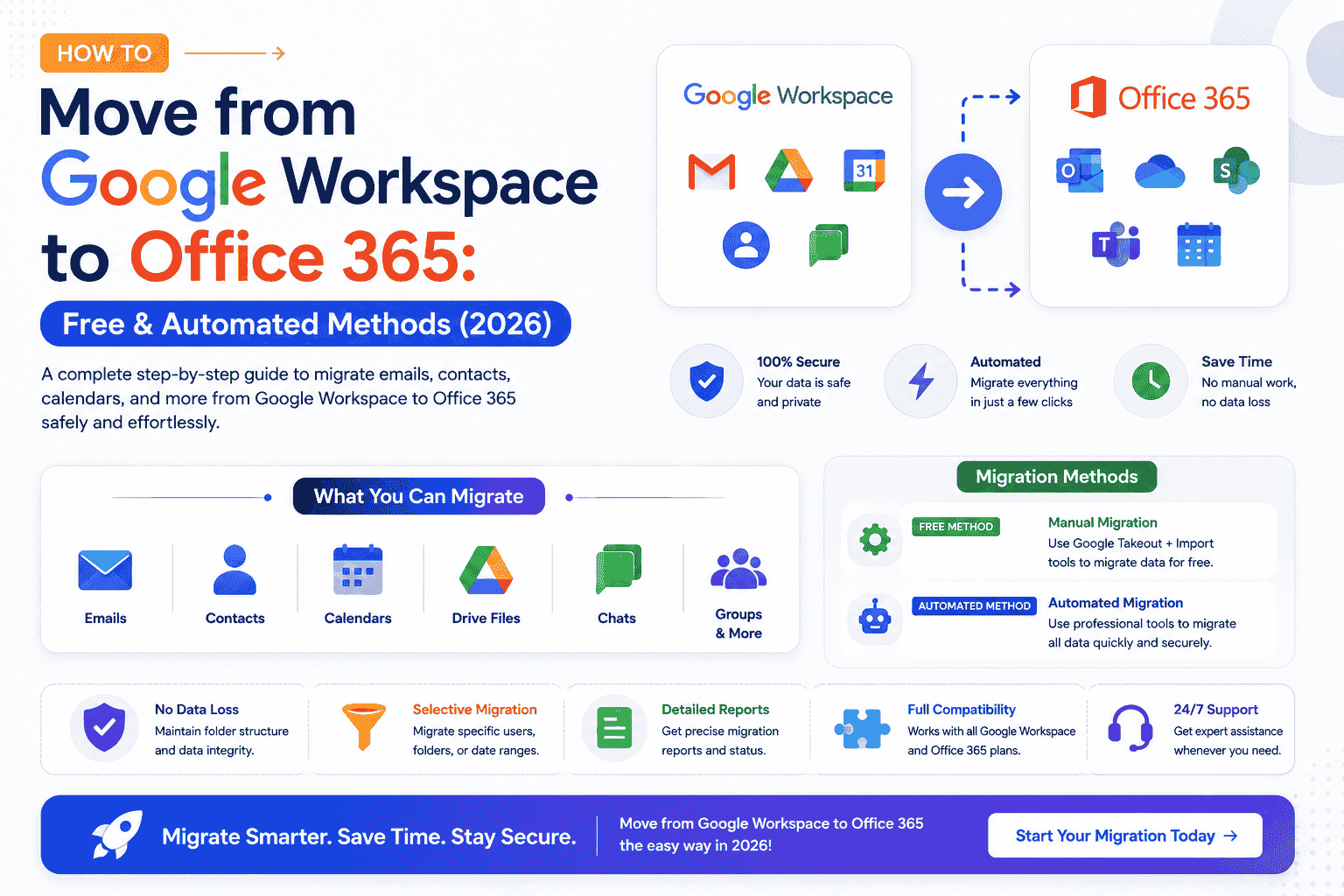
User Query: "We have around 200 users on Google Workspace and need to migrate all Gmail, Google Drive, Contacts, and Calendar data to Microsoft 365 before the end of this quarter. We tried the native migration tool, but it failed midway for nearly 30 mailboxes. Is there a reliable method to migrate Google Workspace to Microsoft 365 at this scale?" Introduction: Google Workspace delivers a browser-based collaboration experience built around Gmail, Google Drive, and Meet. Microsoft 365 provides a unified business environment that combines enterprise security, Windows-based productivity tools, and centralized collaboration through SharePoint and Microsoft Teams. For organizations managing large and growing workforces, Microsoft 365 often delivers the administrative control, security framework, and scalability required to support future business expansion. This blog covers a secure migration approach to move from Google Workspace to Office 365. We will also cover the DRS Softech Google Workspace to Microsoft 365 Migration Tool for a smooth transfer.
Google Workspace vs Microsoft 365
Feature |
Google Workspace |
Microsoft 365 |
Email Platform |
Gmail |
Outlook |
File Storage |
Google Drive |
OneDrive |
Collaboration |
Google Docs, Sheets, Slides |
Word, Excel, PowerPoint |
Security |
Advanced |
Enterprise-Grade |
Desktop Apps |
Limited (Browser-Based) |
Full Office Suite |
Team Communication |
Google Meet, Chat |
Microsoft Teams |
File Management |
Shared Drives |
SharePoint |
Admin Controls |
Google Admin Console |
Microsoft 365 Admin Center |
Proven Approaches to Migrate Google Workspace to Microsoft 365
Organizations can choose from two primary approaches when migrating Google Workspace to Microsoft 365. Each method varies in terms of complexity, time, and accuracy depending on the scale of migration.
- Automated Solution
- Native Method
Automated Solution for Google Workspace to Office 365 Migration
The DRS Softech Google Workspace to Microsoft 365 Migration Tool is a secure solution that transfers Gmail, Contacts, Calendars, and Google Drive data directly into Microsoft 365 with complete data integrity. It supports bulk mailbox migration across multiple user accounts simultaneously, making it a practical choice for organizations managing 100 or more users.
The tool allows administrators to map G Suite accounts to corresponding Microsoft 365 accounts and offers advanced filters, including Date Range, Skip Duplicate Emails, and more options to ensure a precise and controlled migration experience. The platform provides a structured workflow that allows both IT professionals and business users to execute migrations efficiently.
Steps to Migrate Google Workspace to Microsoft 365:
- Launch the above-shared Google Workspace Migration Wizard.
- Then, click Backup Google Workspace All Service to move to the next step.
- Enter the required login credentials along with the P12 file and click Login.
- Choose the user mailboxes to be migrated from the list and click Next.
- Select the Google Workspace services required for migration and click Next.
- Finally, press Start Migration for G Suite to Office 365 migration.
Why This Utility is Trusted by IT Teams?
- Migrates multiple Google Workspace user accounts simultaneously.
- Maps G Suite accounts to corresponding Microsoft 365 accounts accurately.
- Supports date-based email migration for targeted data transfer.
- Identifies and excludes duplicate emails during migration.
- Prevents the re-migration of already transferred data.
- Supports migration to Mailbox, Public Folder, and Online Archive.
- Allows skipping of folders such as Spam, Social, and Updates.
- Preserves original folder hierarchy and metadata throughout.
Manual Method to Migrate from Google Workspace to Microsoft 365
Microsoft 365 offers an official migration path for organizations transitioning from Google Workspace. The process requires configuration across both platforms before migration begins. You need to follow the steps below to migrate Google Workspace to Microsoft 365.
Step 01: Prepare the Microsoft 365 Domain
- Access the Microsoft 365 Admin Center using a valid administrator account.
- After that, you need to simply add and verify the primary domain.
- Add a routing subdomain to manage mail flow during the coexistence period.
- Create user accounts and assign active Exchange Online licenses to each user.
Step 2: Prepare the Google Workspace Domain
- Log in to the Google Admin Console.
- Add the same routing subdomain as a User Alias Domain.
- Navigate to Apps >> Google Workspace >> Gmail Settings, and enable IMAP access under End User Access.
Step 3: Configure Google Cloud Platform
- Go to the Google Cloud Console and create a new migration project.
- Create a Service Account and download its security key in JSON format.
- Enable the Gmail API, Calendar API, and Contacts API within the project.
- In the Google Admin Console, access the Domain-Wide Delegation settings under Security > API Controls.
- Authorize the Service Account Client ID with the OAuth scopes required by Microsoft.
Step 4: Create the Migration Endpoint
- Open the Exchange Admin Center and navigate to Migration, then Migration Endpoints, then New.
- Select Google Workspace as the migration type.
- Enter the Google Workspace super admin email address & upload the JSON key file from Step 3.
Step 5: Start and Run the Migration Batch
- In the Exchange Admin Center, go to Migration and select Add Migration Batch.
- Choose Migration to Exchange Online and select Google Workspace Migration.
- Upload a CSV file mapping source Google email addresses to target Microsoft 365 usernames.
- Select the endpoint created in Step 4, set the target delivery domain to the routing subdomain, and start the batch.
Step 6: Finalize Mail Routing and Clean Up
- Once the mailbox status displays Synced, plan the cutover window.
- Log in to the DNS hosting provider and update MX records to point to Microsoft 365.
- Update SPF, DKIM, and DMARC records accordingly.
In the Exchange Admin Center, select the migration batch and click Complete Migration Batch to run the final delta sync.
After confirming email delivery, delete the completed migration batches.
Organizations seeking broader cloud migration insights can refer to a comprehensive guide on how to migrate Google Workspace to Zoho Mail.
Limitations of the Native Method:
- Google Drive data is not supported in this migration method.
- Requires advanced technical knowledge and configuration.
- Domain-Wide Delegation and OAuth scope setup add significant complexity.
- Mid-migration failures can occur without clear error resolution paths.
- DNS and MX record changes require precise timing to avoid disruption.
|
Real-Life Scenario James, an IT Manager at a London-based healthcare organization, needed to migrate Google Workspace to Office 365 across multiple departments. Configuring the Google Cloud Service Account and managing migration batches manually proved time-consuming and error-prone for his team. He tried the DRS Softech Cloud-to-Cloud Migration Platform, utilized the bulk mailbox migration feature with account mapping, and completed the full transfer accurately within the planned timeline. |
Conclusion
In this blog, we examined the available approaches to migrate Google Workspace to Microsoft 365. Each method serves a distinct purpose depending on the scale and complexity of the migration. Organizations with a limited number of users may find the native path sufficient for basic data transfer. However, for enterprises managing hundreds of user accounts, the DRS Softech Google Workspace to Microsoft 365 Migration Tool delivers greater control, accuracy, and efficiency. Evaluate your migration requirements carefully and select the approach that best suits your IT infrastructure and business objectives.