Master Glance Lock Screen: Hacks, Hidden Gems & Practical Tips
-

- Published Updated
- 1,480 views
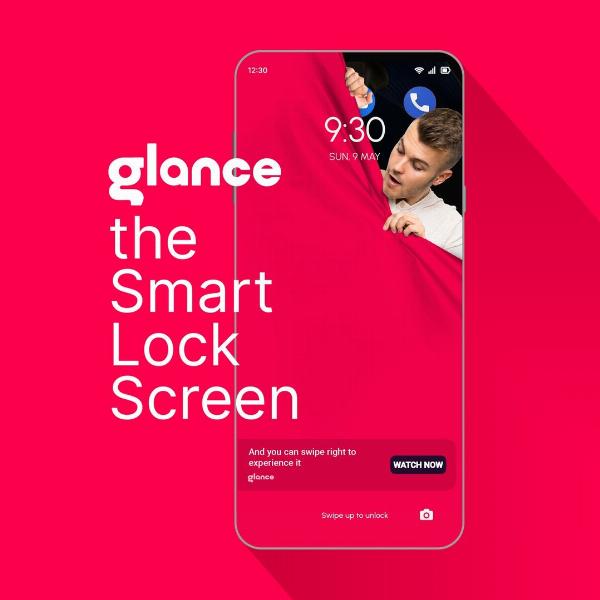
The Glance Lock Screen can transform how quickly information is consumed and actions are taken on a device; this guide explains practical Glance Lock Screen hacks, privacy considerations, and hidden gems to make the experience both fun and powerful.
- Use glanceable widgets and shortcuts for fast access to core apps.
- Balance convenience with privacy and security by tuning notifications and authentication.
- Optimize battery and performance by managing ambient display and refresh behavior.
- Explore gestures, timers, and developer settings for hidden features.
Glance Lock Screen: Hacks, Shortcuts, and Settings
Optimizing the Glance Lock Screen starts with basic setup and moves into personalized shortcuts and privacy controls. Focus on the information that is most useful at a glance—calendar events, media controls, timers, and critical notifications—while limiting what appears when a device is locked to preserve privacy.
Quick setup and essentials
Enable the Glance Lock Screen in device settings or lock screen configuration. Choose a layout that prioritizes the most-used controls: playback, home automation shortcuts, or quick replies. Reduce clutter by removing rarely used widgets and consolidating alerts into grouped summaries.
Widget and shortcut hacks
Make the Glance Lock Screen more powerful with these ideas:
- Place a single-tap shortcut for a frequently used action (camera, voice memo, or navigation) to reduce friction.
- Use compact widgets for calendar and weather to show essential data without taking much space.
- Combine timers and stopwatch widgets for quick access during workouts or cooking.
- Leverage smart suggestions (if available) so the lock screen learns to show relevant actions based on time or location.
Privacy and security best practices
While the Glance Lock Screen improves convenience, it can expose sensitive items. Apply these safeguards:
- Limit which apps can show sensitive previews or allow full content on the lock screen.
- Require authentication (PIN, biometric, or passcode) for access to detailed content or wallet transactions.
- Turn off automatic notification content for apps that reveal personal information.
- Use temporary auto-lock timers so an unattended device becomes inaccessible after a short period.
For authoritative guidance on authentication and credential protection, consult standards from recognized agencies such as the National Institute of Standards and Technology (NIST): https://www.nist.gov/itl/digital-identity.
Battery and performance tips
Some Glance Lock Screen features (always-on display, animated widgets, frequent updates) can increase power draw. To improve battery life:
- Disable always-on modes or limit brightness and refresh rate for the lock screen.
- Remove high-frequency updates for widgets that poll the network often.
- Enable low-power or battery-saver modes to restrict background refresh while preserving critical glance information.
- Monitor battery impact per app in system settings and adjust widget use accordingly.
Hidden gems and advanced tweaks
Explore lesser-known features and developer-oriented options to get more from the Glance Lock Screen:
- Gesture controls: assign double-tap or swipe gestures to quick actions if the device supports custom gestures on the locked display.
- Contextual suggestions: turn on contextual or predictive widgets that adapt to time, location, and activity for smarter shortcuts.
- Custom layouts: use third-party tools or built-in layout editors to compress or expand widget zones for better usability.
- Accessibility shortcuts: enable magnification, high-contrast, or voice-over features on the lock screen to improve accessibility without unlocking the device.
Troubleshooting common issues
If widgets fail to update, check network permissions and background refresh settings. For notifications that don’t appear, verify app notification permissions and lock screen visibility settings. If battery drain spikes after enabling a lock-screen feature, temporarily disable that feature and observe battery stats to isolate the cause.
Maintenance, updates, and privacy compliance
Keep the operating system and apps up to date for security patches and feature improvements. Review privacy settings periodically, especially after app updates or when installing new apps. Public guidance from consumer protection regulators and standards bodies underscores the importance of protecting lock-screen data and controlling app access to sensitive content.
When to reset or reconfigure
Consider resetting lock screen configurations if the display becomes cluttered or if unexpected notifications appear. A reset lets preferences be rebuilt with a privacy-first approach: enable only essential widgets and re-authorize app accesses selectively.
Integration with daily routines
Use the Glance Lock Screen to accelerate common tasks: morning briefings with calendar and weather, commute shortcuts for navigation and transit updates, or evening modes that surface timers and smart-home controls. Consistency makes glanceable information more useful—limit content to what is actionable in one or two taps.
FAQ
How to customize the Glance Lock Screen widgets?
Open lock screen settings, select widgets or glance sections, then add, remove, or reorder items. Grant permissions for apps that need to provide content, and prefer compact widgets to keep the interface uncluttered.
Is the Glance Lock Screen secure for sensitive notifications?
By default, lock screens trade convenience for some risk. Limit sensitive notifications, require authentication for detailed content, and use short auto-lock intervals. Follow recognized security guidance for authentication and device protection.
Can the Glance Lock Screen reduce battery life?
Yes. Features like always-on display, high refresh rates, and frequently updating widgets increase power consumption. Turn off nonessential displays, lower brightness, and restrict background refresh to improve battery life.
How to troubleshoot widgets that stop updating on the Glance Lock Screen?
Verify network access, background app refresh permissions, and battery optimization exclusions. Restart the device and update the app providing the widget. If the problem persists, remove and re-add the widget or consult app support documentation.