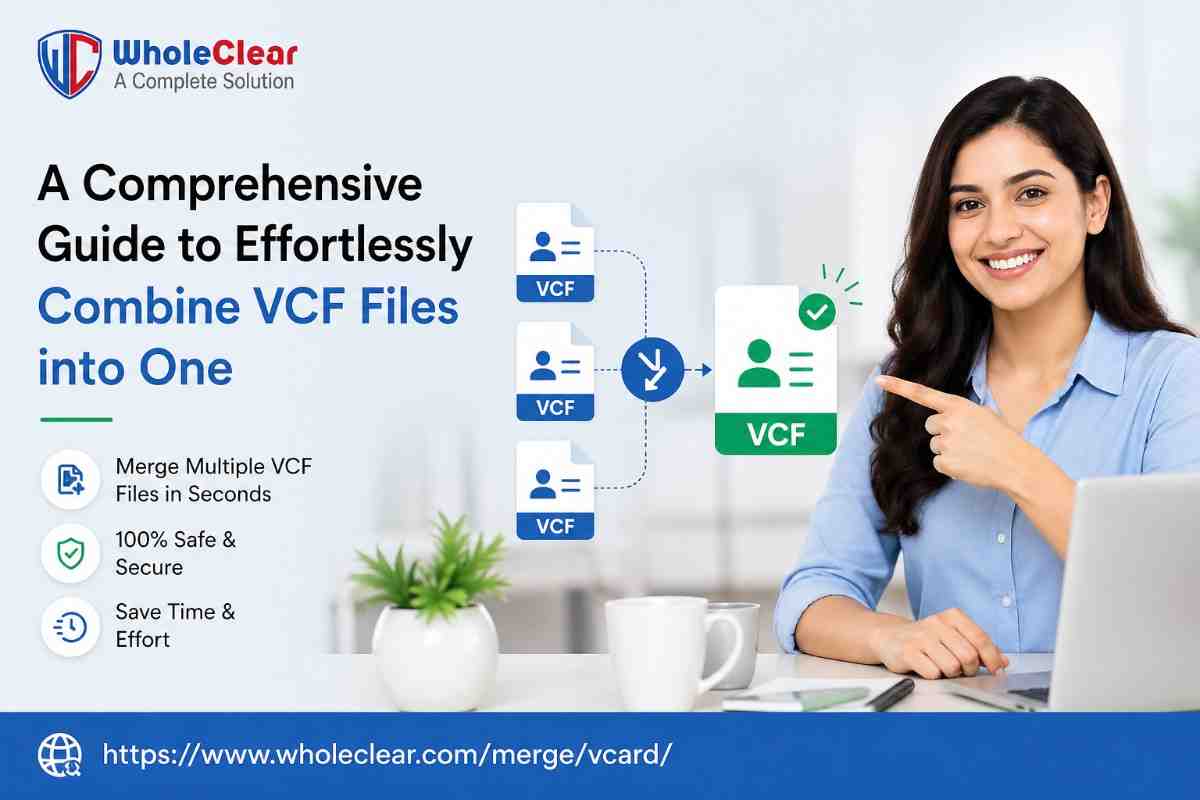
A Comprehensive Guide to Effortlessly Combine VCF Files into One
-

- Published Updated
- 8,905 views
Introduction
Managing contacts stored in multiple files can become difficult when you need to organise, transfer, or back them up properly. Many users look for a better way to combine VCF files into one so they can keep all contact information together in a single and accessible file. This process helps reduce confusion and makes contact management much more convenient on different devices and applications.
However, working with many single vCard files can still create unnecessary problems, especially when importing contacts into a new system or maintaining a properly arranged contact list. In this blog, you will learn some practical ways to combine multiple VCF files into one using manual and professional methods.
The Real Reason People Combine VCF Files
Many people collect VCF files from different places without even noticing it. Some contacts come from an old phone, some from email accounts, and others from backup files. After some time, it honestly gets irritating trying to figure out which contact is saved in which file. So, we merge these VCF files.
- You don’t need to check multiple vCard files again and again
- Adding contacts to a phone or email app becomes quicker
- Large contact lists feel easier to manage
- Backup and transfer tasks take less effort
- The chances of missing contact details become lower
- Too many separate files do not create confusion anymore
- Sharing complete contact lists becomes easier
- Helpful while moving to another device or email application
Problems Users Face While Combining VCF Files
When you combine VCF files, it can sound simple at first, but many users start facing issues once they work with multiple contact files together. Sometimes their details do not appear properly after merging, while in other cases, duplicate entries or missing contact details create more stress. Things can become even harder for some when the files come from different devices or applications.
- Sometimes, the same contacts start showing up more than once after merging
- A few details may not show the way they should be
- Too many vCard files together can become hard to sort through
- Some apps don’t read every vCard file in the same way
- Doing everything one by one can take a lot of time
- There is a high chance that it will accidentally leave out important contacts
- Large contact files can start feeling difficult to handle
- Even after you arrange or combine VCF files properly, it may still take extra effort
Manual Methods to Join the VCF Files into One Separate File
One common way to merge vCard files is using a manual method, which usually involves opening the files and combining them using built-in tools, such as contact apps or simple import/export options. This approach does not need any extra software, so you can give this a try first. However, you may have some difficulties if you are working with a lot of files at once because this process is time-consuming, and there is also the chance of missing or duplicating some details if things are not done carefully.
Steps to Combine VCF Files Manually
- Start by opening all the vCard files on your device and keeping them in one folder so it’s easier to access everything in one place.
- Open your contacts application, like Google Contacts or Outlook, and look for the import option that allows you to add contacts from a file.
- Select one vCard file and import it first to check if all contacts are appearing correctly in your lists.
- Do the same thing for the rest of the VCF files and add them one by one to the same contact list.
- After everything is added, go through your contacts and quickly check if anything is missing or repeated.
- Finally, export the updated contact lists as a single vCard file so you now have everything saved together in one file.
Limitations of Using This Basic Method
You can use this basic method; it can work fine for a small number of files. But it does have a few drawbacks that can make things a bit tricky, mostly when you have a lot of contacts or files to handle.
- It takes a lot of time when you have many vCard files to go through
- Duplicate contacts can easily show up after merging
- Some contact details may not come through correctly every time
- You have to repeat the same steps for each file
- It gets stressful to manage when the contact list is very large
- You will need to double-check everything so nothing important is missed
- There is no automatic process for this method, so everything has to be done by hand
Automated Method to Use for Combining VCF Files
Well, if you don’t want to use the manual method, you can just use a tool like WholeClear Merge vCard Software. It lets you combine multiple VCF files into one in just a few clicks. Just add your files, start the process, and it gives you one merged file at the end. No need for you to open each file or copy anything one by one. Use this method when you have to work with many files or large files.
If you have a lot of contact files saved in different places, or when the manual method feels low and messy. It also saves you from doing the same steps again and again. The tool keeps your contact details safe while combining everything into one file, so later it becomes much easier to find, share, or move your contacts whenever you need to.
Automated Steps to Follow
- Start by installing and opening the Software on your system
- Click on the browse option and add your VCF files from your computer
- Then, select all the files together and add them to the tool
- Check once that all files are added properly
- Later on, choose the merge option and click on start or convert
- Wait for a short while until the tool completes the process
Key Features of VCF Merge Tool
- Combine vCard files quickly – You can combine many of your VCF files in just a very short time with this method. There is no need to open each file separately.
- Saves your time and work – Because everything happens in one go, it saves a lot of time compared to manual methods. You just add files and let the tool do the rest.
- Keeps your contacts safe – All your contact information, like names, phone numbers, and emails, stays unchanged during or after the process.
- Handles big contact files easily – Even if you have a lot of VCF files, the tool can handle them without slowing down or creating confusion.
- Very easy process – The steps are very easy to follow, so even beginners can use it, and they won’t have to go through anything like basic methods.
- Less chance of errors or confusion – It helps you avoid common issues like duplicate contacts or missing information that often happen in manual merging.
A Quick Comparison Between Manual and Automated Methods
- The manual method is okay if you only have a few VCF files, but it still takes time and effort
- You keep doing the same steps again and again, which can get tiring after a point
- Mistakes like duplicates or missing contacts can easily happen
- The automated method works faster since everything is handled in a few clicks
- You just add the files and let the tool take care of the rest
- It fits better when you’re dealing with a lot of contacts
- You don’t really need to keep checking everything again and again
- In short, manual work is for small tasks, but automation makes things simpler and quicker
Final Thoughts
Honestly, dealing with multiple VCF files can feel a bit all over the place, especially when your contacts are spread across different files and folders. It’s one of those things that doesn’t feel like a big deal at first, but starts getting annoying once you actually start managing them.
You have a couple of ways to deal with it, and both basic and automated methods can do the job. But if you’re someone who wants to avoid extra steps and save time, going with an automated tool makes things much easier.
Lastly, it really depends on what works better for you. If you don’t mind spending a little extra time, manual works fine. But if you prefer a quicker and smoother way, an automated tool is usually the better pick.
FAQs
Will I be able to use this software if I have no technical knowledge?
This tool gives you an easy user interface so people with less or no technical knowledge can also use it.
If I have to work with many files, which method is better to use?
As we discussed in this blog, the basic method is not suitable to use if you are working with many files at the same time; using the tool method would be a better choice.
Is using this automated method safe?
Yes, this tool is designed to make sure your documents and files stay safe during or even after the process.
Read More: https://www.wholeclear.com/merge/vcard/