How to Move OneDrive Files to Google Drive: Practical Methods and Considerations
-

- Published Updated
- 1,889 views
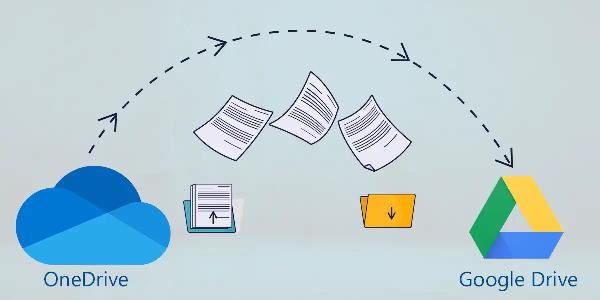
Moving content between cloud services often requires planning. This guide explains how to transfer OneDrive files to Google Drive using manual methods, sync clients, and third-party transfer services while highlighting permissions, versioning, and data protection considerations.
- Manual download and upload is straightforward but may be slow for large datasets.
- Using desktop sync clients preserves folder structure and can be faster for ongoing moves.
- Third-party cloud transfer services can automate account-to-account migration and handle shared items and metadata.
- Check file ownership, sharing links, version history, retention policies, and any regulatory requirements before moving data.
transfer OneDrive files to Google Drive — main options
The most common ways to transfer OneDrive files to Google Drive are: 1) manual download and upload through a browser, 2) use of desktop sync clients to copy files locally between synchronized folders, and 3) cloud-to-cloud migration services that move files directly between accounts. Each approach has trade-offs in speed, metadata preservation, and administrative control.
1. Manual download and upload
Steps:
- In OneDrive web, select files and folders, then Download. Compressed ZIP files may be created for multiple items.
- Unzip locally if needed, then sign in to Google Drive web and Upload files or folders.
Pros: Simple, no additional tools required. Cons: Time-consuming for large volumes; metadata such as file creation time, owner, and version history may not transfer; bandwidth and local storage are required.
2. Use sync clients (OneDrive and Google Drive for desktop)
Both OneDrive and Google Drive offer desktop sync clients. To use them for a transfer:
- Install and sign in to the OneDrive sync client; let selected files sync to a local folder.
- Install and sign in to Google Drive for desktop (or Backup and Sync); choose a separate local folder for Drive.
- Copy or move files between the two local synced folders. The clients will upload changes to each cloud service.
Pros: Preserves folder structure; suitable for large transfers without repeated browser uploads. Cons: Requires sufficient local disk space and can be bandwidth-intensive. Take care with file path length, filename restrictions, and selective sync settings.
3. Cloud-to-cloud migration services
Third-party services (sometimes called cloud transfer or migration tools) can move files directly between OneDrive and Google Drive without downloading to a local device. Features often include scheduleable transfers, preservation of folder structure, handling of shared files, and reporting. When evaluating these services, review authentication methods (OAuth), data handling policies, and compliance certifications.
Pros: Automated, can handle large datasets and scheduled transfers. Cons: May be paid services; review privacy policies and security controls before granting access to accounts.
Practical considerations and best practices
Account permissions and ownership
Confirm who owns files and whether items are shared. Files owned by another user may not appear for direct transfer. For organizations, consult the administrator for any shared drive or team site content.
Version history and metadata
Most simple transfers do not preserve version history. If preserving versions is critical, check whether a migration tool or enterprise solution supports version migration. Also review how file timestamps, authorship, and custom metadata are handled.
Storage limits and quotas
Check available storage on the destination Google account before transfer. Large transfers can exceed quotas and cause failures. For organizations, consult Google Workspace or Microsoft 365 admin documentation on storage policies and limits.
Network, encryption, and compliance
Use encrypted connections and consider run-time encryption where available. For regulated data, verify compliance with relevant authorities such as national data protection regulators or GDPR requirements. Retention policies and legal holds should be reviewed before moving data to avoid data loss or policy violations.
Testing and verification
Run a small pilot transfer first. Verify that files open correctly in Google Drive, that permissions are appropriate, and that expected metadata and folder structure are intact. Maintain a local backup until the migration is verified and complete.
When to use official support or IT administration
For enterprise or large-scale migrations, involve IT administrators to use enterprise migration tools or managed services. Official support documentation from Microsoft and Google provides detailed steps for administrators; for OneDrive guidance see the Microsoft OneDrive support center.
Troubleshooting common issues
Failed uploads or timeouts
Break large transfers into smaller batches. Use the sync client or a cloud migration tool to avoid browser timeouts.
Filename or path errors
Rename files with unsupported characters and shorten deep folder paths. Both OneDrive and Google Drive have filename and path limitations that differ.
Missing shared files
Files shared with the account but owned by someone else may not be movable. Request ownership transfer or have the owner perform the move.
Retained metadata differences
Expect some metadata differences after migration. If exact preservation is required, consult enterprise migration options that advertise metadata and version preservation.
FAQ
How can I transfer OneDrive files to Google Drive without downloading?
Use a cloud-to-cloud migration service that supports direct account-to-account transfers. These services use API access and OAuth authentication to move files without routing data through a local device. Evaluate security, access scope, and compliance before providing account access.
Will file version history move from OneDrive to Google Drive?
Version history is typically not preserved by basic download/upload or sync-client copies. Some specialized migration tools or enterprise solutions offer version migration as a feature; check vendor documentation and test with sample files.
Is it necessary to keep a local backup during migration?
Maintaining a local backup until the migration is verified is recommended. This protects against accidental deletions, transfer errors, or unexpected policy conflicts.
Are there any privacy or compliance steps to consider?
Review organizational policies, legal holds, and any regulatory requirements (for example, GDPR or national data protection regulators) before moving data. For business accounts, coordinate with administrators to ensure compliance with retention and access controls.
How long does it take to transfer large OneDrive libraries to Google Drive?
Transfer time varies by method, total data size, and available bandwidth. Desktop sync clients depend on upload/download speeds and local disk performance; cloud migration tools are constrained by API throughput limits and service throttling. Plan for testing and staged transfers for multi-terabyte migrations.