OST to PST Conversion: A Practical Guide to Export OST Emails Safely
-

- Published Updated
- 358 views
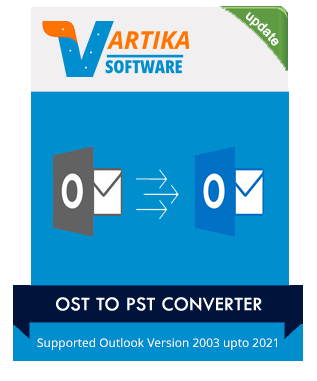
OST to PST conversion is a common task when migrating mailboxes, backing up Outlook data, or recovering offline mailbox items. This guide explains the differences between OST and PST files, practical methods to export OST to PST, a clear checklist for safe conversion, and common mistakes to avoid.
- Detected intent: Informational
- Primary keyword: OST to PST conversion
- Secondary keywords: export OST to PST; convert OST file to PST
-
Core cluster questions:
- How can an OST file be converted to a PST file safely?
- When is exporting OST to PST necessary during mailbox migration?
- What tools and native Outlook methods support OST to PST conversion?
- How to recover mailbox items from an orphaned OST file?
- What are the limitations of converting OST files to PST files?
OST to PST conversion: what it means and why it matters
OST (Offline Storage Table) files are local copies of mailbox items cached from an Exchange or IMAP account; PST (Personal Storage Table) files are portable Outlook data files used for export or archive. OST to PST conversion refers to exporting or extracting mailbox items from an OST file into a PST file so the data can be moved, backed up, or imported into another Outlook profile.
Key differences and official guidance
OST files are tied to a specific mailbox and Exchange account, whereas PST files are independent. For official background on OST/PST behavior and supported scenarios, see Microsoft documentation: Microsoft Docs on OST and PST files.
When to export OST to PST
Common reasons include: migrating a mailbox off a server, creating portable backups, recovering data from an orphaned or inaccessible account, and consolidating archived emails. Converting OST to PST is not required for normal Exchange-to-Exchange migrations if server-side export tools are used, but it is useful when server access is limited.
CONVERT checklist: a named framework for safe OST to PST conversion
Use the CONVERT checklist to reduce risk and ensure a repeatable process:
- Confirm account status: verify whether the OST is connected to an active mailbox or is orphaned.
- Obtain backups: copy the OST file and back up the current Outlook profile and registry settings.
- Notify stakeholders: inform users or admins and schedule downtime if needed.
- Verify tools and method: confirm whether native Outlook export or a third-party tool is required.
- Execute export: perform the export to PST, following step-by-step best practices below.
- Review and test: open the PST in Outlook, verify folders, search for items, and check calendar/contacts integrity.
- Tag and store: label the PST file with user and date metadata, then store securely.
Step-by-step approach to export OST to PST
1) Choose a method
Options include native Outlook export (when the OST is connected to the active mailbox), Outlook Archive/Move to Folder, or specialized extraction tools for orphaned OSTs. Native export works when the mailbox profile is accessible; otherwise an extraction tool or rebuilding the profile is required.
2) Prepare the environment
Close Outlook and take a copy of the OST file. Ensure Outlook and Windows are updated. If possible, run the export on the computer where the OST was created to avoid sync issues. Confirm there is enough disk space for the PST file.
3) Export using Outlook (connected OST)
When the OST is connected to a mailbox, use Outlook's Import/Export wizard to export to a PST file, or drag-and-drop folders into a new PST data file. After export, verify preserved item counts and metadata. For calendar and contacts, open the resulting PST and check recurring items and attachments.
4) Extract from an orphaned OST
If the OST is orphaned (no longer linked to an active mailbox), Outlook cannot export from it directly. In that case, use a trusted OST extraction utility or recreate the mailbox profile and reconnect it to Exchange if possible. Keep the original OST safe — working only on a copy reduces the chance of accidental corruption.
Real-world example: departing employee mailbox
Scenario: IT needs to preserve emails for a departing employee whose Exchange account has been disabled. The user’s workstation still has a local OST with needed data. Follow the CONVERT checklist: copy the OST, confirm the mailbox is disabled (not deleted), reconnect the account to Exchange if re-enabling is allowed, or use an extraction tool to export the OST contents to a PST. Label the PST with the employee name and termination date and store it in the organization's archive location. Verify mailbox items and maintain an access log for compliance purposes.
Practical tips for reliable OST to PST conversion
- Always work on a copy of the OST file to avoid accidental data loss.
- Confirm item counts (Inbox, Sent, Calendar) before and after export to verify completeness.
- Prefer native Outlook export when the OST is still linked to the mailbox—it's less likely to change item properties.
- Use PST compression or split large PSTs to reduce corruption risk and improve performance in older Outlook versions.
- Document the process and retain a checksum or file size log for audits.
Trade-offs and common mistakes
Trade-offs
- Native export vs extraction tools: native export preserves metadata and security context if the mailbox is active; extraction tools can rescue orphaned OSTs but vary in fidelity and cost.
- Immediate conversion vs server-side migration: converting OST to PST is faster for isolated backups, but server-side export (eDiscovery, Exchange Admin Center) is preferable for organization-wide migrations and compliance.
Common mistakes
- Working on the original OST instead of a copy — risk of corruption or data loss.
- Not verifying item counts or calendar entries after export, leading to silent missing items.
- Using unknown or unvetted third-party tools without testing — always validate tool output on a sample first.
Verification and post-conversion tasks
After conversion, open the PST in Outlook and do targeted checks: search critical keywords, open calendar entries, and validate contact integrity. For legal or compliance cases, keep a conversion log that records user, timestamp, original OST path, and PST checksum.
When to involve administrators or legal
If the OST relates to an investigation, litigation hold, or regulated data, coordinate with legal and IT, and use audited tools and documented chain-of-custody procedures.
Related terms and entities
Related concepts include Exchange Server, Outlook Data File, MAPI, IMAP, eDiscovery, PST file splitting, mailbox export requests, and mail account profiles. Understanding these terms helps select the best approach.
Core cluster questions (for internal linking or deep-dive articles)
- How can an OST file be converted to a PST file safely?
- When is exporting OST to PST necessary during mailbox migration?
- What tools and native Outlook methods support OST to PST conversion?
- How to recover mailbox items from an orphaned OST file?
- What are the limitations of converting OST files to PST files?
Frequently asked questions
How long does OST to PST conversion take?
Conversion time depends on OST size, system I/O, Outlook version, and method used. Small files (under 2–5 GB) often take minutes; larger files (tens of GB) may take hours. Running conversion on a fast SSD with adequate RAM reduces time.
Can Outlook convert an orphaned OST to PST?
No. Outlook cannot export data from an OST that is not connected to a valid mailbox profile. For orphaned OST files, use a reliable OST extraction utility or reconnect the mailbox to Exchange and perform a native export.
Is data lost when converting OST to PST?
When done correctly, conversion preserves email content, attachments, and most metadata. However, some properties tied to the server (like certain read/unread sync flags) may not be identical. Always verify items after export.
What is the best way to export OST to PST for compliance?
Use audited server-side exports when available (eDiscovery or Exchange admin exports) for compliance. If server access is restricted, document the OST-to-PST conversion steps, retain checksums, and involve legal/IT to maintain chain of custody.
How to prevent PST corruption after conversion?
Keep PSTs under recommended size limits, store on reliable media, avoid network shares for active PSTs, and use Outlook's Inbox Repair Tool for troubleshooting. Regular backups and archival policies reduce risk.
For authoritative technical details about OST and PST behavior, consult the Microsoft documentation linked earlier in this article.