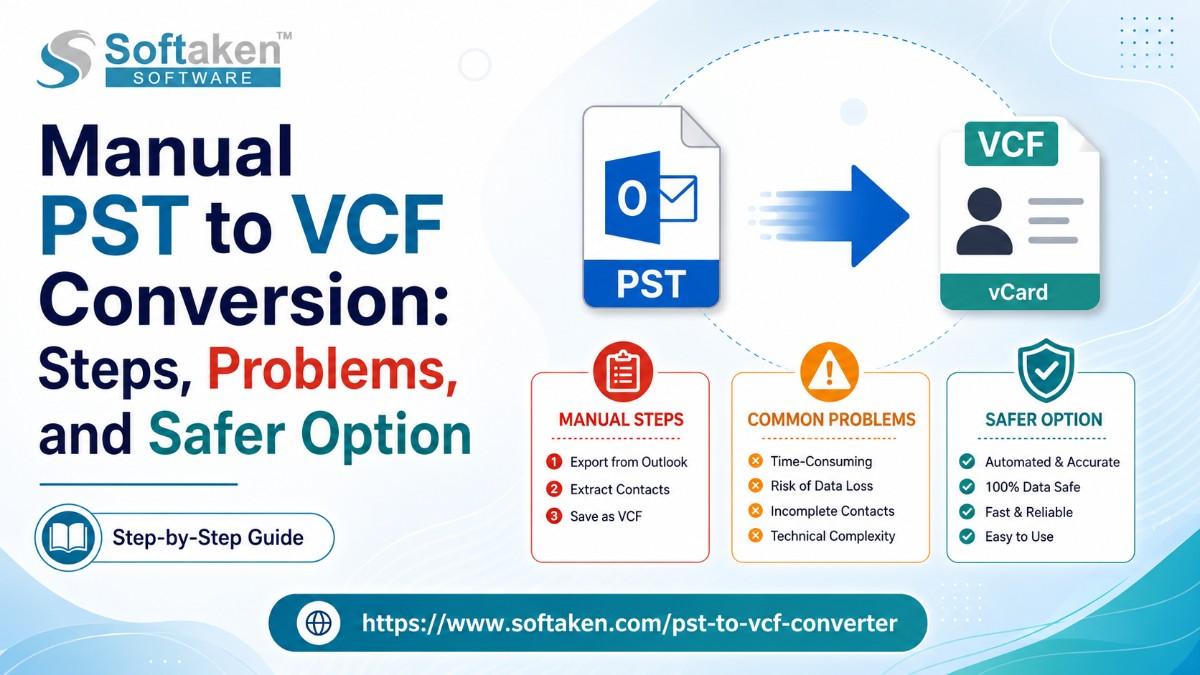
Manual PST to VCF Conversion: Steps, Problems, and Safer Option
-

- Published Updated
- 7,464 views
Introduction
PST to VCF conversion is commonly used to transfer Outlook contacts into a format that is supported by Android Phones, iPhones, Gmail, and other contact management platforms. Because VCF files are widely accepted, users often convert PST contacts for better accessibility, sharing, and backup purposes.
You may want to choose manual methods to convert PST files into VCF file format, since they do not need extra software. However, the process can become lengthy when you have to handle multiple contacts or large PST files. You may also come across issues like missing contact details, duplicate entries, or incomplete conversion results.
In this blog, you’ll see the manual way to migrate PST files into VCF format, the common problems users may face during conversion, and a safer option to export Outlook Contacts without losing important information.
What is PST to VCF Conversion?
This process involves exporting Outlook contacts stored in PST files into vCard (VCF) format. A PST file is used by Microsoft Outlook to save mailbox data, including emails, contacts, calendars, and notes, while VCF files are mainly used for saving and sharing contact information on different devices and applications.
After the conversion, users can save individual contact cards containing details like name, phone number, email address, company information, and profile details. VCF files are commonly used because they can be opened and imported into smartphones, webmail services, and different contact management programs without compatibility issues. This process is most of the time needed when you transfer contact lists from Outlook to another platform or maintain contacts in a more portable format.
Reasons to Perform This Conversion
Many users perform PST to VCF Conversion when they need to open Outlook contact details across different platforms and devices. Since vCard files are supported by many companies and individuals, they help them manage and transfer contact information more conveniently.
- Move Outlook contacts to Android and iPhone devices
- Import contact details into Gmail, iCloud, and other services
- Create a separate backup of important contact information
- Share individual contacts in a widely supported format
- Access contact files on multiple platforms and applications
- Transfer contact lists during system or account migration
- Maintain contacts in a portable and easy-to-use file type
Manual Method to convert PST files into VCF format
You can manually export Outlook contacts from PST files into VCF format using Microsoft Outlook. This method is mostly suitable for small contact lists because Outlook allows you to save contacts one by one as vCard files.
The manual process does not require third-party software, but it can take considerable time when you are working with multiple contacts. You also need to redo the same steps for every contact you want to save in VCF format. Before starting the process, make sure the PST file is added properly and is opened in Outlook. Also, check that the contact details are displayed correctly to prevent saving missing info during the conversion process.
Steps to Convert PST to VCF Format Manually:
1. Open Microsoft Outlook
Launch MS Outlook on your system and make sure the needed PST file is already added to the Outlook Profile.
2. Go to the Contacts Section
Open the People or Contacts section in Outlook to view all saved contact details available in the PST file.
3. Select the Contact
Choose the contact you want to convert into vCard format. Outlook allows manual saving of contacts individually.
4. Open the Save As Option
Click on File and select the Save As option to start saving the selected contact in another format.
5. Choose VCF Format
Select vCard files (.vcf) from the file type options and choose the destination location on your system.
6. Save the Contact file.
Click the Save button to complete the process for the selected contact.
Limitations of the Manual Method for PST to VCF conversion
Although the manual method can convert Outlook contacts into VCF format, it comes with several limitations that may affect the overall process.
- Contacts must be saved one at a time
- Large contact lists increase conversion time
- Risk of missing or incomplete contact details
- Repetitive steps make the process tiring
- Chances of duplicate contact creation
- Outlook installation is required on the system
- Not suitable for bulk PST files to VCF conversion
- Manual checking is needed after conversion
- Contact formatting may not be properly maintained
Automated method: A Safer Option for Conversion
Manual methods are okay for small contacts, but they often get tricky when users need to deal with large PST files or multiple contacts together. To avoid doing the same steps again and again and contact problems, many users prefer a software solution like Softaken PST to VCF Converter.
The software is made to export Outlook contacts into VCF format with keep contact details properly and unchanged during or after the process. It lets you convert many PST contacts at once, which helps save time and cuts down manual effort.
The tool works well for personal users, business professionals, and organizations that regularly manage large contact databases in Outlook. It provides a more reliable way for handling contact migration, backup creation, and contact sharing requirements without making things complicated.
Steps to Use the Automated PST to VCF Converter
1. Download and install the tool
First, download the tool on your Windows system and complete the installation process.
2. Add the PST File
Open the software and browse your system to select the Outlook PST file that contains your contacts.
3. Preview Contact Details
After loading the Outlook contact file, check the available contact information in the preview panel before starting the conversion.
4. Select VCF as the Output Format
Choose VCF as the saving format for exporting Outlook contacts into vCard files.
5. Choose the Destination Location
Select the folder where you want to save the converted VCF files on your system.
6. Start PST files to VCF Conversion
Click on the Convert button, and the tool will start converting your Outlook contacts into VCF format.
Core Features of the Automated Tool
- It converts multiple Outlook contacts without saving them one by one
- This tool helps avoid missing contact details during conversion
- It lowers the chances of duplicate or incomplete conversion results
- Also, supports the direct conversion of Outlook contacts into vCard format
- It helps with contact transfer, backup, and sharing needs
- Can handle PST contact data in a more organized way
- It is useful for both personal and office contact management
- This software makes the conversion process easier for beginners as well
- Saves time when managing multiple Outlook contacts
- It offers a better alternative to long manual procedures
Practical Uses of PST to VCF Conversion
PST files to VCF conversion is used in different contact transfer and management situations, such as:
- Move Outlook contacts to Android phones and iPhones
- Add contact lists to Gmail, iCloud, and other email accounts
- Share contact details in vCard format with others
- Keep backup copies of important contacts for future use
- Move contacts easily during system or device changes
- Use the same contacts on different applications and platforms
- Save separate contact cards for personal or work purposes
Conclusion
Lastly, this conversion is commonly used when you need to access Outlook contacts on different devices and applications. Even though you can work with manual methods to convert contacts into vCard format, the process may become slow, and you have to repeat the same steps again and again, especially when you are dealing with multiple contacts or large PST files. A single mistake and there you go, creating yourself issues like duplicate entries, missing contact details, or incomplete conversion results.
Because of these limitations, many users look for a safer option to handle this process. An automated tool helps you to reduce manual effort and provides a more practical way to export Outlook contacts into VCF format without going through long conversion steps repeatedly.
Common Questions
Can this tool convert multiple Outlook contacts at once?
Yes, you can choose many contacts from a PST file and convert them at once into VCF format. No need to save each contact separately.
Will contact details remain safe during conversion?
The tool keeps all your contact information safe, like names, phone numbers, email addresses, and other details, so nothing important is lost during the process.
Is Microsoft Outlook required for using this software?
The tool does not depend on Microsoft Outlook for conversion. You can directly load PST files into the software and convert contacts without needing Outlook installed.
Is this tool suitable for beginners?
It is very easy to use. The steps are simple and clear, so even if you’re not familiar with technical stuff, you can complete the conversion without any confusion.
Can large PST files be processed using this tool?
The tool works with large PST files without issues, so you can convert a big number of contacts without slowing down or facing errors.