How to Send SMS from Salesforce Flow: A No-Code Guide for Salesforce Admins
-

- April 06th, 2026
- 7,955 views
Most Salesforce Admins have automated emails, tasks, and record updates using Flow. But when it comes to SMS, many teams still rely on manual sends or messy workarounds — usually because nobody told them it doesn't have to be that way.
Sending SMS from Salesforce Flow is straightforward once you have the right AppExchange app installed. No Apex. No middleware. No developer ticket. This guide walks you through exactly how it works.
Why Salesforce Flow is the right place to trigger SMS
Salesforce retired Process Builder and Workflow Rules for new automation. Flow is now the standard — and for good reason. It handles conditional logic, branching paths, scheduled actions, and multi-object triggers far better than its predecessors.
The same logic applies to SMS. When you trigger a text message from a Flow, it fires based on real CRM activity: a lead created, a deal stage changed, a case resolved. That's not just convenient — it's what makes the message relevant to the person receiving it.
This is what separates automated SMS messaging in Salesforce from bulk broadcast campaigns. Flow-triggered texts respond to what a contact actually did. Broadcast campaigns don't.
And because the entire process lives inside Salesforce — no webhooks, no external triggers, no syncing — the message fires at the right moment, every time.
What you need before you build the Flow
Before you open Flow Builder, get three things in place.
A Salesforce-native SMS app installed from AppExchange. Salesforce doesn't send SMS natively. You need an app — like 360 SMS App — that adds native Flow actions for messaging. Once installed, those actions appear directly inside Flow Builder's action picker. No custom code required.
SMS templates set up in the app. Flow-triggered messages work best with templates. You define the message structure once — including merge fields — and the Flow calls the template by ID each time it runs. This makes messages consistent and personalised without hardcoding text into the Flow itself.
A clear trigger condition. Know exactly what CRM event should fire the message before you build. "When a lead is created" is a complete trigger. "When a customer is ready for follow-up" is not — it can't be translated into a Flow condition.
Get these three things right and the actual Flow build is fast.
Four Flow types that work well for SMS automation
Not every Flow type makes sense for SMS. These four do.
Record-Triggered Flow — fires when a record is created or updated. Best for: instant lead responses, deal stage change notifications, case resolution confirmations. This is the most commonly used type for SMS automation.
Scheduled-Triggered Flow — runs at a specified time based on a field value. Best for: appointment reminders ("your meeting is tomorrow"), renewal nudges ("your contract expires in 7 days"), follow-ups after a set number of days with no activity.
Screen Flow — triggered manually by a user. Less common for SMS, but useful when a rep needs to fire a specific message mid-conversation, like sending a pricing PDF link or a meeting confirmation on demand.
Platform Event-Triggered Flow — fires when an external event is published to Salesforce. Useful for teams using integrated systems where an event in another platform (a payment, a delivery update) should trigger a text inside Salesforce.
For most admins, Record-Triggered and Scheduled Flows cover 80% of SMS automation needs.
How to set up a record-triggered Flow to send SMS with 360 SMS App
Here's the setup for a common scenario: sending an instant SMS when a new lead is created.
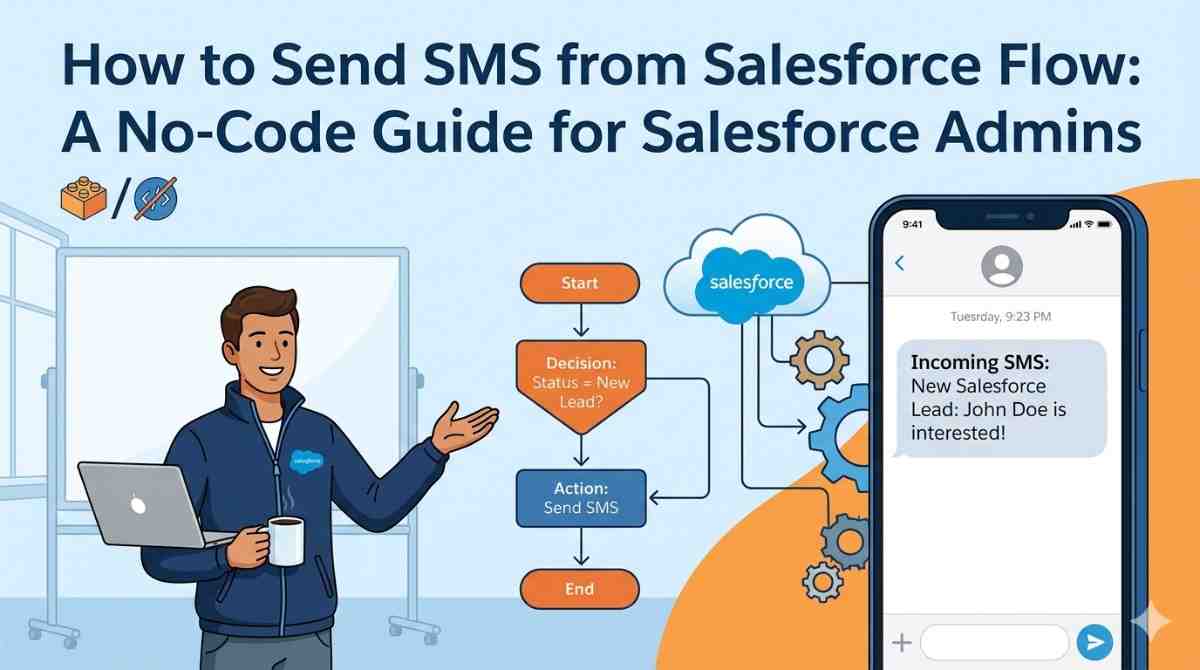
Step 1 — Create a new Flow Go to Setup → Flows → New Flow → Record-Triggered Flow. Select the Leads object. Set the trigger to "A record is created."
Step 2 — Add entry conditions If you only want to fire the SMS for leads that come from a specific source — say, a web form — add an entry condition: Lead Source equals Web. Without this, the Flow fires for every new lead regardless of origin.
Step 3 — Add the SMS action In the Flow canvas, click the + button and choose Action. Search for the 360 SMS action (it appears once the app is installed). Select "Send SMS."
Step 4 — Configure the action You'll need to specify: -Recipient phone number — map this to the Lead's mobile or phone field -Sender number — your registered business number or a dynamic sender field -Template — select the template ID you created for this trigger -Related record ID — map to the Lead ID so the message logs against the correct record
Step 5 — Save and activate Give the Flow a clear name (e.g., "Lead Created — Instant SMS"), save it, and activate. Test by creating a dummy lead that meets your entry conditions and confirm the SMS fires and logs correctly on the record.
That's the core setup. Scheduled and multi-step Flows follow the same pattern — the SMS action configuration stays identical regardless of the trigger type.
Want to see this running in your Salesforce org? Book a free demo with 360 SMS App — we'll walk through the Flow setup live and tailor it to your use case.
Using merge fields to personalise automated texts
A Flow-triggered SMS that says "Hi there, your request has been received" isn't much better than no message at all. Personalisation is what makes automated texts feel like they came from a person.
360 SMS App templates support Salesforce merge fields — the same ones you'd use in email templates. That means your messages can pull in the recipient's first name, the name of their assigned rep, the relevant product, a meeting date, or any other field on the triggering record.
A well-structured template looks like this:
"Hi {!Lead.FirstName}, thanks for your interest in {!Lead.Product__c}. {!Lead.Owner.FirstName} will reach out today — in the meantime, here's what you need to know: {!Link}"
The merge fields resolve at the moment the Flow fires, pulling live data from the CRM record. No manual input. No copy-pasting.
One thing worth paying attention to: test your merge fields against records where the field might be empty. If a lead doesn't have a first name populated and your template starts with "Hi {!Lead.FirstName}," the message sends a blank. Build a default value for any field that could reasonably be missing.
Common mistakes admins make with SMS Flows (and how to avoid them)
Forgetting entry conditions. A record-triggered Flow without tight entry conditions fires on every qualifying record. If your "lead created" Flow has no conditions, every lead — including internal test records — gets a text. Always define what a qualifying record looks like before activating.
Not setting a time restriction. Flows run whenever the trigger fires, including at 2 AM if a lead comes in then. 360 SMS App supports scheduled send windows, so you can queue a message to send the next morning instead of firing it instantly at an antisocial hour.
Exit conditions missing from sequences. If you build a multi-step nurture Flow — a message on day 1, a follow-up on day 3, another on day 7 — you need an exit path for contacts who convert or opt out. Without it, people who already responded or unsubscribed keep receiving messages. This damages both the relationship and your sender reputation with carriers.
Hardcoding text directly into the Flow action. It's tempting to type your message text directly into the action instead of using a template. Don't. If you ever need to update the message, you'll have to re-edit every Flow it appears in. Templates make changes centrally and keep everything consistent.
If you've been exploring how outbound messaging in Salesforce has evolved beyond Workflow Rules, these principles apply across every automation method — not just Flow.
What 360 SMS App adds beyond basic Flow triggers
A basic SMS action in Flow handles simple sends. 360 SMS App extends that across several areas that matter once your automation gets more complex.
Two-way conversation continuity. When a contact replies to a Flow-triggered message, the reply lands directly on their CRM record in 360 SMS App's conversation view. A rep can pick it up inside Salesforce without switching tools or losing the thread.
Multi-channel from the same Flow. You can trigger SMS and WhatsApp from the same Flow action. If a contact prefers WhatsApp, the message routes correctly — no separate Flow needed for each channel.
Drip sequences built on top of Flow logic. For longer nurture journeys, 360 SMS App's drip campaign builder sits alongside Flow automation and handles sequenced messaging with built-in opt-out management and pacing controls. Learn more about bulk SMS from Salesforce when volume and sequencing are part of your strategy.
Template library and compliance management. Approved templates live in one place. Opt-outs are captured automatically. Every message sent is logged against the relevant CRM record — so there's a full audit trail without anyone maintaining a separate spreadsheet.
For teams that want Salesforce SMS integration that works across sales, support, and operations — not just a single automated trigger — this is where the difference becomes tangible.
FAQs
1) Does Salesforce have a native way to send SMS from Flow? No. Salesforce Flow is a powerful automation engine, but SMS messaging isn't built into Sales Cloud or Service Cloud natively. You need a third-party AppExchange app — like 360 SMS App — that adds native SMS actions to Flow Builder.
2) Can I trigger SMS from any Flow type, or only record-triggered Flows? With 360 SMS App, you can trigger SMS from record-triggered, scheduled, screen, and platform event-triggered Flows. The SMS action works the same way regardless of the Flow type.
3) What happens if a contact replies to an automated SMS sent from Flow? With 360 SMS App, replies are captured automatically on the contact or lead record in Salesforce. Your team continues the conversation from inside the CRM — no separate inbox, no external tool.
4) Can I use merge fields from custom objects in SMS templates? Yes. 360 SMS App supports merge fields from any standard or custom Salesforce object that your Flow is triggered from. This means you can personalise messages using fields from Opportunities, Cases, custom objects, and related records.
5) Do I need developer support to set this up? No. The setup is entirely point-and-click for common use cases. Flow Builder handles the logic and 360 SMS App's action picker handles the SMS configuration. No Apex code required.
6) Is there a risk of sending duplicate messages if the Flow fires multiple times? Yes, if entry conditions aren't configured correctly. The safest approach is to add entry conditions that reflect a one-time trigger (e.g., only on record creation, or only when a specific field changes from a defined previous value). 360 SMS App also supports deduplication logic at the template level for additional protection.
Ready to build your first SMS Flow in Salesforce? Book a free demo with 360 SMS App and see the complete setup in action — including templates, merge fields, and two-way reply handling, all inside your Salesforce org.