How to Split CSV Without Losing Data Formatting (Easy Guide)
-

- May 07th, 2026
- 7,676 views
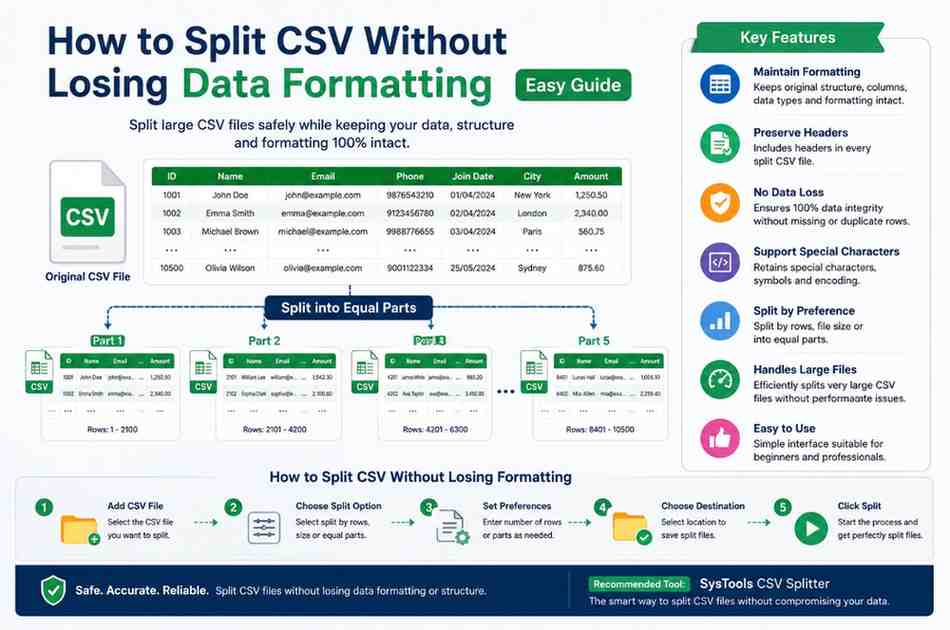
Splitting a CSV file is often necessary when dealing with large datasets, but one major concern users face is data formatting loss. Issues like broken columns, missing headers, altered date formats, or corrupted special characters can make your data unreliable. Working with CSV files is common for data storage and exchange, but when these files grow large, splitting them becomes necessary. However, one of the biggest challenges users face is losing data formatting during the splitting process. Even a small formatting issue can lead to incorrect analysis, broken datasets, or application errors.
In this guide, you’ll learn how to split CSV files without losing formatting, along with best practices and the most reliable solution for accurate results.
What Does “Losing Data Formatting” Mean?
When splitting a CSV file, formatting loss can include:
Columns getting misaligned
Dates changing format (e.g., DD/MM/YYYY to MM/DD/YYYY)
Leading zeros removed (e.g., ZIP codes)
Special characters becoming unreadable
Missing headers in split files
These problems usually occur due to improper tools or manual handling.
Why Maintaining CSV Formatting is Important
Preserving formatting ensures:
Data consistency across all split files
Accurate analysis and reporting
Compatibility with databases and applications
No loss of critical information
Even a small formatting error can lead to incorrect insights or processing failures.
Method 1: Split CSV Using Microsoft Excel (With Precautions)
Microsoft Excel is commonly used, but it can unintentionally modify data.
Steps:
Open your CSV file in Excel
Avoid directly editing sensitive columns (like IDs or dates)
Select a fixed number of rows
Copy and paste into a new sheet
Save as CSV
Important Tips:
Format columns as Text before editing
Check date and numeric fields carefully
Always keep the header row in each split file
Limitations:
Excel auto-formats data (can cause issues)
Not suitable for very large CSV files
Manual work increases risk of mistakes
Method 2: Use PowerShell (Safer for Formatting)
PowerShell helps maintain structure when splitting CSV files.
Example:
$input = Import-Csv "data.csv"
$chunks = 1000
$i = 0
foreach ($row in $input) {
$fileIndex = [math]::Floor($i / $chunks)
$row | Export-Csv "output_$fileIndex.csv" -Append -NoTypeInformation
$i++
}
Why It Works:
Keeps column structure intact
Preserves headers automatically
Reduces formatting errors
Drawbacks:
- Requires scripting knowledge
- Needs careful execution
- Excel auto-formats data (can cause issues)
- Not suitable for very large CSV files
- Manual work increases risk of mistakes
Method 3: Use Python (Best for Automation)
Python provides better control over formatting.
Example:
import pandas as pd
df = pd.read_csv("data.csv", dtype=str) # preserve formatting
chunks = 4
split_data = np.array_split(df, chunks)
for i, chunk in enumerate(split_data):
chunk.to_csv(f"output_{i}.csv", index=False)
Key Advantage:
Using dtype=str ensures all data is treated as text, preventing format changes.
Limitations:
- Requires programming setup
- Not beginner-friendly
Key Factors That Affect CSV Formatting
To avoid data loss, pay attention to these critical factors:
1. Encoding
Always use UTF-8 encoding to preserve special characters.
2. Delimiters
Ensure the correct delimiter (comma, semicolon, etc.) is maintained.
3. Headers
Each split file must include the original header row.
4. Data Types
Avoid automatic conversion of:
- Dates
- Numeric IDs
- Phone numbers
5. Line Breaks & Quotes
Handle quoted values and line breaks carefully to avoid corruption.
Common Mistakes That Cause Formatting Loss
- Avoid these errors when splitting CSV files
- Opening files directly in Excel without precautions
- Not preserving headers in each file
- Using incorrect delimiters
- Ignoring encoding (UTF-8 vs ANSI)
- Editing files manually without validation
Best Solution: Use a Professional CSV Splitting Tool
Manual methods can be risky, especially with large or sensitive datasets. A professional solution like the SysTools CSV Splitter Tool ensures safe and accurate splitting without formatting loss.
Why Choose SysTools CSV Splitter Tool?
This tool is specifically designed to handle CSV files while preserving complete data integrity.
Key Features:
- Maintains original formatting and structure
-
Split CSV file into multiple files
- Keeps headers intact in all split files
- Supports splitting by rows, size, or equal parts
- Handles large CSV files effortlessly
- No risk of data corruption or loss
- Simple interface for both beginners and professionals
How to Split CSV Without Losing Formatting Using SysTools
- Install and launch the tool
- Add the CSV file
- Select the splitting option (rows/size/equal parts)
- Choose output location
- Click Split
The tool processes your file while preserving every detail, including formatting, encoding, and structure.
Best Practices to Preserve CSV Formatting
Follow these tips for safe splitting:
- Always keep a backup of the original file
- Use UTF-8 encoding for better compatibility
- Avoid unnecessary manual edits
- Validate output files after splitting
- Use automated tools for large datasets
Conclusion
Splitting a CSV file without losing formatting is crucial for maintaining data accuracy and usability. While tools like Excel, PowerShell, and Python can help, they come with limitations and risks.
For a secure, fast, and error-free experience, using a dedicated solution like the SysTools CSV Splitter Tool is the best approach. It ensures your data remains intact, properly formatted, and ready for use.