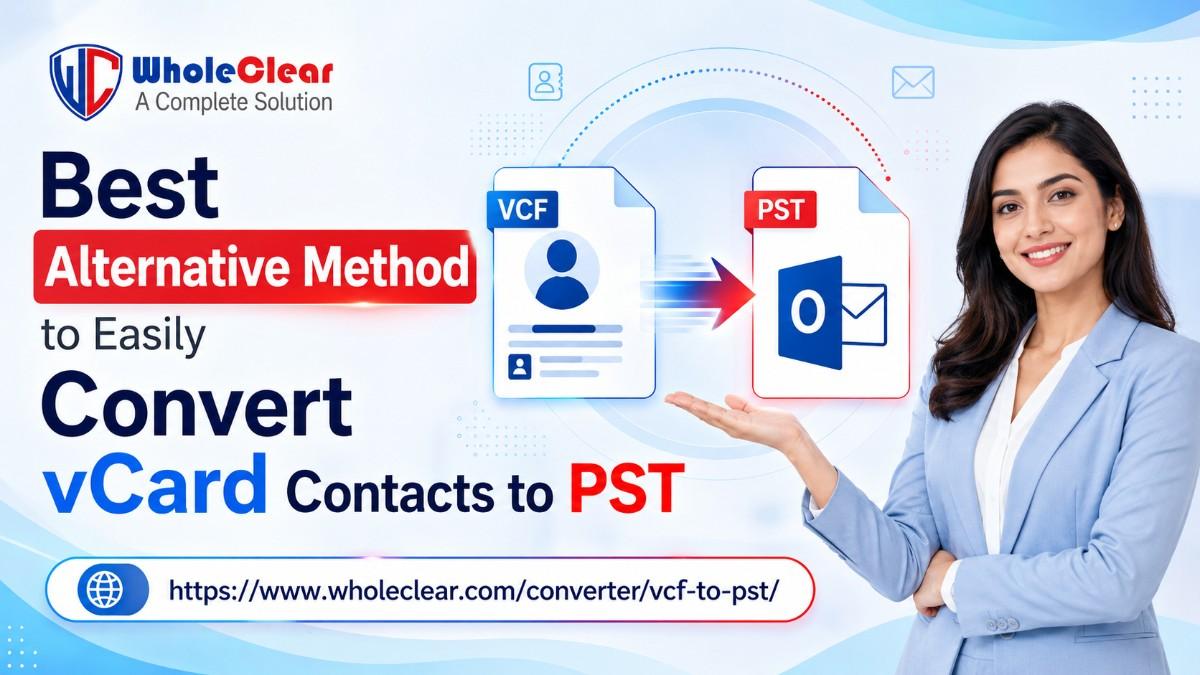
Best Alternative Method to Easily Convert vCard Contacts to PST
-

- Published Updated
- 7,550 views
Quick Summary
We’ll learn why vCard and Outlook formats conflict, how to navigate the risky native manual workaround, and the smartest automated alternative to batch convert your contacts safely without data loss.
Introduction: The Challenge of Managing Cross-Platform Contacts
Ever tried moving your smartphone or cloud contacts over to Microsoft Outlook, only to end up with an incomplete mess? While most modern devices usually export address books in the VCF format, Outlook uses its own contact format. If you try to move them over on your own, you will often find that your large contact lists have broken, or your personal contact details have been left behind. That is why finding a better way to convert vCard contacts to PST is important if you want to keep your contacts without change.
Whether you are an IT team moving company data or you are someone just setting up a new desktop workstation, you need a method that saves time and reduces effort. Here, we’ll see why these file formats are incompatible and look at the practical solutions to transfer your vCard data to PST without frustration – or losing your important data.
Why Do VCF and Outlook PST Files Conflict?
To understand why this conversion is known to be tricky, we have to look under the hood at how these two formats handle data. They speak completely different structural languages. This is the reason why a simple drag-and-drop most of the time doesn’t work.
Understanding vCard Versions (2.1, 3.0, vs. 4.0)
A major reason for format incompatibility is that vCard files have evolved over the years, but Microsoft Outlook has been slow to adopt the latest standard.
- vCard 2.1 & 3.0: These are older vCard formats used by legacy applications and services. Older versions of Outlook deal with them perfectly well. They use basic formatting for text fields.
- vCard 4.0: And this is the modern, universal standard used by iCloud, iPhones, and Android devices today. It has advanced properties, including complex encoding for profile pictures, international formatting, and custom labels.
When you import a modern vCard 4.0 file into Outlook, the application may struggle to read the newer contact structure properly. The result? A failed import, missing phone numbers, or notes fields that look like a broken string of code.
The Single vs. Bulk Contact Import Dilemma
This second reason is how these formats bundle data. When you export your address book, aka contacts, from Google Workspace or an Apple device, it just packages everything into a single, consolidated .vcf file containing hundreds or thousands of contacts.
In Microsoft Outlook’s built-in import option. There’s a limitation, as it may import only the first contact from a combined VCF file. For example, if a VCF file contains 500 contacts, Outlook may import just the first entry and skip the remaining ones. Without a dedicated tool, users usually have to split the file into separate vCards and import them individually, which can be extremely time-consuming.
Common Scenarios Requiring VCF to PST Conversion
Your contact lists are never completely isolated or permanent. Because workplace technology is always fluid – employees change phones, companies merge, or data moves from the cloud to desktop networks – your address book constantly has to interact with completely different systems. That frequent shift is exactly why format conversion becomes a need rather than an option.
First Reason Can Be Mobile to Desktop Transfer (For Professionals & Teams):
Well, Phones save contacts as VCF files. But office systems use Outlook, creating compatibility issues during transfer.
Cloud to Local Migration (For Businesses):
Most companies that are moving from Google Contacts or iCloud to Outlook or Exchange often need a compatible contact format.
For Offline Contact Backups (For IT & Security Experts):
Some IT Admins keep contacts saved locally to keep it from data loss. It can be caused by cloud or accidental deletion.
Manual Method: Convert vCard Contacts to PST
If you do not want to use third-party software right away, Windows also provides a built-in way to convert your file formats. This method uses the Windows Contacts folder as a bridge—first importing the VCF files and then exporting them into a CSV file that Outlook can easily import.
Steps to Migrate Your Contacts to Outlook PST:
Phase 1: Convert VCF to CSV via Windows Contacts
- Open File Explorer on your Computer and go to your user profile directory.
- Click the Import button located on the top toolbar.
- Pick a vCard (VCF file) from the list, and then click Import.
- Browse to your source VCF file and open it (you will have to click OK to confirm each contact entry).
- Once all contacts are loaded into the folder, click Export on the top toolbar.
- Select CSV (Comma Separated Values), click Export, choose a save location, and hit Finish.
Phase 2: Import the CSV File into Outlook
- Open Microsoft Outlook.
- Then, navigate to File. Then Open & Export > Import/Export.
- Choose Import from another program or file.
- Now, you can choose Comma-Separated Values and click Next.
- Browse and select the CSV file created earlier.
- Lastly, select Contacts as the destination folder and complete the import process.
Phase 3: Export Contacts as a PST File
- After you import your contacts, go back to File and then, Open & Export > Import/Export in Outlook.
- Now, select Export to a file and continue.
- Choose Outlook Data File (.pst) as the export format.
- You have to select the Contacts folder.
- Here, choose a save location, and just click Finish.
Limitations: Manual Import Method
When handling many VCF files at once, using Outlook’s built-in import option or the Windows Contacts folder can create several problems for you.
- Missing Contact Details: When you are importing, Outlook may sometimes skip extra information – phone numbers, additional email IDs, contact photos, or custom fields.
- Encoding Issue: Some of your contacts may display broken or unreadable characters. Older Outlook versions may not be able to handle the newer VCF files that use UTF-8 encoding.
- Slow Bulk Import Process: Outlook most of the time imports vCard files one by one. So, it can take a lot of your time if you are working with many files.
The Best Alternative Method: Automated VCF to PST Conversion
So, if you want to avoid missing contact details, formatting issues, and lengthy manual work, you have a better option – a dedicated solution like WholeClear VCF to PST Converter. You won’t have to depend on Outlook’s limited import options.
Step-by-Step way to convert vCard Contacts to PST
1. First of All, Download and Launch the Software
Requires Windows OS.
You have to download, install, and open the VCF to PST Converter on your desktop.
2. Then, You Have to Select Input Mode
Choose File or Folder.
You can select File Mode (for individual VCFs) or Folder Mode (to import a directory containing multiple files in batch). Browse and add your VCF data.
3. Now, Just Define the Destination Path
Choose output directory.
Click the Browse button next to the destination field and select a safe path on your local drive to save the newly created PST file.
4. Start The Conversion
Process the complete contact list.
Click the Convert Now button.
Key Features
- Keeps Complete Contact Details: This can safely maintain all detailed fields — including Phone Numbers, email IDs, addresses, notes, job titles, and other contact fields during the conversion.
- Bulk Conversion Modes: You can also upload an entire folder that has multiple VCF files. This tool can convert it into a single PST file at once.
- Even if Microsoft Outlook is not installed on your system, the tool can still convert vCard contacts to PST format.
- It supports VCF files exported from any version (2.1, 3.0, and 4.0) and any platform – iCloud, Google Contacts, Skype, and Android.
Post-Conversion Best Practices
After creating your PST file, a few simple steps can actually help you keep your Outlook contacts organized and easy to manage.
Open Your New PST File in Outlook
Instead of importing the PST file into your main mailbox, open it separately in Outlook for better contact management.
- Open Microsoft Outlook.
- Go to File > Open & Export > Open Outlook Data File.
- The file will appear in the Outlook sidebar as a separate contact folder.
Remove Duplicate Contacts
If contacts were collected from different sources – phones, or cloud accounts, you may see duplicate entries.
- Access your People / Contacts tab in Outlook.
- Change your view setting to Phone or List view.
- Sort by Name or Company to easily spot duplicates
- Review duplicate entries and remove or merge older records.
Conclusion
After going through the manual importing section, you may want to feel like it’s slow, confusing, and risky, especially when you have to work with large contact lists or modern VCF versions. In many cases, important details like phone numbers, notes, images, or custom fields may not transfer properly.
Investing in a professional solution like this VCF to PST Converter can really help you simplify the entire ail migration process. BY preserving every piece of contact metadata, fixing formatting errors, and allowing you to convert vCard contacts to PST in a single click. IT saves your hours of work. Protect your network data and give clean and accurate results.
Frequently Asked Questions (FAQs)
Q: Can I convert a single VCF file that contains 500 contacts into a PST?
While Outlook's native tool will only read the first contact of a combined file, WholeClear vCard to PST Exporter tool fully scans the entire structure, extracting all 500 individual contact cards locked inside into your new PST database.
Q: Does this software support vCard files exported from an iPhone or iCloud account?
It supports all modern vCard 4.0 versions generated by Apple devices and iCloud, while properly preserving contact details and custom labels during conversion.
Q: Is there a file size limit for bulk conversions?
No, the utility has no built-in limitations on file size or the overall quantity of contact files you load simultaneously.
Q: Can I test the tool before committing to a license?
A free trial edition is available for download (Visit: https://www.wholeclear.com/converter/vcf-to-pst/). It allows you to test the interface and export a limited number of contacts before upgrading.