Large VCF File Not Opening? Here’s How to Fix It Quickly
-

- May 27th, 2026
- 4,584 views

FREE SEO Topical Map Generator: Find Your Next Content Ideas
When it comes to transferring contacts from one phone to another, a huge VCF file that refuses to open will definitely transform an easy task into something very challenging and frustrating. This can happen in a variety of ways, ranging from contacts stopping to load to just a few appearing after completing the entire process.
Many contact management apps find it difficult to work efficiently with large files containing contact information. The larger the file is, the greater the chances of encountering problems like slow import, app crash, corrupted contacts, synchronisation errors, etc.
However, there are several solutions you may consider adopting to get rid of this problem.
Why Do Large VCF Files Stop Opening?
A VCF file stores contact information such as:
- Names
- Phone numbers
- Email addresses
- Business details
- Images
- Notes
When too many contacts are stored inside one file, devices and applications may fail to process the contact database properly.
Several reasons can trigger this issue.
Oversized Contact Files Slow Down Processing
Large contact files consume more system resources during import and synchronization.
This may lead to:
- Contact apps freezing
- The import process is getting stuck
- Delayed loading
- Device lag
- Incomplete contact imports
Older phones and low-storage systems usually face this problem more often.
Corrupted Contact Structure
A damaged VCF structure can prevent the file from opening correctly.
This usually happens because of:
- Interrupted file downloads
- Incomplete exports
- Broken formatting
- Improper manual editing
Even a small error inside the vCard structure can affect multiple contacts.
Unsupported vCard Versions
Different platforms support different VCF versions.
Common formats include:
- vCard 2.1
- vCard 3.0
- vCard 4.0
Some applications may fail to read unsupported contact formats properly.
Duplicate and Broken Contact Entries
Large contact databases often contain:
- Repeated contacts
- Invalid fields
- Missing details
- Broken contact tags
These problems can interrupt the import process and create contact loading issues.
Common Signs of Large VCF File Problems
Several warning signs indicate that the contact file has become difficult to manage.
Frequent Symptoms
- VCF file not opening
- Contacts app crashing
- Import process freezing
- Missing contact details
- Slow contact synchronization
- Duplicate entries are appearing repeatedly
These issues become more common when thousands of contacts are stored together.
Quick Solutions to Open Large VCF Files
Here are some quick ways you can deal with oversized VCF file problems.
Restart the Device
Temporary memory overload can interrupt contact imports. Restarting the system helps clear background resource usage and improves processing performance.
Try Another Contact Platform
If the file fails on one platform, opening it through another application may help.
Several users successfully access large VCF files using:
- Outlook
- Gmail Contacts
- Thunderbird
- Android contact manager
- iPhone contacts
Different platforms handle contact files differently.
Avoid Manual Editing of VCF Files
Editing a VCF file through Notepad or other text editors may damage the contact structure.
Broken tags and formatting errors often make the entire file unreadable.
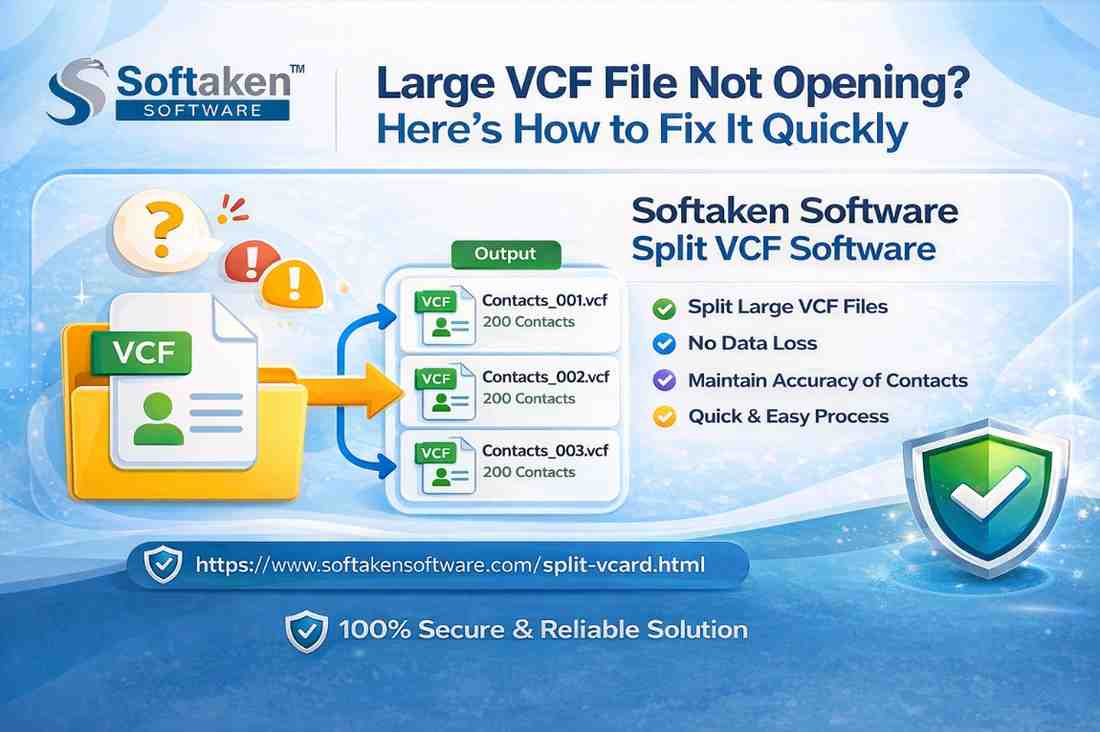
Split the Large VCF File Into Smaller Files
One large contact database is harder to process than multiple smaller contact files.
Splitting oversized VCF files improves:
- Contact import speed
- File accessibility
- Sharing flexibility
- Contact organization
- Device performance
Smaller contact files are easier for mobile devices and desktop applications to manage.
Reliable Solution to Fix Oversized VCF Files
For safe and smooth contact management,
Softaken Software Split vCard Software provides an effective way to divide large VCF files into smaller contact files without affecting contact details.
The software is designed to handle bulky contact databases safely and reduce contact import problems.
Important Features of Softaken Software Split vCard Software
Split Large VCF Files Smoothly
The application divides oversized VCF files into separate contact files for easier handling and sharing.
Maintain Complete Contact Information
The software preserves:
- Names
- Phone numbers
- Email addresses
- Contact images
- Notes
- Descriptions
No information gets modified during the splitting process.
Supports Multiple vCard Versions
The tool works with:
- vCard 2.1
- vCard 3.0
- vCard 4.0
This helps manage contact files created from different platforms.
Preview Contacts Before Saving
A built-in preview option displays contact details before exporting the final files.
Export Contacts Into MSG Format
Apart from the VCF format, divided contacts can also be saved as MSG files for Outlook usage.
No File Size Restrictions
However, there will be no problems with handling contact databases consisting of unlimited contacts.
Simple Steps to Split a Large VCF File
Using
Softaken Software Split vCard Software is straightforward.
Step 1
Install and launch the software.
Step 2
Add the large VCF contact file.
Step 3
Select the destination location.
Step 4
Choose output format:
- VCF
- MSG
Step 5
Start the splitting process.
The software creates separate contact files that open more efficiently across platforms.
Why Smaller VCF Files Work Better
Smaller contact files reduce pressure on devices and contact management applications.
This improves:
- Contact loading speed
- Import stability
- Synchronisation performance
- Contact sharing
- Backup organization
Using different files for each contact makes it less likely that the contacts will become corrupted or repeated.
Common Questions
Why does a VCF file hang during the importing process?
Oversized contact databases require more system resources, which may slow down or interrupt the import process.
Can corrupted VCF files be repaired?
Minor corruption issues may be resolved by splitting the file into smaller contact sections.
Is splitting VCF files safe for contact details?
Yes. Reliable VCF splitter software maintains all contact information safely during processing.
Which platforms support split VCF files?
Split contact files work with the following:
- Android
- iPhone
- Outlook
- Gmail
- Thunderbird
- Yahoo Mail
- iCloud
and many other contact management platforms.
Final Thoughts
The problem with large VCF files stems from oversized contacts lists, poor file format, duplicates within the list, and restrictions of the devices themselves. Larger file size equals more frequent failures of contact migration and crashes of applications.
Splitting bulky contact files into smaller sections is one of the easiest ways to improve contact management and reduce import issues.
For smooth and secure handling of oversized contact files,
Softaken Software Split vCard Software offers a practical solution to divide large VCF files while keeping all contact details intact.