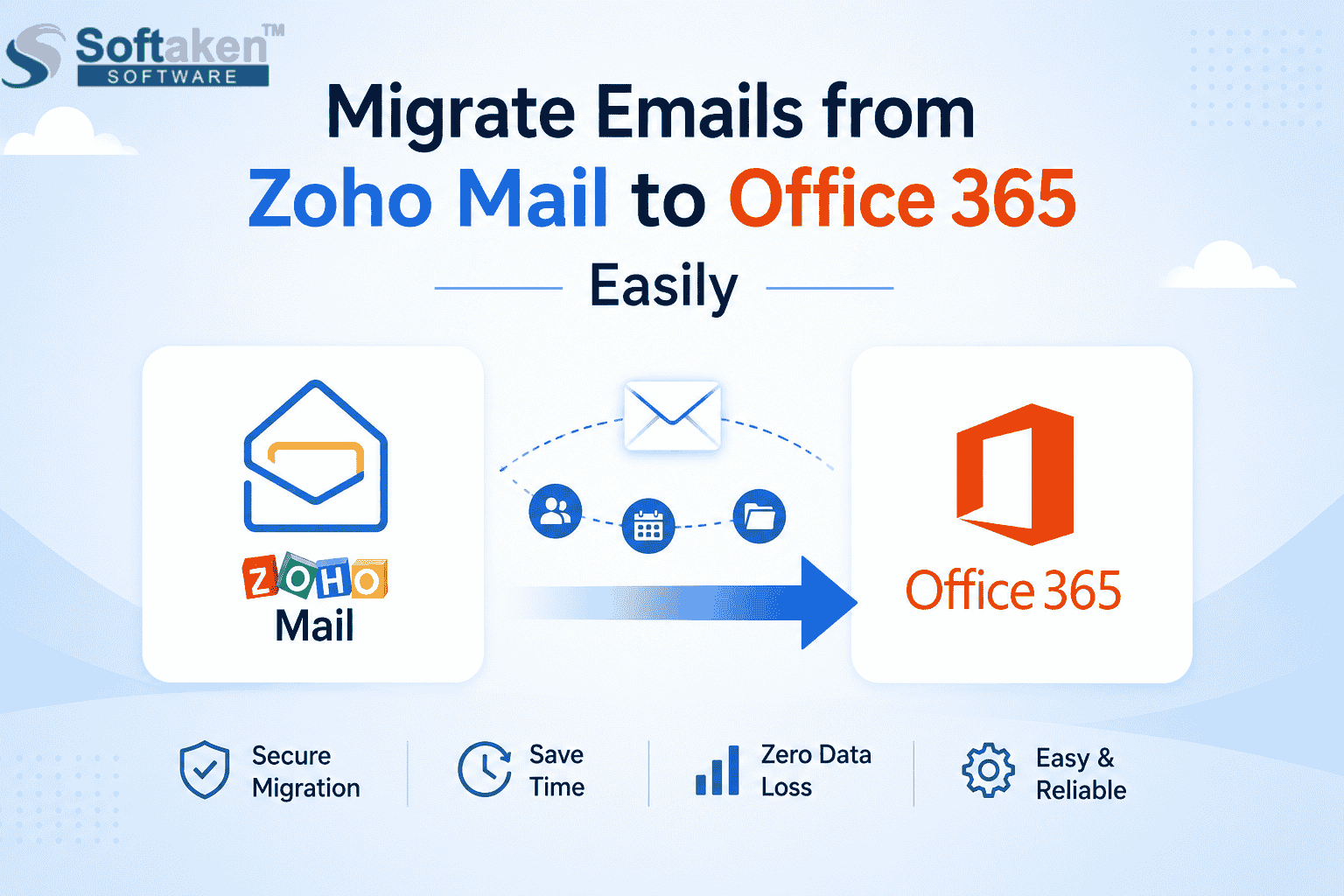
How to Migrate Emails from Zoho Mail to Office 365 Easily
-

- Published Updated
- 7,980 views
-
Quick Summary: Moving from Zoho Mail to Office 365? Don't risk losing your important business emails with stressful ways of conversion. Here, we’ll break down the easiest way to switch platforms safely, showing you how an automated tool keeps your data safe and completely hassle-free.
Let’s Get Started
Are you looking for a simple way to upgrade your business communication suite? Once you decide to migrate Zoho Mail to Office 365, the biggest concern you must be having right now is “how am I going to convert it without losing my important conversations or messing up my inbox organization?”
When you are trying to move years of company emails, shared mailboxes and complex folder structures manually is a heavy task that can lead to data loss or corrupted files. Just thinking about the configuration errors, missing attachments, and potential team downtime is enough to give a headache to any user. That’s why most businesses and individuals skip the manual stress and use an automated tool to get the work done quickly, safely, and without any downtime. In this Guide, we will break down exactly how to make this transition simple so you can get back to business as usual.
What Exactly Is An IMAP to IMAP Migration?
If you aren’t a network admin, the word “IMAP” is probably just a technical thingy you ignore. But it is an easy concept.
IMAP (Internet Message Access Protocol) is the server that both Zoho Mail and Office 365 use to store your emails safely on a cloud server. You must have noticed that when you read or delete an email on your mobile phone, it instantly updates and shows as read or deleted when you open your laptop browser.
So, when we talk about a general IMAP to IMAP migration, we are talking about the process where your new server (Office 365) reaches out across the internet, logs into your current server (Zoho Mail), and pulls a direct, identical copy of your mail data over to its own drives.
Why Do We Need to Migrate Zoho Mail to Office 365?
If you could just drag and drop folders between providers, you wouldn't need a strategy. The reality is that Zoho and Microsoft use completely different server frameworks.
Here is why conversion is required to make the move happen:
Incompatible Server Architecture: Zoho runs on its own custom cloud setup, while Microsoft 365 uses Exchange Online. A data conversion is needed just to make Microsoft’s servers understand and approve Zoho’s file structures.
Mismatched Server Environments: Even though both use IMAP protocols, their backend cloud storage handlers organize data differently. A specialized migration process ensures that Microsoft’s servers map and index Zoho’s data streams accurately.
Metadata Protection: An email isn’t just text. It has a folder structure, read/unread flags, and attachments. Proper migration just makes sure these components do not get corrupted, broken, or lost during the migration.
Manual Method for Migrating Zoho Mail to Office 365
You must be wondering if there’s a way to move your mailboxes without spending money on third-party software. Yes, there’s a way. Microsoft Office 365 actually has a built-in migration engine that can handle the move. Since Zoho Mail supports IMAP, you can configure the two cloud systems to connect directly through the Microsoft 365 Admin Center.
In simple words, this way you can connect both platforms for a short time. You provide Microsoft with the login details for your Zoho mailboxes. It copies the emails from Zoho into the new Outlook accounts over the internet.
While this sounds great because it’s free, it needs a lot of technical prep work – one small typo in your configuration sheets and the entire system sync fails.
Manual Steps:
Before you start with anything, make sure you have full global administrator access to your new Office 365 (now, Microsoft 365) account. Also, keep a complete master list of all your team members’ Zoho email accounts ready for the setup process. You will be able to migrate Zoho Mail to Office 365.
1. Enable IMAP & App Passwords
· Go to Zoho Mail Settings, and from there, go to Mail Accounts and check IMAP Access for the account you want to move.
· If 2FA is active, go to Security and create an App-Specific Password.
2. Prepare Your Migration CSV Spreadsheet
· Create an Excel sheet with these columns: Email Address, User Name, and Password.
· Add the Microsoft 365 email IDs along with the matching Zoho username and App-Specific Password.
· Save the file as CSV (Comma Delimited).
3. Create the Migration Endpoint in Microsoft 365
· Go to the Exchange Admin Center in Microsoft 365, and open Migration > Endpoints.
· Add a new IMAP endpoint: set server to imap.zoho.com, Port to 993, and authentication to SSL.
4. Start the Cloud Migration Batch
· Click Add migration batch and choose Migrate to Exchange Online > IMAP migration.
· Select your Zoho endpoint then upload your CSV file and click Start.
5. Switch Your DNS Records
· After the migration status shows Synced.
· Log in to your domain provider and change your MX records to point to Office 365.
Limitations of the Manual Method:
Password Headache: You have to manually collect or generate unique app passwords for every single employee.
Constant Stalls: Large mailboxes often cause the transfer to freeze or timeout halfway through.
Missing It only moves emails. Your contacts, calendar events, and notes are completely left behind.
No Filters: There is no way for you to remove unwanted data like spam emails, old messages, or large attachments before you start the migration.
Professional Approach to Migrate Zoho Mail to Microsoft 365 (Office 365)
When you look at the amount of manual effort involved, the security risks of collecting employee passwords, and the constant concern of timeouts, it is kind of obvious why the manual method isn’t good enough for a working business. You simply can't afford to risk losing an important client conversation or stopping operations for days just to depend on a basic migration spreadsheet.
This is where businesses usually prefer a more reliable and practical way of securely moving their data. Instead of forcing cloud platforms to work through a weak manual setup, businesses use a dedicated automated utility like the Softaken IMAP to IMAP Migration Tool to handle the heavy work.
A dedicated migration tool skips the spreadsheet configuration entirely. The software automates the connection and maps your Zoho folders directly to Office 365 behind the scenes.
Automated Steps to Migrate Zoho Mail to Office 365:
This approach turns a really stressful technical task into a simple process. Here is how you can complete the migration:
-
· Download and open the IMAP to IMAP Migration Tool on your Windows computer.
· Enter your source credentials. Enter the host address for Zoho Mail (imap.zoho.com), along with your admin username and password.
· Here, enter your destination credentials. Input the host address for Microsoft Office 365 (outlook.office365.com), along with your target admin account details.
· The tool will fetch your data and display your email folders in a clean, tree-structured preview. Check the boxes for the specific folders you want to move.
· Set your folder mapping preferences and apply data filters. You can use the data-range filter to exclude old messages or skip folders like “Spam” and “Trash” completely.
· Click the Start Transferring button.
Features of this IMAP to IMAP Migration Tool
· Server-to-Server IMAP Protocol Mapping: It connects the source Zoho IMAP server (imap.zoho.com via SSL port 993) directly to the Exchange Online destination server (outlook.office365.com); it won't slow down your office internet.
· Batch Mail Moves: This allows you to map and transfer multiple employee mailboxes at the same time to save time on deployment.
· Identical Folder Layout: Can copy your exact folder structure, meaning all nested subfolders and custom labels land in Outlook in the right spots.
· Protects Core you can safely move all file attachments with important email headers – To, From, Cc, Bcc, timestamps, and read/unread flags
· All IMAP Cloud Services: Works seamlessly with major platforms like Microsoft Office 365, Google Workspace (Gmail), Zoho Mail, Yahoo Mail, iCloud, and AOL.
· Custom Domain Webmail: Supports any business email hosted on custom domains via servers like cPanel, Hostinger, GoDaddy, HostGator, or Bluehost.
Conclusion
Switching your business communication from Zoho Mail to Microsoft Office 365 is a great move for growth. The migration just needs careful handling. Microsoft’s built-in manual tool is a free option. But it involves technical knowledge—like building error-prone spreadsheets, collecting employee passwords, and risking dropped data from server timeouts.
A dedicated utility, such as this IMAP to IMAP Migration Tool, is the safest choice to migrate Zoho Mail to Office 365. It takes care of the complex server connections, lets you filter out old emails by date, and copies your exact folder structures directly into Outlook. By removing the manual work, it keeps your business data safe and your platform upgrade completely stress-free.
Ready for a seamless transition? [Download the free trial of Softaken IMAP to IMAP Migration Tool today] to scan, preview, and securely move your Zoho mailboxes to Microsoft Office 365.
Frequently Asked Questions (FAQs)
Does the software need a continuous internet connection to run?
Because the tool transfers mail directly between the source and target cloud accounts over the internet via web protocols, you need a stable connection for the migration to finish properly.
Do I need Microsoft Outlook installed on my PC to use this tool?
No. the utility works fully on its own. It communicates directly with the mail servers online, meaning you do not need Outlook or any other local mail clients configured on the computer.
Can I test the application before purchasing a license?
A free demo version is available to download, which allows you to preview your mail structure and migrate a limited number of items per folder to verify performance.
Does the software work on both 32-bit and 64-bit Windows systems?
The program is made for the Windows architecture and runs comfortably on all modern versions.
-