How to Convert EML to PST Without Losing Complete Guide
-

- Published Updated
- 6,659 views
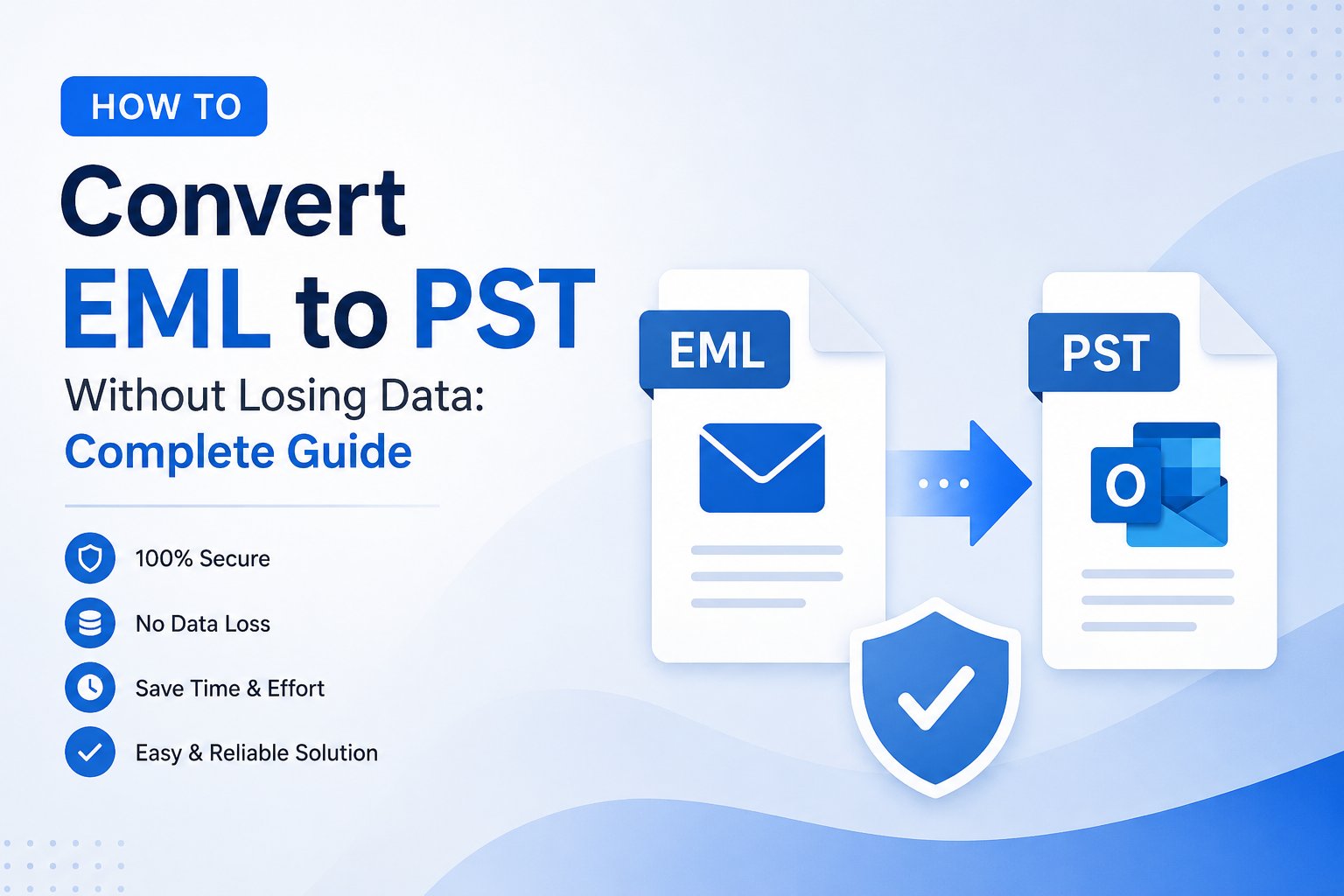
In this blog, we will explain the manual operation for this process as well as look at a professional tool for completing this conversion securely and effectively. Each of these two ways is covered in full, with clear procedures and manual method difficulties, so you can choose the appropriate approach for your unique needs. The primary goal of this blog is to provide you with a step-by-step guide for exporting EML files to PST format without compromising data or losing valuable time.
Has this ever happened to you when you opened an EML file in Outlook and it failed to open? This is a frequent issue that many individuals experience while moving email platforms. Most individuals keep their emails in EML format, however MS Outlook uses PST files. This creates the need to convert EML to PST for quicker access, better email management, and more efficient transfer.
EML files are typically used to store individual mail messages, whereas PST is the native file format of the MS Outlook email client, storing messages, email attachments, contact data, and calendar details in a single file that is easier to manage and share. MS Outlook does not support bulk opening of EML files since it only supports email attachments and opens them partially, resulting in data loss and formatting issues. To address this issue and overcome the challenge, move EML to PST.
When Do You Need to Convert EML to PST Format?
There could be a variety of instances where users need to convert EML to PST, some of which are listed below:
- While moving from Windows Live Mail to Microsoft Outlook.
- During the migration from Mozilla Thunderbird or other email clients.
- Opened old EML files in the Outlook email platform.
- Unified email management platform.
- Transfer emails from the former work environment to new corporate Outlook settings.
- Store numerous EML files in one PST file for easy backup.
- Improve email organization by managing the Outlook PST file.
- Outlook's native format, PST, allows for a seamless conversion.
- The most effective approach to transfer data from Mac to MS Outlook.
- Secure email folder structure during data migration.
There are several options for users to convert EML files to PST for workflow enhancement. Here, we will go over two major techniques of importing EML files to PST format: manual and automatic, as well as comprehensive steps for each.
Methods for Migrating EML to PST
The manual approach is discussed first.
1. Manual Approach to Converting EML to PST Using Outlook
This approach allows you to convert a single EML file to PST format. This method is time-consuming for bulk conversion because it does not allow you to pick all EML files at once and move them to Outlook with a single click.
Step 1: First, Import the EML Files into MS Outlook
- Open the file explorer and pick the EML file.
- Right-click the file and select "Open with."
- Next, choose Outlook from the selections.
- Click on Move and select the folder to import the EML files.
Step 2: Now, Convert the Imported EML File to PST Format
- After completing the procedures above, the imported EML file will be stored as an Outlook message.
- Select File, then Open & Export.
- Select the Import/Export option.
- Click on Export to a file.
- Next, choose the Outlook data file (.pst).
- Select the destination path to save the finished PST file.
Aspects Frequently Lacking in the Manual Approach
- There is no support for batch conversion.
- The conversion process is time-consuming and may not be suitable for those in a rush.
- There may be a risk of missing emails.
- No such sophisticated filters exist.
- The technique is not suitable for non-technical individuals.
- Data integrity risks being compromised.
- Using a manual approach may be problematic for users with sensitive data in EML files.
- Files will not retain their original formatting.
- There is no data privacy.
- High risk of losing vital information or metadata.
- Installing email programs, like MS Outlook, is required for this operation.
2. Best Approach: Use the Professional Converter
To avoid the manual operation, users prefer the professional option, i.e., DataVare EML to PST Converter Expert Software. Also, properly managing several large-sized files in a huge organization while keeping them safe and secure is a daunting endeavor. So, in such instances, employing this reliable tool remains the best alternative for bulk conversion while ensuring data security.
This software allows users to convert multiple EML files to PST safely and without losing any data. This user-friendly software is suitable for both professionals and amateurs. This utility converts EML files to PST format quickly, safely, and accurately, ensuring that no data is lost.
Who Can Use this Tool to Convert EML to PST?
- IT administrators require an automated method to export metadata fast and securely.
- Business owners who may require mass conversion.
- Those looking to export EML files to PST for special purposes.
- Forensic investigators can utilize the instrument for their investigations.
Software Case Study
An IT professional from a mid-sized organization was carrying a large quantity of important emails saved in EML format from an obsolete email client. When his firm switched to MS Outlook, he struggled a lot to access and manage those files because MS Outlook does not accept EML files right away. He tried the manual solution but was unsuccessful since it took up too much of his important time and resulted in missing email data. He then employed a professional application to convert EML files to PST in one shot. The process now faster and no data loss occurred this time. He was really pleased because he could effortlessly import EML files into Outlook without any issues.
Primary Features of this Solution
This EML to Outlook converter has several capabilities that can help users in a variety of ways, including:
- The software can handle a large number of EML files.
- There is no size restriction.
- Metadata and inline attachments will be kept.
- The software allows bulk conversion of EML files to PST.
- The folder structure will be maintained during the conversion process
- The tool's user-friendly interface earns it complete points for ease of use.
- The software works well with all EML-based email clients.
- This independent software converts files on any PC without the need for MS Outlook installation.
- The free demo version allows consumers to try before purchasing.
Perform the Simple Steps of Conversion
This quick technique has only six stages for you to follow:
- Download, install, and run the EML to PST Converter.
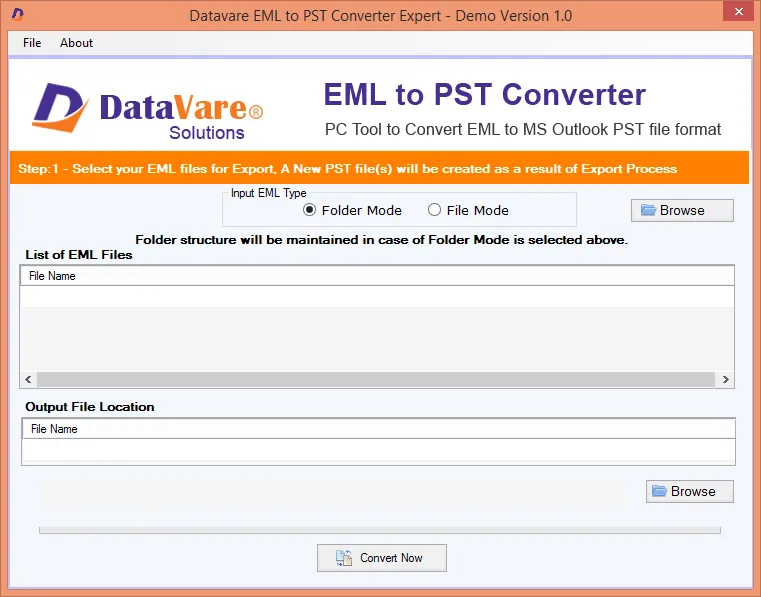
- To load EML files, click Select Files or Select Folders.

- Select the EML folders you want to convert.
- Select PST from the menu of Saving Options provided.
- Browse the destination directory and click Convert.

FAQs
Question: How do I convert EML files to PST format safely?
If data security is your top priority you should use a professional EML to PST converter tool to ensure that no data is lost.
Question: Is it feasible to convert numerous EML files to PST at once?
Well! The manual technique is limited in terms of bulk processing, while the professional solution allows users to convert many EML files to PST in batch mode.
Question: How do I convert EML to PST without installing MS Outlook?
You can use the standalone automatic software to transfer EML to PST without installing Microsoft Outlook.
Question: Is it feasible to convert EML files to PST easily?
Yes, with the user-friendly professional tool, you can effortlessly convert multiple EML files to PST.
Question: Which EML to PST conversion method should I use?
If you simply have a few EML files, you can try the manual operation. However, for huge amounts of email data, it is always suggested that you use a professional EML to Outlook converter for safer and faster results.
Concluding Thoughts
You may easily convert EML to PST manually. However, for a smoother, safer, and faster experience, using the automated tool remains your best option for converting EML to PST with accuracy, speed, safety, and ease.