Create a Superior Home Office: Practical Setup, Ergonomics & Productivity Guide
-

- March 22nd, 2026
- 213 views

Get a free topical map and start building content authority today.
Introduction
How to create a superior home office is a common question for anyone working remotely or running a small business from home. This guide explains practical, repeatable steps to set up a productive, comfortable workspace that supports long-term focus and health. The instructions cover layout, ergonomic choices, lighting, tech, sound control, and daily routines.
- Detected intent: Procedural
- Goal: create a superior home office with an ergonomic, efficient layout and predictable daily flow
- Main actions: choose location, optimize ergonomics, manage lighting and acoustics, standardize tech, and create habits
Create a superior home office: Step-by-step guide
Start by defining what will make the space superior: reduced distractions, ergonomic comfort, reliable connectivity, and a system that supports work habits. These priorities determine choices for furniture, equipment, and layout. The primary goal is to create a superior home office that balances comfort, productivity, and longevity without overcomplicating the design.
Step 1 — Choose location and layout
Pick the right spot
Select a location with minimal foot traffic and controllable light. A spare bedroom or a corner that can be zoned off works better than the kitchen table. If space is limited, dedicate a visual boundary (rug, room divider, or shelving) to signal a work zone to the brain and household.
Set up a practical layout
Place the desk so the primary work surface faces the room or a wall depending on distraction levels. Allow at least 30–36 inches of depth for a desk that holds a monitor and keyboard comfortably. Include storage within arm’s reach for daily items and a separate area for reference materials or creative work if possible.
Step 2 — Ergonomics and furniture
Ergonomic basics
Ergonomics reduces strain and improves sustained focus. Key items: an adjustable chair with lumbar support, a desk at the correct height (or a sit-stand desk), and monitor(s) placed so the top of the screen is at eye level. Consider a keyboard tray or external keyboard and mouse to keep wrists neutral.
Recommended setup checklist
Use this compact READY checklist when selecting furniture and arranging the workspace:
- R — Right chair height and lumbar support
- E — Eye level monitor(s), correct viewing distance
- A — Adequate desk surface and arm clearance
- D — Decluttered zones and reachable storage
- Y — Yellow light control (manage glare and adjustable lighting)
Step 3 — Lighting, acoustics, and comfort
Control natural and artificial light
Natural light improves mood but can cause glare. Position the desk perpendicular to windows or use adjustable blinds. Add a warm, dimmable desk lamp for task lighting to reduce eye strain during low-light hours.
Manage acoustics
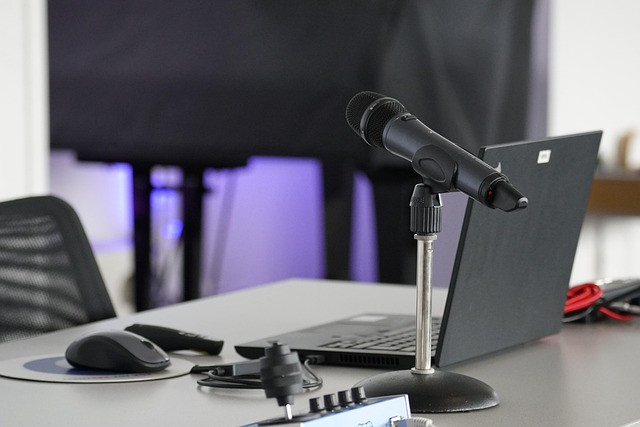
Reduce noise with rugs, curtains, and soft furnishings. For persistent background noise, consider a white-noise machine or directional microphones for calls. Headphones with active noise cancellation are a practical option for focus sessions.
Step 4 — Technology and reliable systems
Network and backups
Stable internet is critical. Use a wired Ethernet connection for desktop setups when possible and a quality router positioned centrally for Wi‑Fi. Set up an automatic backup system and a power-protection strategy (surge protector or UPS) for critical equipment.
Peripherals and cable management
Choose peripherals that match work needs: large monitor(s) for spreadsheets and design, an external webcam and microphone for high-quality meetings, and an ergonomic keyboard and mouse. Organize cables with clips or under-desk trays to keep surfaces clear.
Named framework: CLEAR framework for daily operation
Apply the CLEAR framework to maintain a superior home office over time:
- C — Clean surfaces, declutter weekly
- L — Light control: adjust for time of day and task
- E — Ergonomics: check posture and equipment monthly
- A — Acoustics: manage background noise and meeting quality
- R — Routines: defined start/end rituals and regular breaks
Real-world example
Scenario: A project manager in a one-bedroom apartment needs a reliable meeting setup and a creative space for planning. The chosen location is a corner of the bedroom separated by a low bookcase. A height-adjustable desk and ergonomic chair provide comfort for long calls. A single 27-inch monitor is mounted on an arm to keep the desk clear. Soft curtains and a rug reduce echoes. A routine includes a pre-work 10-minute planning block and an end-of-day 5-minute tidy; these small habits keep the space functional without major time investment.
Practical tips
- Label and standardize cable and charging locations so devices are always ready.
- Use a task checklist and a physical timer (Pomodoro method) to protect focused time.
- Invest in one quality ergonomic item first (usually the chair) rather than many low-cost pieces.
- Test camera framing and audio before important meetings—lighting and microphone placement make a larger difference than camera resolution.
Common mistakes and trade-offs
Common mistakes
- Prioritizing aesthetics over ergonomics: a beautiful chair may be painful for long use.
- Underestimating acoustics: poor sound control undermines remote work effectiveness.
- Neglecting routine: a disorganized workflow neutralizes hardware investments.
Trade-offs to consider
Space vs. functionality: a larger desk improves spread but can mean less open floor area. Budget vs. durability: inexpensive furniture may save money short-term but increases replacement frequency. Mobility vs. permanence: rolling desks are flexible but may sacrifice stability for equipment-heavy setups.
Resources and standards
For official ergonomics and workstation guidance, consult workplace-safety resources such as the Occupational Safety and Health Administration (OSHA) workstation recommendations: OSHA computer workstation guidelines.
Core cluster questions
- What is the best ergonomic chair for long hours at a home desk?
- How to reduce noise and echo in a small home office?
- Which lighting setup reduces eye strain for computer work?
- How to decide between a sit-stand desk and a fixed-height desk?
- What backup and power protection are essential for home offices?
Closing and next steps
Follow the step-by-step approach: pick a location, set ergonomic defaults, control the environment, standardize tech, and apply the CLEAR framework to daily operations. Small, consistent changes compound into a superior home office that supports productivity and well-being.
FAQ: How to create a superior home office with limited space?
Convert a closet or corner into a compact workstation with a shallow desk, wall-mounted monitor arm, and vertical storage. Use a fold-down desk or wall shelf if floor space is tight. Prioritize ergonomics: a compact, adjustable chair and monitor height are more important than desk surface area.
FAQ: What is the minimum ergonomic setup for long workdays?
Minimum ergonomic setup includes an adjustable chair with lumbar support, an external keyboard and mouse, and a monitor positioned so the top of the screen is at eye level. Add a footrest if feet do not rest flat on the floor.
FAQ: How to create a superior home office on a budget?
Buy one quality ergonomic item first (usually the chair), use natural light and inexpensive task lighting, and repurpose storage furniture for organization. Decluttering and defined routines often yield larger productivity gains than high-cost equipment.
FAQ: Which daily routines improve home office productivity?
Start with a short planning ritual, block focused work time (e.g., 90-minute sessions), schedule regular breaks, and end the day with a 5-minute tidy and task review to separate work and personal time.
FAQ: How to create a superior home office for hybrid work?
Design for flexibility: a fast Wi‑Fi or wired connection, easy-access meeting tools (good webcam and microphone), and a setup that supports quick transitions between deep work and video calls. Keep dedicated meeting zones or background-ready areas to reduce setup time when joining calls.