MBOX to PST for Email Consolidation: How to Bring Scattered Mailboxes into One Outlook Archive
-

- Published Updated
- 1,824 views
Introduction
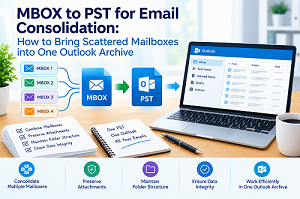
Email archives can become fragmented when emails are saved in numerous email apps, accounts, machines, and backup locations. Over time, users can have several MBOX files holding valuable conversations, attachments, and historical emails. If users handle these archives separately, they can find it hard to retrieve certain emails and maintain a centralized record.
MBOX to PST conversion provides a way to gather dispersed email data into an Outlook-compatible data file. But the problem is not only changing the format of the mailbox. Users also need to think about how the folders are organized, attachments, multiple MBOX files, duplicate data, and how easily the final Outlook archive can be accessed.
It is possible to use a manual approach for a small archive. For larger collections, a dedicated MBOX to PST conversion utility can provide a more structured and controlled migration process.
Why Do Scattered MBOX Archives Require a Consolidation Method?
MBOX files can store individual mailboxes, accounts, or archived collections of email. If these files are spread throughout numerous locations, a user might have to sift through many archives to find correspondence from the past.
Email consolidation is beneficial when:
- Several MBOX files are from various accounts.
- Old mailbox archives are only accessible through Outlook.
- Business correspondence is scattered among several repositories.
- Important attachments are saved in past emails.
- Users desire to keep their email data in one single PST repository.
- MBOX collections should be arranged differently for easier retrieval.
So, a good MBOX email migration should include not only file conversion but also the arrangement of the resulting Outlook email archive.
Manual Conversion: Convert Files Using Thunderbird and Outlook
1. Install and run Thunderbird and import or add the MBOX mailbox data. Thunderbird has an Import Tool for importing message data.
2. Open Thunderbird and access the imported MBOX folders. Verify that all necessary emails, folders, and attachments have been successfully imported.
3. Set up the IMAP account in both Thunderbird and Outlook. This provides a mailbox through which the emails can be transferred.
4. Move or copy the needed emails from Thunderbird to the proper folders in the IMAP account. Let Thunderbird synchronize the messages with the mail server.
5. Open Outlook and synchronize the same IMAP mailbox. The transferred emails should then be available in Outlook.
6. Export the Outlook mailbox to a PST file. In Classic Outlook, go to File → Open & Export → Import/Export → Export to a file → Outlook Data File (.pst), choose the mailbox or folders you require, and complete the export. Microsoft supports exporting Outlook email to a PST, including attachments.
7. Open the resultant PST in Outlook and validate the messages,
folders, dates, attachments, and other needed mailbox information. In Classic
Outlook, you can open an Outlook Data File by using File → Open & Export → Open Outlook Data File.
Practical Limitations of the Manual Conversion Approach
This manual method can be used for limited purposes but has significant practical constraints.
Repetitive Processing for Multiple MBOX Files
Different MBOX archives can require separate processing. When users have more than one mailbox file, opening, evaluating, and moving data over and over adds to the total burden.
Complicated Folder Organization
MBOX archives can have varied folder structures. Combining these structures manually could take some extra work to build a consistent email folder hierarchy in Outlook.
Large Archives Increase Manual Effort
An email correspondence archive can span years and contain thousands of messages and many attachments. Manually transferring such collections can become laborious and hard to handle efficiently.
Dependence on Several Applications
Manual conversion uses an intermediate email client and Outlook, not a dedicated conversion method. This can make the migration more dependent on application compatibility and other transition stages.
Professional Conversion: Converting MBOX Files into PST with Specialized Software
If you are working with more than one archive or large collections of email, there is a specialist conversion application that can offer a better-structured solution.
GainTools MBOX to PST Converter is a tool for converting MBOX mailbox data to PST format. It provides users with a specialized workflow for MBOX to Outlook conversion and email archive consolidation.
Features Supporting a Structured Email Migration
The features of a professional MBOX converter can help ease the several steps of the migration process:
- Batch MBOX Processing: Instead of processing one archive at a time, process many MBOX files together.
- Selective Conversion: Convert required mailbox files or folders instead of unwanted material.
- Folder Structure Handling: Helps to keep the organization of mailbox folders during conversion, as supported.
- Email and Attachment Conversion: Converts email messages and accompanying attachments.
- Preview Feature: See mailbox contents before converting.
- Direct PST Output: Generate PST files directly without a complex intermediate email-client workflow.
- Large Archive Support: Offers a more practical way to deal with large MBOX archives.
- Outlook-Compatible Output: Generates PST data for use in supported Outlook environments.
These features are useful for bulk MBOX conversion, historical email migration, and centralized mailbox management.
Step-by-Step Conversion Process
1. Start the conversion software and import the MBOX files or folders containing the email archives you want to migrate.
2. Preview the folders and email content with the software's preview functionality before starting the conversion.
3. Select the MBOX files, folders, or mailbox data to be included in the final Outlook archive.
4. Choose PST as the output format and select the destination location to save the converted Outlook Data File.
5. Set the supported options, such as choosing specific data or keeping the necessary organization, based on the email migration requirements.
6. Start the conversion procedure and wait for the software to convert the selected MBOX data.
7. Once the conversion is done, open the PST in the supported Outlook environment. Check folders, messages, sender and recipient details, dates, attachments, and other relevant mailbox items.
Choosing the Right Consolidation Method
The right method really depends on the amount and complexity of the email collection.
If the user has only a few MBOX files with little data and is comfortable working across numerous applications, then a manual approach can be practical. But larger collections can need more systematic processing. A dedicated email migration solution can reduce repetitive handling and provide features tailored for converting and organizing mailbox data.
Conclusion
Converting MBOX to PST can be handy when scattered email archives need to be brought into a centralized Outlook environment. Manual workflows can be a good alternative for smaller collections and can work, but the procedure can become more demanding as collections grow with many MBOX files, large archives, attachments, duplicate data, and folder organization.
The process can be made simpler by using a professional conversion strategy that integrates source selection, mailbox preview, selective processing, conversion of emails and attachments, and PST creation in a dedicated environment. No matter the approach you use, it is important to check the resulting PST as a last step to confirm that the consolidated email archive includes the data you expect.
Frequently Asked Questions
Q1. Can I convert bulk MBOX files to PST?
Ans. Yes, you can convert and merge numerous MBOX files into PST with the use of any suitable conversion solution.
Q2. Does the professional software keep the attachments safe during the conversion process?
Ans. Yes, this tool keeps the attachments and formatting intact during the conversion process.
Q3. Why should I choose the professional software?
Ans. It simplifies the conversion procedure and
helps in organized migration of MBOX emails to PST format.