How to Set Up PlayStation 2 Emulation on Modern PCs and Android Devices
-
- Published Updated
- 3,658 views
Playing older console games on modern hardware sounds simple, but getting everything configured correctly can sometimes be surprisingly complicated. Emulation involves more than installing an application and launching a game. Users may need to understand hardware requirements, emulator settings, controller configuration, graphics options, and system files before they can achieve a stable experience.
The good news is that modern computers and smartphones are considerably more capable than the hardware available when the PlayStation 2 was released. With the right emulator, suitable device, and properly configured system files, many players can create a reliable retro-gaming setup. Beginners researching PlayStation system files can also use a useful website for BIOS information before getting started: https://ps2bios.com.br/
Understanding How PlayStation 2 Emulation Works
Emulation allows software running on one device to reproduce the behavior of another system. Instead of requiring the original console hardware, an emulator attempts to recreate important components of the console through software.
PlayStation 2 emulation is particularly interesting because the original hardware had a complex architecture. The emulator has to reproduce different elements of the console while translating their operations into instructions that modern processors and graphics hardware can understand.
This is why emulation can require significantly more processing power than simply running an older PC application. A modern device may be much faster than the original console but still require careful configuration to produce consistent performance.
Choosing the Right Hardware
The first step is determining whether your computer or Android device is suitable for the emulator you want to use. Hardware requirements can vary considerably depending on the emulator, game, resolution, and graphical enhancements.
PC Requirements
A desktop or laptop with a modern multi-core processor is generally a good starting point. A capable graphics processor can also help when higher internal resolutions and graphical enhancements are enabled.
You don't necessarily need an expensive gaming computer to experiment with emulation. However, older or low-powered systems may require lower resolutions and more conservative settings.
Android Requirements
Android emulation has become increasingly interesting as smartphone processors have improved. Newer devices can provide enough CPU and GPU performance for demanding emulation applications.
Performance can still vary significantly between Android phones. Two devices with similar specifications may produce different results because of differences in thermal management, graphics drivers, operating-system versions, and emulator compatibility.
Selecting an Emulator
Choosing an emulator is one of the most important decisions in the setup process. Different projects may prioritize compatibility, performance, ease of use, or advanced configuration options.
Before installing an emulator, check whether it supports your operating system and hardware. It is also worth looking at compatibility information and community discussions to understand how particular games perform.
For beginners, an emulator with a straightforward interface can be easier to configure than one with dozens of advanced settings. Experienced users may prefer additional control over graphics, speed, audio, and hardware behavior.
Why BIOS Files Matter
One of the concepts that often confuses newcomers is the BIOS. A BIOS is system firmware associated with the original console, and certain PlayStation emulators require an appropriate BIOS file to function.
The BIOS is different from a game file. It belongs to the console's system software and helps the emulator reproduce aspects of the original startup and hardware environment.
Users should pay attention to the legal source of BIOS files. The safest approach is to create or obtain system files from hardware that they own and have the legal right to use, rather than downloading unauthorized copies.
Understanding the role of BIOS files can also make troubleshooting easier. If an emulator reports that a required system file is missing or invalid, checking the emulator's documentation and configuration settings is usually a better first step than changing unrelated graphics options.
Configuring Graphics Settings
Graphics settings have a major effect on emulation performance. Many emulators allow users to increase the internal rendering resolution beyond what the original console produced.
Higher resolution can make older games look much sharper on modern displays. However, increasing graphical settings also places additional demands on the device.
Start With Conservative Settings
Beginners should normally start with the emulator's recommended or default configuration. Once the game is running correctly, individual settings can be adjusted gradually.
For example, increasing the internal resolution is easier to troubleshoot when it is the only setting being changed. If performance suddenly drops, you can identify the setting responsible instead of trying to determine which of several changes caused the problem.
Don't Chase Maximum Graphics
The highest possible resolution isn't always the best choice. A stable game running at a moderate resolution is generally more enjoyable than a game that frequently experiences slowdowns because the graphics settings are too demanding.
The ideal configuration depends on your particular device. What works perfectly on a desktop computer may be unsuitable for a smartphone with limited thermal headroom.
Setting Up a Controller
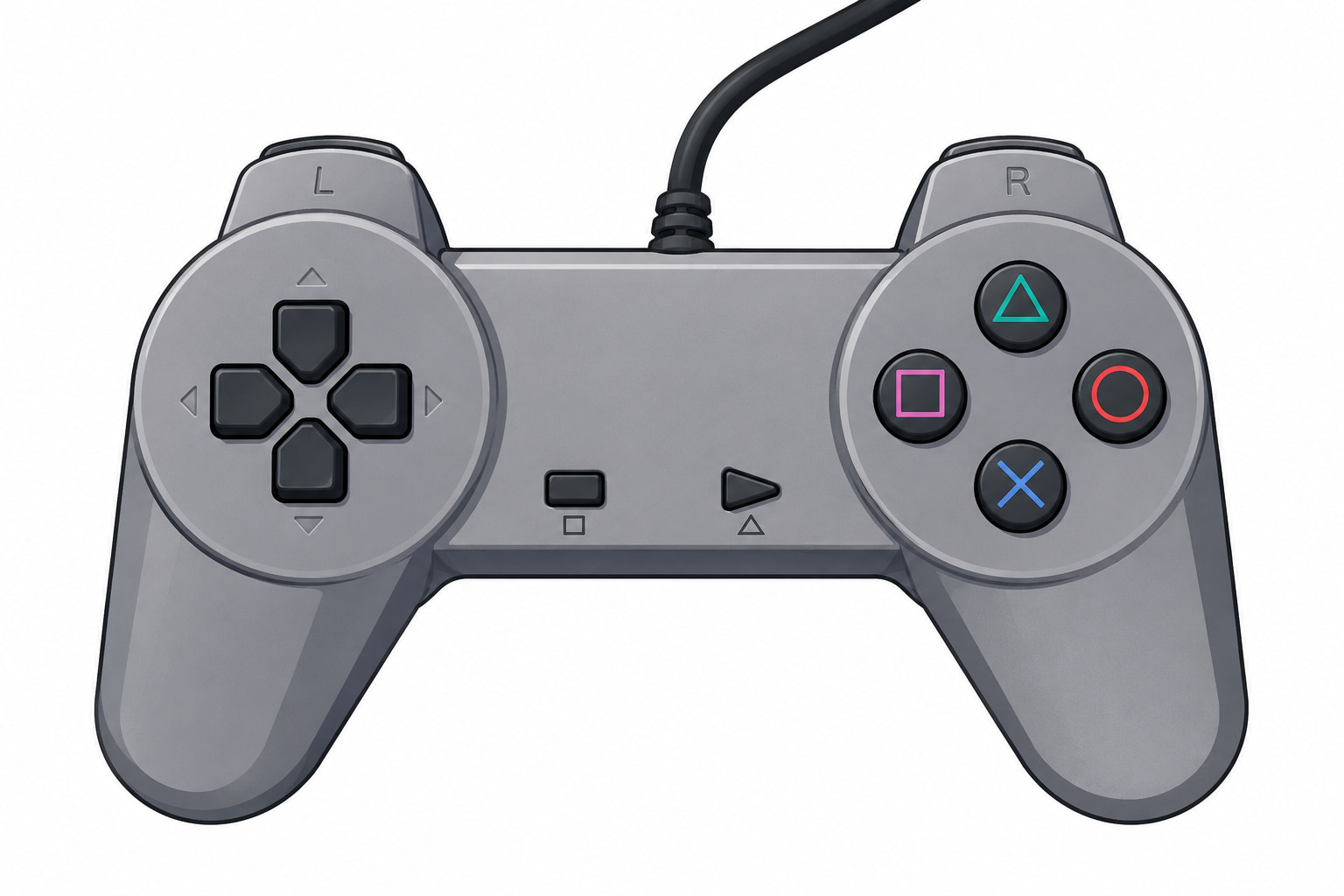
A physical controller can make PlayStation 2 emulation feel much closer to the original experience. Many modern controllers can connect to PCs and Android devices through USB or Bluetooth.
Once connected, open the emulator's controller configuration menu and assign each button to the corresponding virtual controller input.
Take some time to test the analog sticks, shoulder buttons, directional pad, and pressure-sensitive controls where supported. Incorrect mappings can make a game feel broken even when the emulator itself is working correctly.
Managing Memory Cards and Save Data
Modern emulators often provide virtual memory-card functionality. Instead of using a physical PlayStation 2 memory card, the emulator stores save data as files on the computer or mobile device.
Keeping backups of important save files is a good habit. A configuration change, corrupted file, or accidental deletion could otherwise result in lost progress.
It is also helpful to understand where the emulator stores its save data. Knowing the location makes it easier to transfer your progress between devices or restore it after reinstalling the emulator.
Improving Performance
If a game isn't running smoothly, there are several areas worth checking before assuming that the hardware is insufficient.
First, make sure unnecessary applications are not consuming significant system resources. On Android, background applications and aggressive battery-saving settings can sometimes interfere with demanding workloads.
On a PC, closing resource-intensive programs can provide additional CPU and GPU resources to the emulator. Keeping graphics drivers and the emulator itself updated can also help with compatibility and performance.
Another important consideration is temperature. Mobile devices in particular may reduce processor performance when they become too hot. If performance begins well and gradually decreases during longer sessions, thermal throttling may be contributing to the problem.
Common Mistakes Beginners Make
One common mistake is changing too many settings at once. When several options are modified simultaneously, troubleshooting becomes much more difficult.
Another mistake is assuming that a more powerful device automatically guarantees perfect emulation. Game compatibility varies, and some titles may behave differently because of specific technical characteristics.
Users should also avoid copying random configuration files from unknown sources. Settings designed for one device may be inappropriate for another and can sometimes create additional problems.
Finally, don't overlook the emulator's documentation. Official documentation and established community resources can explain settings much more accurately than short configuration lists found on unrelated websites.
PC vs Android Emulation
Both platforms have advantages.
A PC generally provides greater flexibility, easier file management, more powerful cooling, and a wider range of hardware configurations. It can also be easier to connect multiple types of controllers and external displays.
Android offers portability. A compatible smartphone can turn into a compact retro-gaming device without requiring a dedicated computer. Bluetooth controllers and larger-screen accessories can further improve the experience.
The better option ultimately depends on how you intend to play. Someone who wants long gaming sessions at a desk may prefer a PC, while someone who wants to play while traveling may find Android more convenient.
Legal and Responsible Emulation
Emulation itself is a technology with many legitimate uses, including software research, preservation, development, and playing games from legally obtained sources.
However, the legality of downloading or distributing copyrighted games and system files varies by jurisdiction. Users should understand the laws that apply to them and make sure they have the appropriate rights to use any games, BIOS files, or other copyrighted material.
This is especially important when downloading files from unfamiliar websites. A source that promises a convenient download may not necessarily be trustworthy or legally authorized.
Building a Better Retro-Gaming Setup
Once the basic emulator is working, there are several ways to improve the overall experience. A good controller, comfortable display, organized game library, and reliable backup system can make a significant difference.
You can also experiment with graphical improvements once you understand how the emulator behaves. Features such as widescreen patches, texture improvements, and increased internal resolution may enhance supported games, although compatibility varies.
The key is to make changes gradually. A stable baseline configuration gives you something to return to if an experimental setting causes problems.
Final Thoughts
PlayStation 2 emulation brings an older generation of gaming into the modern era. Today's PCs and Android devices can provide capabilities that were unimaginable when the original console was released, but achieving good results still requires an understanding of hardware, software, BIOS configuration, graphics settings, and controllers.
For beginners, the best approach is to start with a compatible device, choose an established emulator, use legally obtained system files and games, and make configuration changes one at a time. Once the fundamentals are understood, experimenting with performance and visual settings becomes much easier.
Retro gaming doesn't have to mean keeping an old television and console permanently connected. With responsible use of emulation technology and a properly configured modern device, players can explore classic gaming experiences in a convenient and flexible way.