How to Remove a Forgotten Password from a PST File: Complete Guide
-

- Published Updated
- 5,595 views
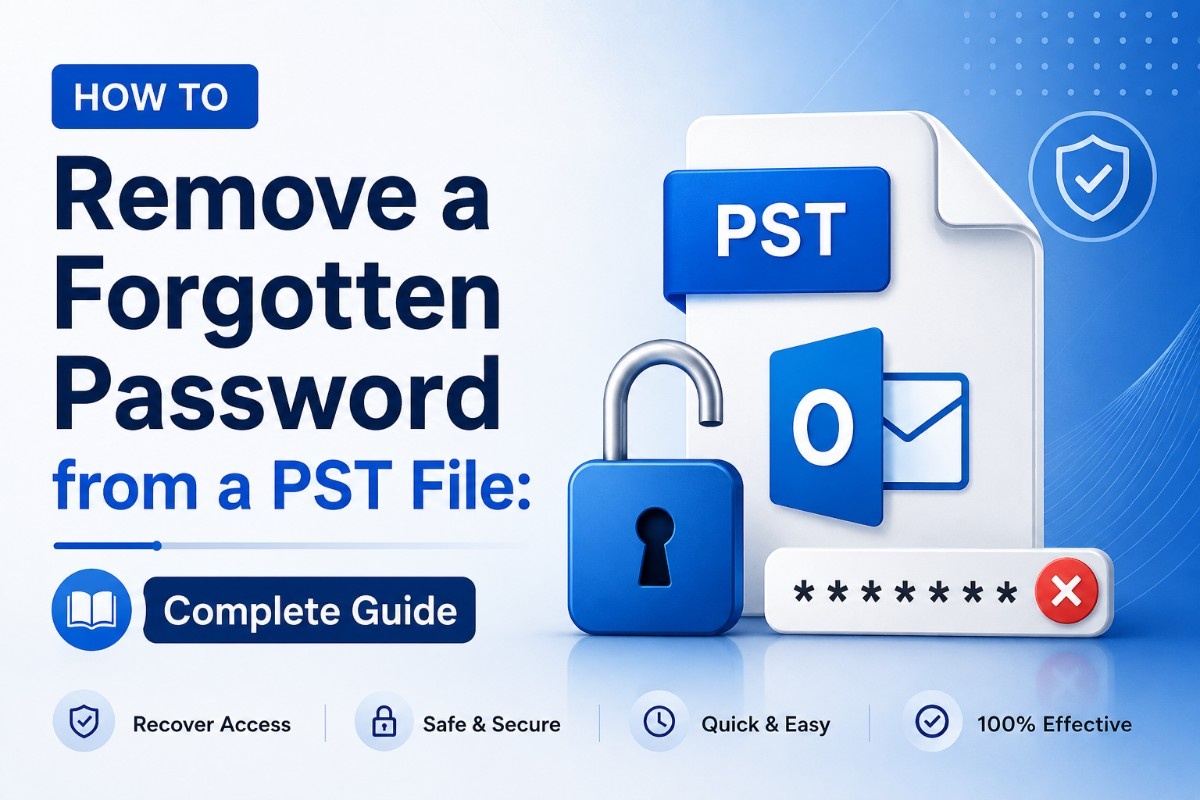
In today's digital age, protecting our information is critical. Many users want to password-protect their data, such as Outlook's PST files. However, there may be times when you just want to access your password-protected PST file without having to remember or retrieve the password. This blog will explain why you might wish to delete the password from the PST file and how to do it.
Before we go any further, let's talk about why this is required.
Why Remove the Password from PST Files?
• Forgot Your Password
Passwords, for example, are something we occasionally overlook. If you can't remember the password for your PST files, you can easily remove them. There is no reason to worry. We've got a way to assist you.
• Transferring Old Emails to Another
Assume you have some old PST files with secret passwords. Removing the password allows you to utilize them seamlessly with your current email setup.
• Shuffling Emails and Retrieving Important Data
If your PST files become inaccessible, it can be a major inconvenience. As a result, deleting the password is the best answer for all of your important information.
We'll go over a couple ways to remove the password from an encrypted Outlook PST file.
How Do I Remove a Password from an Outlook PST File?
Now let's look at how to erase a password from a PST file. But before we get started, there is one thing you should know about. You must have Microsoft Outlook installed on your computer to use these manual methods.
Here's how to remove the password from your PST file manually.
1. Use pst19upg.exe
Microsoft has a utility called pst19upg.exe. Originally, it was intended to upgrade old PST files in older versions of Outlook. But, guess what? It also has a secret power: it can remove passwords from PST files.
Here's how to accomplish it:
- First, close Microsoft Outlook.
- Save a copy of your PST file. Safety first!
- Use SCANPST.exe to repair a duplicated PST file.
- Move the corrected file to where pst19upg.exe is waiting.
- Enter the command prompt. Type pst19upg.exe and press Enter.
- Enter pst19upg.exe -x PSTFileCopy.pst and press Enter again. It will produce a new file named PSTFileCopy.pst.
- Rename your original PST file.
- Type pst19upg.exe -i PSTFileCopy.pst and press Enter. As a result, it will create a new file without a password.
Please keep in mind: This method is only applicable to older versions of Outlook. For newer Outlook versions, pst19upg.exe may not work. Always back up your PST files before attempting this step to avoid complications.
2. Using the Change Password Option
There is another simple technique to delete a forgotten password from a PST file, but you must already know the password.
Here's how to accomplish it:
- Open MS Outlook and choose the "File" tab.
- After that, select "Account Settings" again.
- Go to the "Data Files" tab and choose the PST file to work on.
- After selecting your PST file, click on "Settings".
- To change your password, click the "Change Password" option and enter your old password.
- Clear all other fields and click "OK."
That is it! Your PST file is now password-free. Outlook's built-in settings must be enabled.
But here's the thing: if you forget your password, Outlook can't recover it for you. In that scenario, you'll need a fantastic program to help you recover the password. We'll find out in the next segment of this guide.
Use PST File Password Remover to Reset a Forgotten Password
The Softaken PST Password Remover Tool allows users to easily erase passwords from PST files. Furthermore, if you forget the password for your PST file, it's no big issue! This tool allows you to set a new password for your PST file with a few simple clicks. IT professionals and specialists recommend this tool since it is quite versatile. As a result, it supports a variety of PST file formats, including Unicode and ANSI.
Now we'll show you how to open a PST file without a password. It will be good for you to complete the process.
Steps for Recovering Passwords from a PST File
- Download and install the PST Password Remover tool on your PC.

- Click the "Browse" button to choose the password-protected PST file from your system. You can also drag and drop the PST file directly into the software's interface.
- Click the "Remove Password" button to begin the password removal process. The software will automatically detect and delete the password from your PST file.
- After successfully removing your PST file, you can access it without password protection.

Conclusion
Removing a password from your PST file might be useful in a variety of situations. If you have forgotten your PST file password or need to view old files, follow these instructions to effortlessly remove the password from the PST file. Make sure you have permission to work on such files, and constantly back them up in case something unexpected happens.