Fix Inverted Touch Screen on Android: Causes and Step-by-Step Solutions
-

- Published Updated
- 1,714 views
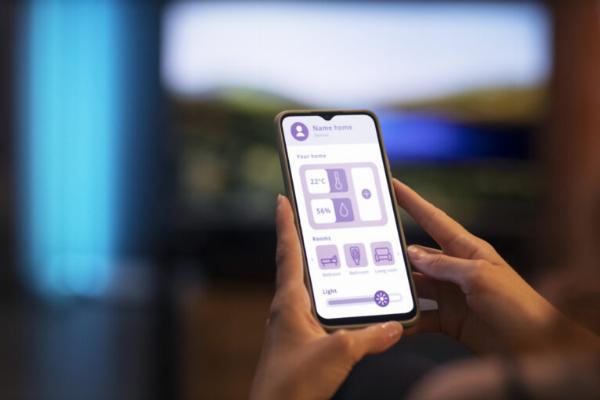
An inverted touch screen Android can make a device difficult or unsafe to use. This guide explains practical steps to diagnose and fix inverted touch screen Android issues, covering software settings, calibration, safe-mode testing, and hardware checks to help restore normal orientation and touch behavior.
Start with simple settings and restart steps, test in safe mode to rule out third-party apps, and check accessibility and rotation options. If software steps fail, inspect for physical damage and consult an authorized technician. See the Android Help Center for official guidance.
Common causes of an inverted touch screen Android
An inverted touch screen—where the display or touch input appears upside down or flipped—can result from several issues. Typical causes include software bugs after system updates, misconfigured accessibility or rotation settings, a malfunctioning orientation sensor (accelerometer or gyroscope), driver or firmware problems, third-party apps that control screen rotation, and physical damage to the display or internal components.
Troubleshooting steps: quick to advanced
1. Basic checks and restart
Power off the device and turn it back on. A restart can clear temporary software glitches that cause display inversion. Check whether the screen is inverted only in certain apps or throughout the system.
2. Check auto-rotate and orientation settings
Confirm that auto-rotate is enabled or disabled according to preference. Some devices allow locking the screen orientation in Quick Settings — toggle the control and test. Also inspect any app-specific orientation options where the issue appears.
3. Test in Safe Mode
Boot the device into safe mode to temporarily disable third-party apps. If the inversion disappears in safe mode, a recently installed app or an app that manages display orientation is likely responsible. Uninstall recent apps one at a time or check app permissions for screen overlay features.
4. Clear system cache and update software
Install available system updates and app updates. If the device supports clearing a system cache partition (varies by device), follow the official procedure to do so; this can resolve driver-level or temporary file errors causing orientation problems.
5. Calibrate sensors and check sensor status
Orientation depends on sensors such as the accelerometer and gyroscope. Some devices include sensor diagnostic tools in settings or a hidden service menu. Recalibrate sensors if an option exists, or use a trusted sensor-check app available in official app stores to verify sensor readings.
6. Reset display settings or network settings
If available, reset display settings to defaults. In some cases, resetting system settings (which may reset Wi-Fi and other preferences) can clear software conflicts. Back up important data before performing resets.
7. Factory reset as a last software resort
A factory reset restores the device to original software state and often resolves persistent software-related display faults. Back up personal data, then follow the device’s recovery or settings procedure to perform the reset. After resetting, test the screen behavior before reinstalling all apps.
Hardware checks and repair options
1. Inspect for physical damage
Look for cracks, bends, or signs of liquid ingress. Physical impact or exposure to moisture can damage display connectors or internal circuits and produce inverted or unresponsive touch behavior.
2. Professional diagnostic
If software fixes do not resolve the issue, seek an authorized repair provider or technician who can test and replace faulty components such as the digitizer, display assembly, or orientation sensors. Use official service channels or trusted repair shops to preserve device warranties where applicable.
Prevention and maintenance tips
- Keep the operating system and apps updated to receive fixes for known bugs.
- Avoid installing apps from untrusted sources that request control over display or sensor functions.
- Use a protective case and screen protector to reduce risk of physical damage.
- Regularly back up data to minimize loss if a factory reset or repair is required.
For official troubleshooting steps and support resources, consult the Android Help Center provided by Google: support.google.com/android. The Android Developers site also documents sensor APIs and behavior for technical context.
When to seek professional help
Seek professional repair if the device shows signs of physical damage, liquid exposure, persistent touchscreen failures after all software troubleshooting, or inconsistent sensor readings that indicate hardware malfunction. Repairs involving display or internal components often require specialist tools and replacement parts.
FAQ
How to fix inverted touch screen Android?
Start with a restart, check auto-rotate and accessibility settings, and boot into safe mode to rule out third-party apps. Update the system and clear caches, test and recalibrate sensors, and, if needed, perform a factory reset after backing up data. If the problem persists, have a technician inspect for hardware faults.
Can a software update cause the screen to invert?
Yes. System updates can introduce bugs or change drivers that affect orientation. Installing subsequent updates, clearing caches, or reverting settings can resolve update-related issues.
Is inverted orientation covered by warranty?
Coverage depends on the device warranty terms and whether the cause is manufacturing defect or accidental damage. Check warranty documentation and consult the device manufacturer or authorized service provider for confirmation.
Will a factory reset remove personal data?
Yes. A factory reset erases user data and restores default settings. Back up photos, contacts, and other important files before resetting.
How to prevent inverted touch screen problems in the future?
Keep software up to date, install apps only from trusted sources, protect the device from impacts and moisture, and perform regular backups to minimize disruption if repairs or resets are needed.