Import Thunderbird to Gmail: Complete Step-by-Step Migration Guide
-
- March 23rd, 2026
- 370 views

Get a free topical map and start building content authority today.
This guide explains how to import Thunderbird to Gmail reliably and without data loss. It covers the two practical methods—copying mail over IMAP and exporting/importing MBOX files—plus a migration checklist, troubleshooting tips, and common mistakes to avoid.
- Best two methods: IMAP copy (recommended) or MBOX export/import.
- Preparation: backup Thunderbird profile, enable Gmail IMAP, allow app access or use OAuth.
- Detected dominant intent: Informational
- Official migration reference: Google Support on importing mail.
Import Thunderbird to Gmail: Step-by-step
Two realistic, commonly used approaches are available to import Thunderbird to Gmail: (1) add the Gmail account to Thunderbird using IMAP and copy messages/folders, or (2) export Thunderbird mailboxes to MBOX and import them into Gmail via a tool or service. IMAP is usually the simplest and safest for preserving folder structure and message headers.
Prerequisites and terminology
- IMAP vs POP3: IMAP synchronizes folders and status; POP3 downloads mail and may lose server state.
- MBOX: Thunderbird stores local folders in MBOX files—a common archived format.
- OAuth and App Passwords: Gmail often requires OAuth or an app-specific password for third-party clients.
- Related terms: labels, folders, PST (Outlook), message headers, attachments.
Method A — Best for most users: Copy mail with IMAP (Gmail account added to Thunderbird)
- Enable IMAP in the Gmail web settings (Settings > Forwarding and POP/IMAP > Enable IMAP).
- In Thunderbird, add the Gmail account using the account setup dialog and authenticate via OAuth or app password.
- Allow Thunderbird to finish syncing all folders and headers for both accounts.
- Create matching folders/labels in the Gmail account if desired (Gmail labels will appear as folders in IMAP clients).
- Select messages or whole folders in the Thunderbird (source) account and drag them to the destination Gmail IMAP folders. For large volumes, move in batches.
- Wait for Thunderbird to upload messages to Gmail. Monitor progress and ensure no errors occur.
Method B — Advanced: Export MBOX and import into Gmail
Use this when IMAP copying is impractical (very slow connections or special archive needs). Export Thunderbird folders to MBOX files with an add-on such as ImportExportTools (as an example, not an endorsement). Then import MBOX into Gmail using a supported import tool or by temporarily loading into an IMAP account and copying messages across.
Named framework: MIGRATE checklist
- M — Make a full backup of the Thunderbird profile (copy the Profile folder).
- I — Identify mail size, folders, and special items (sent, drafts, filters, calendars).
- G — Gather credentials and enable Gmail IMAP and app access or OAuth.
- R — Run a test: move a small folder with mixed content and verify on Gmail web.
- A — Audit messages and labels after migration, check sent/draft mapping.
- T — Triage duplicates and clean up labels; test search and attachments.
- E — End migration once everything is verified and archive original backups.
Common mistakes and trade-offs
Trade-offs when choosing a method
- IMAP copy: preserves folder/folder state and is simpler, but can be slow for large archives and requires a reliable connection.
- MBOX export/import: gives a file archive and may be faster for offline transfers, but needs extra import steps and tools and can distort labels.
Common mistakes to avoid
- Not backing up the Thunderbird profile before starting.
- Copying everything at once and hitting Gmail upload limits or timeouts—move in small batches instead.
- Assuming Gmail labels map exactly to folder hierarchies; a post-migration audit is required.
- Overlooking contacts and calendars—these are separate exports (CSV, ICAL) and must be imported into Google Contacts and Calendar.
Practical tips for a smooth Thunderbird to Gmail migration
- Tip 1: Run a small test migration (50–200 messages) and verify message headers, timestamps, and attachments in Gmail web before full transfer.
- Tip 2: Move mail during off-hours and in batches to avoid rate limits and to make it easier to spot failures.
- Tip 3: Keep the original Thunderbird profile untouched until verification is complete—work from copies when possible.
- Tip 4: If attachments are large and cause failures, try copying messages without attachments and reattach important files manually or use Drive links.
Example scenario
Company example: A small company had 10 GB of archived mail in Thunderbird across folders for 4 years. The administrator created a backup of the Thunderbird profile, enabled IMAP in Gmail, added the company Gmail account to Thunderbird, and moved folders in 1 GB batches, verifying each batch on the Gmail web interface. Filters and shared labels were recreated in Gmail, and contacts were exported as CSV and imported to Google Contacts. Total downtime: negligible; verification completed in two business days.
Core cluster questions
- How do files and folders map when moving mail from Thunderbird to Gmail?
- What is the safest way to migrate thousands of emails with attachments to Gmail?
- How can contacts and calendars be exported from Thunderbird and imported to Google services?
- Which tools preserve message headers and timestamps during a Thunderbird to Gmail migration?
- How to troubleshoot duplicates or missing messages after migrating to Gmail?
Troubleshooting checklist
- Confirm IMAP is enabled in Gmail settings and that Thunderbird authentication succeeded.
- Check Thunderbird activity/log (Tools > Activity Manager) for upload errors.
- Look at Gmail web search to confirm messages arrived (use "in:anywhere" or label: folder-name).
- If messages are missing, inspect the local backup MBOX files and re-import a subset to identify the issue.
Security and compliance notes
When migrating business mail, follow organizational policies for retention and access control. For Google Workspace accounts, consult the administrator tools and migration options provided by Google Workspace Admin console for bulk migrations or to preserve metadata.
Wrap-up
IMAP-based copying from Thunderbird to Gmail is the most straightforward, preserves folder structure and headers, and avoids intermediary file handling. MBOX export/import is useful for archiving or when IMAP is not an option. Always back up the original profile, run a test migration, and audit results before finalizing the move.
How to import Thunderbird to Gmail without losing folders?
Use IMAP: add Gmail to Thunderbird, authenticate, then copy folders directly to the Gmail account. Confirm that Gmail labels appear as folders and verify on the Gmail web interface.
How long does a Thunderbird to Gmail migration take?
Time depends on total mailbox size and upload bandwidth. Small migrations (under 1 GB) can finish within an hour; multi-GB archives may take many hours or days—move in batches and test progress.
Can contacts and calendars be moved with email?
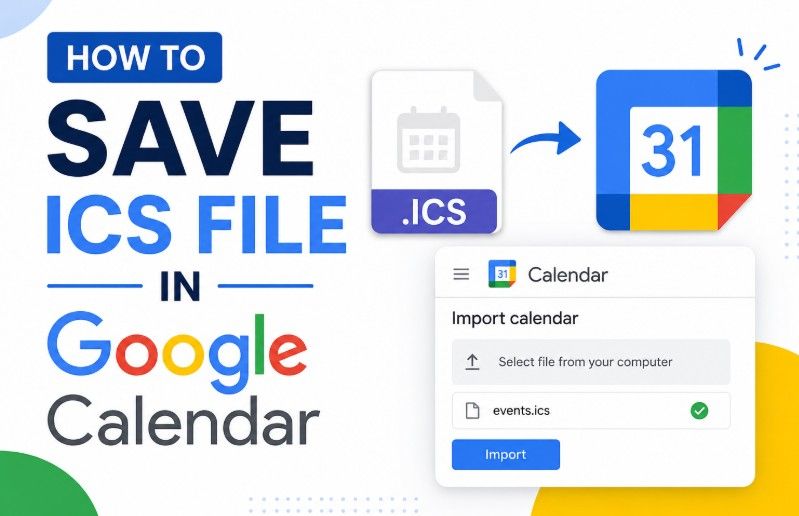
No. Contacts and calendars are separate exports. Export contacts from Thunderbird as CSV for Google Contacts and export calendars as iCal (ICS) for Google Calendar import.
What should be backed up before starting the migration?
Back up the entire Thunderbird profile folder (contains MBOX files and settings) and export any filters, address books, and calendars. Retain copies until migration verification completes.
How to fix duplicate messages after migration?
Duplicates commonly appear when the same messages are uploaded twice. Identify duplicates by Message-ID or headers and use a de-duplication tool or script, or remove duplicates in Thunderbird before final sync. Running de-duplication tools on Gmail is also possible but requires care.