Infinix Hot 40 Complete User Guide: Practical Tips to Boost Performance
-

- Published Updated
- 2,604 views
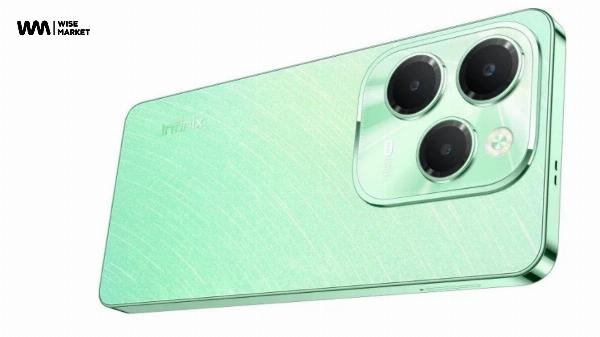
The Infinix Hot 40 is a mid-range Android smartphone that balances performance, battery life, and camera features. This Infinix Hot 40 user guide explains practical tips and tricks for setup, battery management, performance tuning, camera use, and routine maintenance to keep the device running smoothly.
- Initial setup: enable security, update system, and restore important data.
- Battery and charging: use optimized charging settings, manage background apps, and enable battery saver and adaptive features.
- Performance: monitor storage and RAM, adjust animations, and use developer options sparingly.
- Camera: use recommended modes and stabilization tips for better photos and videos.
- Maintenance: back up data, run system updates, and use safe mode for troubleshooting.
Infinix Hot 40: Quick Start and Secure Setup
First boot and account setup
Complete the initial Android setup by signing into a Google account to restore contacts and app data. Allow only required permissions for apps during first use, and avoid granting broad permissions to unfamiliar apps.
Security and biometric options
Configure screen lock options (PIN, pattern, or password) and set up fingerprint or face unlock if available. Keep a secure backup of the unlock method in a password manager or another secure location.
System updates and backups
Check Settings > System > Software update to install the latest security patches and firmware. Use Android’s built-in backup to Google Drive or a local backup solution before major changes. Regular updates improve performance and stability.
Battery and Charging Best Practices
Optimize charging habits
Use the included charger or a compatible charger that matches the phone’s fast-charging specification. Avoid extreme temperatures while charging. For long-term battery health, avoid leaving the phone at 100% plugged in for prolonged periods and avoid deep discharges when possible.
Battery saver and adaptive features
Enable battery saver or adaptive battery features in Settings to limit background activity for infrequently used apps. Review battery usage to identify apps consuming excessive power and restrict background activity where appropriate.
Background app management
Close or uninstall apps that run persistently. Use the Recent Apps view to clear tasks occasionally, and review autostart permissions if the phone’s XOS skin provides that control.
Performance Tuning and Storage Management
Free up storage
Monitor internal storage in Settings > Storage and remove large unused files or apps. Move media to cloud storage or an SD card if supported. Cache clearing can free temporary space but is not a substitute for removing unneeded files.
RAM and background processes
Limit background processes for demanding use cases such as gaming. Do not disable essential system services. Rebooting the device occasionally helps clear memory leaks from apps that do not manage RAM efficiently.
Developer options and animations
Advanced users can enable Developer options to adjust animation scales (Window animation scale, Transition animation scale, Animator duration scale) to make the UI feel snappier. Modify these settings cautiously and avoid altering nonessential system parameters.
Camera Tips and Photo Quality
Choose the right mode
Select appropriate camera modes such as Night mode, Portrait, or Pro mode for manual exposure and focus when available. Use gridlines and HDR for high-contrast scenes to preserve highlight and shadow detail.
Stability and composition
Use a stable grip or tripod for low-light and long-exposure shots. Use burst mode for action shots. For video, enable electronic image stabilization if offered to reduce shake.
Connectivity, Accessories, and Network Settings
SIM, eSIM, and network optimization
Configure dual SIM settings to prioritize data, calls, and messages. Use the preferred network type (e.g., 4G/5G) based on carrier availability and battery trade-offs.
Bluetooth and peripherals
Keep Bluetooth firmware for accessories up to date and pair devices only in trusted environments. Use wired headphones for consistent audio latency if low latency is critical for gaming or recordings.
Software Maintenance and Security
App permissions and Play Protect
Periodically review app permissions and revoke unnecessary access. Enable Google Play Protect in the Play Store settings to scan apps for known threats and reduce security risks.
Official resources and documentation
Refer to official Android documentation for power and performance recommendations to understand how system-level features affect battery and app behavior. For example, see the Android developer guidance on power management for best practices: Android developer power documentation.
Troubleshooting and Reset Procedures
Safe mode and app conflicts
Boot into safe mode to identify whether a third-party app causes crashes or slowdowns. If issues resolve in safe mode, uninstall recently added apps one at a time until the cause is identified.
Factory reset and data recovery
As a last resort, perform a factory reset from Settings > System > Reset options to restore factory defaults. Back up important data first. After a reset, install apps selectively rather than restoring everything at once to avoid reintroducing problematic apps.
Hardware checks
Inspect the charging port and SIM tray for dust or damage. If the battery shows swelling, overheating, or rapid degradation, contact authorized service channels for inspection.
FAQ
How do I extend battery life on the Infinix Hot 40?
Enable battery saver, reduce screen brightness and timeout, disable unused radios (Bluetooth, GPS), and restrict background activity for apps that consume significant power.
What should be done if the Infinix Hot 40 becomes unresponsive?
Force restart the device, boot into safe mode to check for app conflicts, and back up data before performing a factory reset if the problem persists. Seek authorized service if hardware issues are suspected.
How often should system updates be installed?
Install security patches and firmware updates as they become available to maintain stability and address vulnerabilities. Regular updates are recommended for reliable performance and compatibility.
Can storage be expanded on the Infinix Hot 40?
If the model supports a microSD card, use a high-quality card for additional storage and move media files to the card. Use internal storage for apps that require faster read/write speeds when necessary.
Is it safe to enable developer options on the Infinix Hot 40?
Developer options provide useful tools (USB debugging, animation scale) but can change system behavior. Enable them only if familiar with the settings and avoid altering critical parameters that could affect system stability.
How can software updates and security be verified for the Infinix Hot 40?
Check Settings > System > Software update regularly and enable automatic updates when available. Verify app sources and use Play Protect to reduce the risk of malicious apps.