Laptop Camera Privacy Guide: Steps to Secure Your Webcam and Data
-

- Published Updated
- 1,539 views
Introduction
Concern about laptop webcam privacy has increased as more devices connect to the internet and attackers use malware to access cameras remotely. Understanding common risks, configuring device settings, and using physical safeguards can reduce the chance of unwanted recording or observation.
- Review and restrict camera permissions in the operating system and applications.
- Use physical covers and consider disabling the camera at the firmware or OS level when not needed.
- Keep software updated and use reputable security tools to detect malware that may access the webcam.
- Know how to detect signs of camera compromise and steps to respond, including reporting to authorities or regulators.
What risks affect laptop webcam privacy?
Unauthorized camera access can occur through malware, compromised applications, or vulnerabilities in firmware and drivers. Social engineering and phishing are common methods to trick users into installing software that grants camera control. Weak account security or exposed remote-access tools can also permit third parties to view a webcam feed.
Practical steps to improve laptop webcam privacy
Reduce exposure by combining configuration changes, physical measures, and careful habits. The following steps address different threat vectors and are relevant for personal, educational, and workplace devices.
Review camera permissions and app access
Check the operating system privacy settings to see which programs have permission to use the camera. Revoke access for apps that do not need it. On many systems, granular controls allow camera access only while an app is in active use.
Use a physical webcam cover
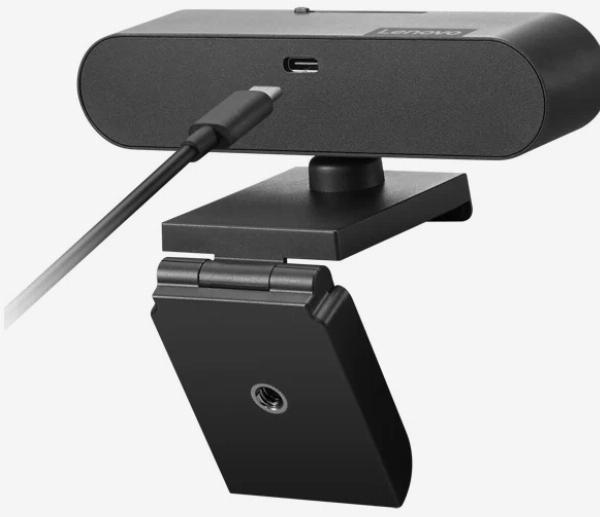
A low-cost physical cover or a removable sticker blocks the lens when the camera is not in use. Many devices also have built-in shutters. A physical cover is a simple, reliable safeguard against visual observation even if the camera is compromised.
Disable the camera when not needed
Where possible, disable the webcam from the device firmware (BIOS/UEFI) or through the operating system/device manager. Disabling the camera at a hardware or firmware level reduces risk from user-space malware.
Keep software and firmware updated
Apply operating system, application, and firmware updates promptly. Security patches from device manufacturers and OS vendors address vulnerabilities that could allow remote camera access. Follow guidance from official sources such as the National Institute of Standards and Technology (NIST) for patch management best practices.
Use account security best practices
Enable strong, unique passwords and multi-factor authentication for accounts that can control or manage the device. Limit remote-access tools and audit any remote session logs to ensure only authorized connections occur.
Run reputable security tools
Antivirus and endpoint protection solutions can detect known remote-access malware or suspicious behavior. Consider additional endpoint detection and response (EDR) on devices that handle sensitive information.
Hardware and software safeguards
Camera indicator lights
Indicator LEDs designed to light when a camera is active provide a basic alert, but indicator lights are not infallible—adversaries can sometimes manipulate firmware or drivers. Treat indicator lights as one signal among several safeguards.
Secure device configuration
Administrators should enforce mobile device management (MDM) or group policy settings in organizational environments to control camera usage and restrict installation of unapproved software. For personal devices, consult system documentation to change privacy and security configurations.
Network security
Segment networks and avoid exposing management interfaces directly to the internet. Use firewalls, VPNs, and intrusion detection systems where appropriate to reduce the attack surface for remote camera access.
How to respond to suspected intrusion
Signs of compromise
Unexpected camera activity, applications requesting camera access without reason, unusual device behavior, and unexplained network traffic are possible indicators. Check permission lists, recent software changes, and device logs where available.
Immediate steps
If intrusion is suspected, disconnect the device from the network, cover or disable the camera, and perform a malware scan with updated tools. Preserve logs and evidence if reporting to an employer or law enforcement.
When to seek help
Contact IT support, a trusted security professional, or appropriate regulators if a device that contains sensitive information appears compromised. Organizations handling personal data should follow applicable incident response plans and reporting obligations.
Regulation, standards, and resources
Privacy and cybersecurity standards from entities such as the National Institute of Standards and Technology (NIST) provide guidance on securing endpoints and managing vulnerabilities. For consumer-focused information on protecting personal information and dealing with cyber threats, see the Federal Trade Commission guidance: Federal Trade Commission.
FAQ
How to check laptop webcam privacy settings?
Open the operating system privacy or settings panel and look for camera permissions. Review which apps have access and revoke permissions where not required. Consult the device manual for firmware-level camera controls.
Does covering the webcam prevent all threats?
A physical cover prevents visual recording but does not stop audio capture or prevent malware from taking other actions. Combine a cover with software controls, strong account security, and regular updates for broader protection.
Can malware access a webcam without turning on the indicator light?
In some cases, sophisticated malware can manipulate drivers or firmware to activate the camera without triggering the indicator LED. Relying solely on the indicator light is insufficient; use multiple safeguards and regular security checks.
Should employers restrict webcam use on work laptops?
Employers often implement policies and technical controls to limit camera use on work devices, including disabling cameras by default, enforcing MDM policies, and providing guidance on secure remote collaboration. Such measures should align with applicable privacy and labor regulations.
How can someone report a suspected webcam privacy breach?
Report suspected breaches to the organization’s IT or security team, local law enforcement if illegal activity is suspected, or relevant data protection authorities. Organizations in some jurisdictions have mandatory breach notification requirements that may apply.