Master Photoshop Generative Features: Practical Guide and Checklist
-

- Published Updated
- 352 views
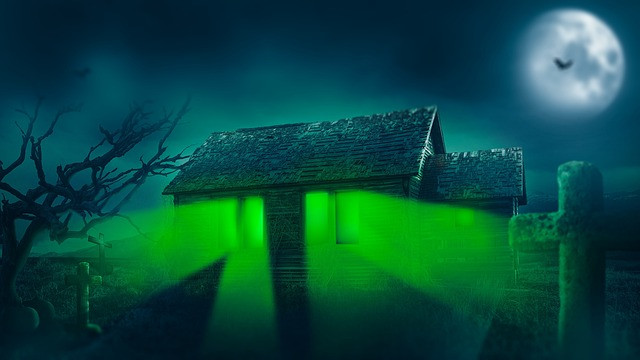
Photoshop generative features enable content-aware creation and inpainting directly inside images using text prompts, masked regions, and contextual fills. This guide explains practical workflows for using Photoshop generative features, plus a named checklist, a real-world scenario, actionable tips, and common mistakes to avoid.
Photoshop generative features: core tools and terms
Photoshop generative features include Generative Fill (inpainting), Generative Expand (extend canvas content), text-to-image elements, and prompt-driven layer generation. Related terms and technologies include inpainting, mask-based editing, prompt engineering, neural filters, and the underlying generative models (for example, Adobe Firefly is often integrated into Photoshop). These tools work alongside traditional features like layers, masks, and content-aware fill to produce edits that match image context, lighting, and perspective.
Quick workflow: step-by-step to a finished edit
1. Prepare the file and workspace
Work on a duplicate of the original layer and enable non-destructive editing. Use high-resolution originals when possible and set the colour space to the working profile (sRGB or Adobe RGB) appropriate for the final output.
2. Mask the area to change
Create a precise selection and refine the edge using Select and Mask. A clean mask guides the generative algorithm and reduces artifacts.
3. Enter a clear prompt and run the tool
Use concise prompts describing the desired content, style, lighting, and perspective. For example: "sunlit beach with soft shadows, photorealistic, matching scene perspective." Run Generative Fill or Expand and review several outputs if the tool offers variations.
4. Refine and integrate
Use layer masks, blend modes, dodge/burn, and color correction to integrate the generated pixels. Add grain or texture to match image noise and use curves or levels to match contrast.
5. Finalize and export
Flatten or keep layers depending on future edits. Export in the required format (TIFF for print, PNG/JPEG for web) and keep a layered PSD for archive.
EDITSS Checklist (named framework)
Use the EDITSS Checklist to standardize generative edits:
- Evaluate — Assess the image, goals, and ethical constraints.
- Duplicate — Work on copied layers to ensure reversibility.
- Isolate — Create precise masks for the edit area.
- Type — Craft clear, constrained prompts.
- Sample — Generate multiple variations and pick the best.
- Save — Keep layered PSD versions and export required formats.
Real-world example: extending a landscape photo
A landscape photographer needs to expand a photo to create room for text. Duplicate the background layer, select the right edge with the Rectangular Marquee Tool, refine the selection, and run Generative Expand with the prompt: "continuation of rocky shoreline, consistent sky, warm late-afternoon light, photorealistic." Review variations, refine the mask to remove any seam, and apply a final color grade to match the original image’s contrast and color balance. Save the layered PSD and export a web-optimized JPEG for immediate use.
Practical tips for consistent results
- Keep prompts short and specific: include subject, style (photorealistic, matte, cinematic), and lighting (direction, time of day).
- Seed multiple variations: run several generations and compare — the best result often comes from iteration.
- Use high-quality masks: refine edges and feather minimally to keep details crisp where needed.
- Match texture and noise: add subtle film grain or sensor noise to generated areas to hide discrepancies.
- Archive PSDs with generation metadata: note the prompt and settings in a layer or text file for reproducibility.
Trade-offs and common mistakes
Trade-offs
Generative edits are fast and flexible but can introduce subtle inconsistencies in lighting, perspective, or texture that require manual correction. Traditional cloning and content-aware fill offer more predictable control for small, local fixes but are slower for large or complex additions.
Common mistakes
- Over-relying on broad prompts: vague prompts produce generic or mismatched results.
- Skipping masks: unmasked edits can change areas beyond the intended region.
- Not color-matching post-generation: failing to adjust color/contrast makes edits look pasted-in.
- Discarding original layers: losing the source makes rollback or comparison difficult.
Best practices and ethics
Mark AI-generated content clearly when required by platform or client guidelines. Respect copyright and avoid generating trademarked logos or protected likenesses without permission. When producing edits for news or documentary use, disclose synthetic changes to preserve trust.
Further reading
Official guidance and feature documentation is available from Adobe Photoshop help pages: Photoshop Generative Fill documentation.
FAQ
What are Photoshop generative features?
Photoshop generative features refer to tools like Generative Fill and Generative Expand that create or replace pixels using AI models based on masked regions and text prompts. These features combine contextual understanding with prompt-driven generation to produce matched content.
How to write effective prompts for generative fill Photoshop tutorial workflows?
Include subject details, desired style (photorealistic, painterly), lighting direction and time of day, and any constraints (color palette, perspective). Keep prompts concise and iterate to refine outcomes.
Can generative features replace manual retouching?
Generative features accelerate many tasks and can replace manual retouching for broad edits, but manual adjustments and masking remain essential for precise, photorealistic results.
Are generated pixels editable after creation?
Yes. Generated layers are editable like any other pixels—use layer masks, blend modes, and adjustment layers to integrate and refine the result.
Which export settings work best after using Photoshop AI features?
Keep a layered PSD for future edits. Export high-quality TIFF or maximum-quality JPEG for print or web respectively, and ensure colour profile conversion is handled correctly for the target medium.