PST Password Recovery: Step-by-Step Guide to Reset a Forgotten Outlook Data File Password
-

- Published Updated
- 92 views
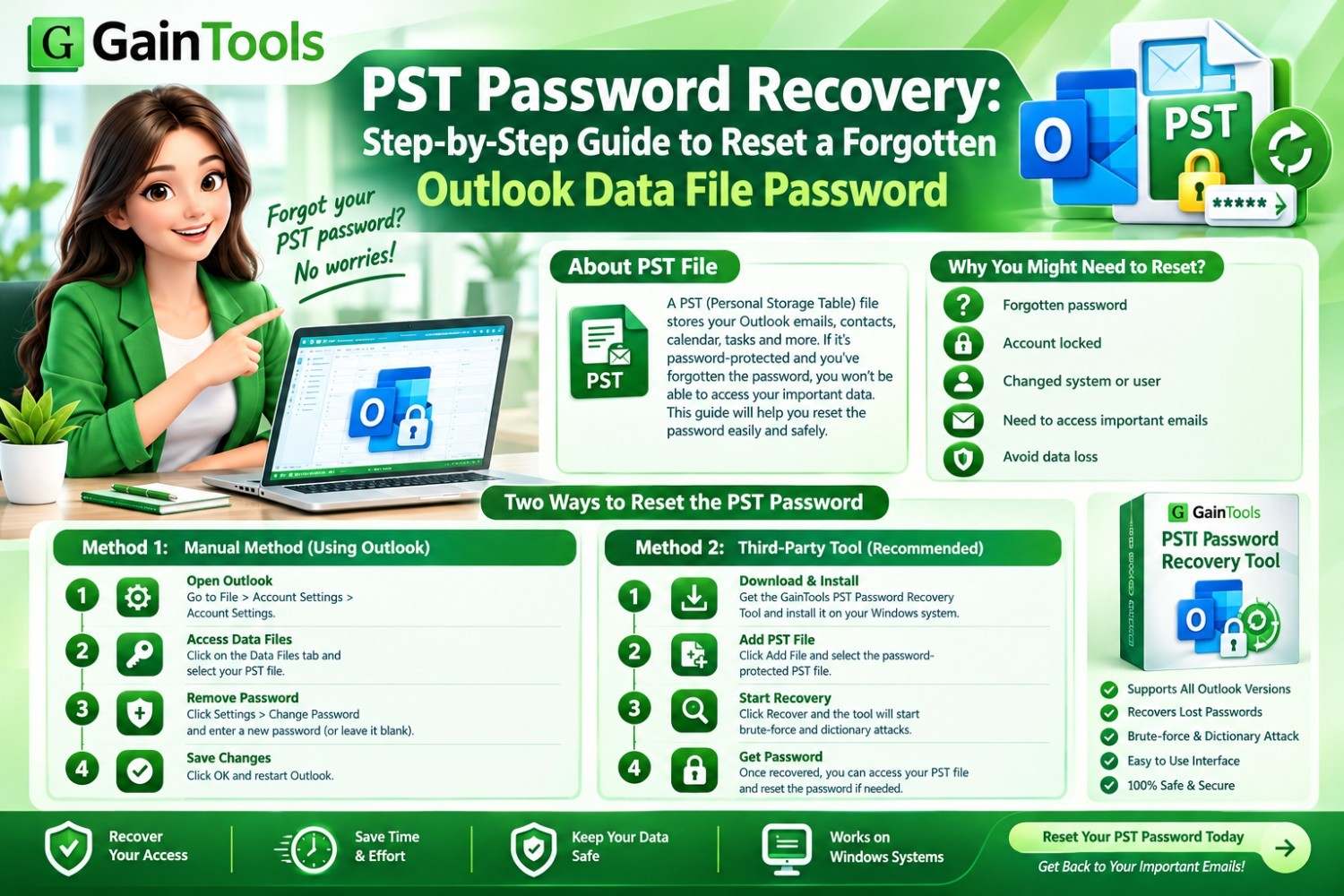
How to Reset a Forgotten PST File Password in Microsoft Outlook
Microsoft Outlook is still a critical tool for handling professional mail, scheduling, and archives. Many times, users create a Personal Storage Table (PST) file when they back up or migrate their data. Outlook offers the option of locking certain files with a password to safeguard critical information.
But trouble begins when you lose or entirely forget that crucial password. Suddenly you’re shut out of important emails, historical records, and contacts.
In this detailed article, we will go over the basics of PST password protection, examine the manual methods accessible inside Outlook, and discuss how a specialized application like the GainTools PST Password Recovery Tool offers a smooth alternative when you’re locked out altogether.
Outlook PST Passwords – The Basics
A Personal Storage Table (.pst) file is an open-source database format that Microsoft Outlook uses to store copies of messages, calendar events, and other stuff on your local workstation. Adding a password to a PST file gives another layer of protection, especially for shared workplace PCs or preserved local disks.
There are two main scenarios with PST security that customers face:
Method 1: The Manual Way Using Microsoft Outlook
You must have Microsoft Outlook installed and working on your computer.You need to have the correct password for the PST file.
How to Change or Remove the Password in Outlook: Step-by-Step Guide:
1. Open Microsoft Outlook on your computer using Windows.
2. Go to the upper left corner and click on File.
3. Click on Account Settings, then click on Account Settings in the drop-down menu.
4. In the pop-up box, click on the tab labeled Data Files. This page shows any Outlook data files you have specified on your profile.
5. Now, scroll down and choose the targeted PST file whose password you wish to modify or remove.
6. Click the Settings button above the list. A new dialog box concerning that data file appears.
7. Click Change Password.
8. Enter your old password when asked.
9. If you want to remove protection, leave New Password and Verify Password blank. If you want to reset the password, enter a new password.
10. Click OK to save your changes and exit the settings windows
Disadvantages of the Manual Approach
The built-in Outlook method works OK in routine administration situations but has serious drawbacks:
No option to recover: If you have lost the password completely, the manual window will not let you in; therefore, there is no use in doing this.
Outlook Dependency: You must have a functional, current installation of Microsoft Outlook.
Single File Constraint: You cannot process multiple archived PST files in bulk; you need to process them one at a time.
Method 2: The Professional Way Using the GainTools PST Password Recovery Tool
If manual procedures do not work because of a lost or forgotten password, certain third-party software is required. The GainTools PST Password Recovery Tool is particularly designed to overcome this barrier securely and efficiently without compromising data integrity.
Important Features of GainTools Utility
No Need to Install Microsoft Outlook on Your Computer: The program does not need Microsoft Outlook to be installed on your computer to unlock your PST files.
Supports complex, multi-language passwords: The application can work with any type of code, be it just characters, long strings of text, symbols, or multilingual forms.
Bulk Processing Support: Users can load one file or an entire folder that is packed with numerous PST files to clear passwords in a single go.
Zero Data Loss Guarantee: The program safely unlocks the file structure without affecting or harming the internal database that stores your emails, contacts, and calendar items.
ANSI and UNICODE Support: Supports legacy ANSI PST files, as well as current UNICODE PST files created in all recent Outlook versions.
Step-by-Step Instructions to Unlock PST Files Using GainTools
The tool lowers technological complexity with a lean graphical interface. Steps to retrieve or reset a locked Outlook data file are as follows:
Step 1: Download & Install

To download the GainTools PST Password Recovery application, open the official website and install it on the Windows operating system following the simple installation procedure.
Step 2: Start the App

Launch the program by clicking on the desktop shortcut or Start menu. You'll be welcomed by a sleek and self-explanatory dashboard that will make navigation a breeze.
Step 3: Search and Insert Locked PST Files

Click the Add File or Add Folder button to upload your password-protected Outlook data files to the software interface. If you have a large archive repository, this program lets you queue up several files at a time.
Step 4. Choose Password Action (Remove or Reset)

When the files are loaded, check their status on screen. Choose whether you wish to remove the current password altogether or reset it to a new password of your choosing.
Step 5: Run the Process

Click on the Process Now or Remove Password option to begin the procedure. The utility will process the encryption layers, and after it is done, a clear status report will be issued. It will just take a few seconds.
Result: Your PST file is now fully accessible. You can open and read your emails smoothly in Microsoft Outlook without facing any authorization prompts.
Best Methods for PST file handling in Outlook
Here are a few maintenance strategies to avoid lockouts and maintain a healthy email archive structure:
Document Security: If you do need to password-protect archive files, ensure you keep those passwords in an encrypted password manager, not just in your head.
Keep your regular backups: Don’t keep your critical PST files in an encrypted or cataloged directory without a backup copy.
Check File Health: Keep your PST file healthy and undamaged, because the file structure is needed for the recovery programs to handle password changes effectively.
Conclusion
A locked Outlook data file might throw a wrench in your day, but it doesn’t mean you have to lose your data forever. Outlook's default settings are good if you already know your password, but they fail in an emergency. For a reliable, fast, set and secure solution to forgotten codes, using a professional program like GainTools PST Password Recovery Tool helps you get back access to your valuable emails and calendar events with peace of mind.