Disable or Keep Glance on Mi: Clear Steps, Risks, and Benefits
-

- Published Updated
- 1,536 views
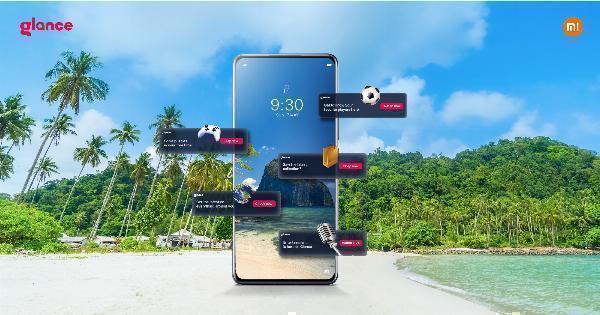
The article explains how to turn off Glance in Mi devices and examines why some users prefer to disable the Glance lock screen feed while others enjoy its curated content. The primary keyword "how to turn off Glance in Mi" appears early to make clear the focus and help users find practical, version-aware steps for MIUI settings, app controls, and alternatives.
- Glance is a lock-screen content service present on some MIUI builds; it can be disabled in Settings or by managing the Glance app and system permissions.
- Turning it off reduces curated content and may improve perceived privacy and battery life; keeping it on offers personalized news and background images.
- Steps vary by MIUI version—this guide lists general approaches and troubleshooting tips.
how to turn off Glance in Mi: overview and considerations
Glance is a lock-screen feed that displays news, promotions, and wallpapers on supported Mi (Xiaomi) devices running MIUI. Before disabling it, consider privacy, data usage, and personalization benefits. Disabling Glance can reduce the number of background updates and limit exposure to ads or curated content, while leaving it enabled provides dynamic lock-screen content and discovery features.
Common ways to disable Glance on MIUI
1. Disable Glance from Lock Screen settings
Many MIUI versions include a built-in option to turn off the Glance feed. Typical steps:
- Open Settings > Lock screen.
- Look for a section named 'Glance', 'Lock screen content', or 'Lock screen feed'.
- Toggle off 'Glance' or 'Show Glance on lock screen'.
Labels and menus vary between MIUI releases; if a direct toggle is not visible, continue to the app-management methods below.
2. Turn off Glance via App management
If the setting is not exposed in Lock screen preferences, disable the Glance app or restrict its permissions:
- Open Settings > Apps > Manage apps (or Installed apps).
- Find entries named 'Glance', 'glance app', or related system apps used for lock-screen content.
- Tap the app and choose 'Disable' or 'Force stop'. On some builds, 'Uninstall updates' or 'Clear data' helps stop content delivery.
3. Restrict background data and notifications
Reducing background updates curbs new Glance cards without fully disabling the feature:
- Go to Settings > Apps > [Glance app] > Data usage, then disable background data.
- Under Notifications, block the app from posting lock-screen content.
4. Use permission controls
Some MIUI versions let the user revoke permissions (like storage or network access) used by Glance. Removing unnecessary permissions can limit the feed.
Why some users prefer to keep Glance enabled
Glance provides curated wallpapers, news highlights, and quick discovery features on the lock screen. The benefits include dynamic personalization, occasional useful content, and refreshing lock-screen visuals without opening apps. For users who value discovery, the trade-off in minimal data use may be acceptable.
Trade-offs: privacy, battery, and user experience
Privacy and data
Glance aggregates content that may be personalized; disabling it reduces third-party content exposure. For details about platform-level privacy controls, consult official MIUI support resources or the device privacy settings.
Battery and performance
Background fetching of images and cards can contribute to small battery and data use. Turning Glance off may yield minor battery improvements on some devices.
User experience
Disabling Glance makes the lock screen more static; enabling it creates a changing visual experience and can surface timely information without unlocking the device.
Troubleshooting and version notes
When the option is missing
Some MIUI variants or carrier-customized builds may hide the Glance toggle. In those cases, disabling the related app, clearing its data, or using permission controls is the usual workaround.
After an update Glance reappears
System updates can restore default apps or settings. Re-check app management and lock-screen settings after updates. If content returns, consider disabling auto-updates for the Glance app when available.
Official support and further reading
For device-specific instructions and official troubleshooting steps, consult the manufacturer's support pages or the device's user guide. An official resource with device support articles is available here: Xiaomi Support.
Alternatives to fully disabling Glance
Limit content categories
Some implementations let users select or filter content types shown by Glance (news, promotions, wallpapers). Adjusting those preferences reduces unwanted cards while keeping wallpapers.
Use a custom lock-screen app or wallpaper manager
Replacing lock-screen behavior with a third-party app or a static wallpaper offers control over visuals and content, though app quality and security should be considered.
Privacy settings and ad personalization
Adjust global ad or personalization settings in the account and privacy menus to reduce targeted content, where available.
When to seek technical help
If Glance cannot be disabled through settings or app controls, or if disabling it affects other system functions, contact official support or check community forums for device-specific guidance. For security and warranty considerations, avoid unauthorized system modifications.
FAQ
How to turn off Glance in Mi?
Common methods are: disable Glance from Lock screen settings, disable or force stop the Glance app in Apps > Manage apps, revoke its permissions, or block background data and lock-screen notifications. Exact menus vary by MIUI version.
Will turning off Glance improve battery life?
Any battery improvement is usually small because Glance primarily updates periodically. Users reporting battery gains often combine disabling Glance with other background optimization actions.
Can disabling Glance remove ads?
Disabling Glance stops that particular lock-screen feed, which often includes promotional content. Ads may still appear elsewhere in the system or apps depending on settings and installed software.
Is it safe to disable or uninstall Glance updates?
Disabling system-provided apps is generally safe, but uninstalling system components via unsupported methods can affect updates or system behavior. Prefer the built-in disable or permission controls and consult official support for device-specific advice.