How to Preserve Folder Structure During MBOX to EML Conversion
-

- Published Updated
- 5,483 views
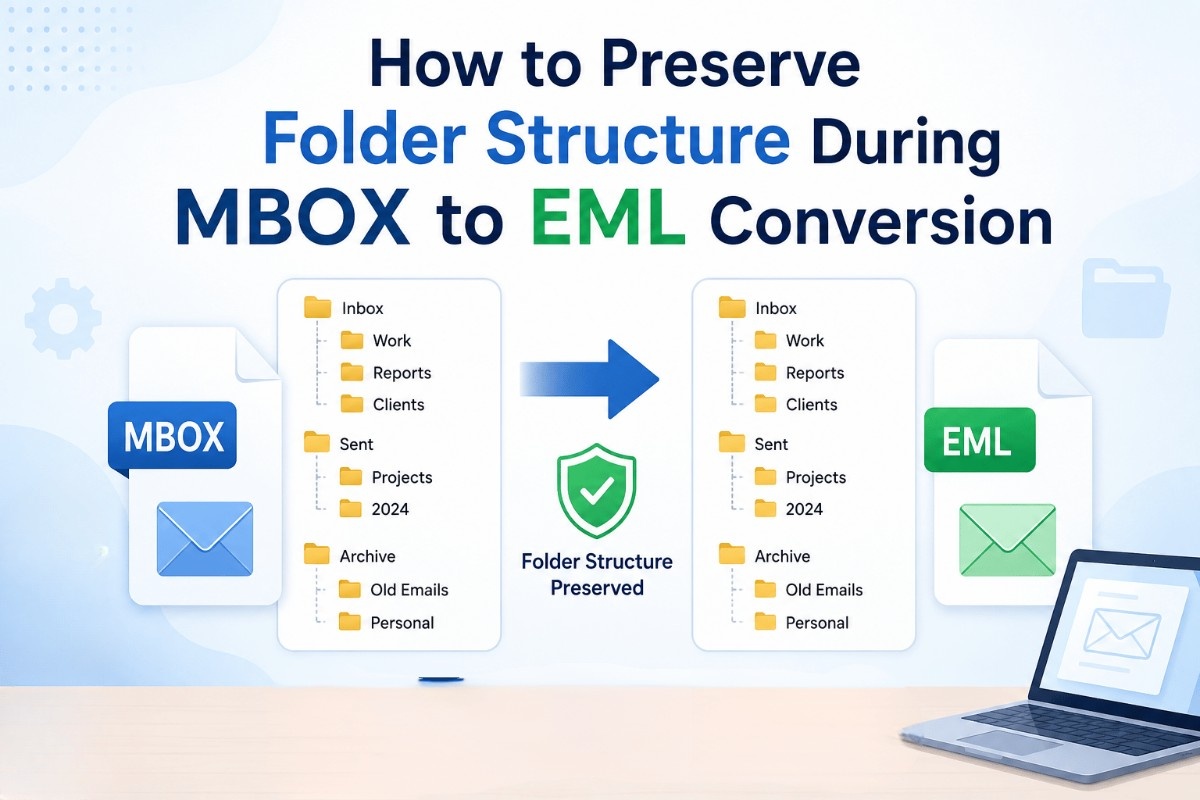
Converting MBOX files to EML is a common task when you are moving emails from one email client to another. The conversion process itself is usually easy, but many users face a surprising problem once they open the converted files – missing folders, gone subfolders or hundreds of emails dumped into a single place.
This can be frustrating, especially if you’ve organized your emails into project folders, client folders, or personal archives over the years. A cluttered mailbox makes it hard to find important messages and may slow down your work.
Fortunately, this problem can be avoided. Correctly done, you can retain the original folder structure and keep all emails exactly as they are during MBOX to EML conversion.
In this guide you will learn why sometimes folder structures change, what causes the problem, practical ways to avoid it and how professional conversion solutions help maintain mailbox organization without data loss.
Why Do Users Need to Preserve Folder Structure?
Preserving emails is just as important as maintaining the organization of emails.
1. Easier to move your email
When users migrate from Thunderbird, Apple Mail, Eudora or any other email client, they expect the destination mailbox to be identical to the original one.
Keeping the folders will make the transition much smoother.
2. Better Business Bureau (BBB)
Companies often sort emails by customer, department, project or financial year.
Otherwise, it can be difficult to find thousands of emails later on.
3. Find emails faster
Neatly arranged folders will save you time when you need to look for important conversations.
Users don’t have to sift through one large folder anymore, but can quickly jump into the right project or client folder.
4. Secure Email Backup
Many users export MBOX files to individual EML files for long-term backup.
When you maintain the original folder structure it is easier to browse through archived emails in the future.
5. Stopping Manual Reorganization
If you don’t preserve folders, it can take hours of manual effort to recreate folders and manually sort through individual emails.
This saves time and effort and avoids unnecessary work.
Method 1: Convert Individual MBOX Files
Best for: People with two or more mailbox files.
Each MBOX file typically represents a different mailbox folder. Converting them individually allows for the preservation of their identity.
Steps
- Make a copy of all the MBOX files.
- Keep them in different folders.
- Process one MBOX file at a time.
- Save the EML files in the respective folders.
- Before you begin the next conversion, check the converted emails.
Pros
- Keeps your mailbox more organized.
- Conversion problems are easier to see.
- Reduces the risk of folder mixing.
Cons
- Many mailbox files take a long time.
- Needs more manual handling.
Method 2: Maintain the Original Folder Layout
Best for: Users migrating entire email archives.
Do not rename or merge mailbox folders before conversion.
Steps
- Examine the current mailbox structure.
- Leave all parent and subfolders intact.
- Convert folders in the same order as they are.
- Save converted EML files with the same folder names.
- Compare destination folders with the original mailbox.
Pros
- Keeps mailboxes logically organized.
- Reduces confusion post migration.
Cons
- Depends on the conversion method that supports folder hierarchy.
Method 3: Avoid Merging Multiple MBOX Files
Best for: Users with separate mailboxes.
To save time, many users merge several MBOX files before converting them. But this often destroys the original folder organization.
Steps
- Keep each mail box separate.
- Convert each mail box individually.
- Write each output to its own destination folder.
- If you have to combine archives, please check each converted folder.
Pros
- Prevents folders to overlap.
- Makes verification easier.
Cons
- Additional storage space is needed.
Method 4: Verify Folder Structure After Conversion
Best for: All users.
Never assume that the conversion has been done flawlessly.
Steps
- Open some converted folders.
- Compare folder names with the original mailbox.
- Look in subfolders.
- Open random e-mails.
- See attachments.
- Count emails in the main folder.
- If major differences are found, repeat the conversion process.
Pros
- Early detection of problems.
- Prevents accidental loss of data.
Cons
- More time-consuming.
Advanced or Professional Solution
When you need to keep your mailbox organized, manual methods may not always provide consistent results. Processing large MBOX files, multiple mailbox archives and nested folders needs more resilient processing.
The DataVare MBOX to EML Converter software is developed to accurately read mailbox folders and generate EML files, keeping the existing folder structure to the extent possible.
It provides mailbox preview, selective conversion, batch processing and support for large MBOX files. These features reduce manual labor and the risk of misplaced emails.
The main benefit is consistency. Instead of having to sort through hundreds or thousands of converted emails, the user is presented with an output that closely resembles the structure of the original mailbox.
Whatever method you use, make sure you verify the converted folders before deleting the original MBOX files.
Features & Benefits
- Preserves the original folder hierarchy.
- Preserves the structure of parent and subfolders.
- Org just converts emails. Still the same.
- Supports large MBOX mailbox files.
- To save time convert in batches.
- Selective folder conversion.
- Retains attachments.
- It keeps the original MBOX files safe during the process.
Conclusion
Preserving Folder Structure during MBOX to EML Conversion: It is important to keep your mailbox organized and easy to manage. While the conversion itself is important, keeping the original hierarchy saves countless hours that would otherwise be spent manually reorganizing emails.
For smaller mailboxes, a careful planning process, converting the files one at a time, and checking the results may be sufficient. If you are migrating larger mailboxes or business archives, it’s far easier to use a trusted conversion solution that enables you to preserve the folder hierarchy.
Always compare the converted folders, check email counts and open several messages to ensure everything has been transferred correctly before deleting your original MBOX files.